Moving around
The vim motions you know, plus three bi adds: s to jump to anything on screen, ]]/[[ to walk the parse tree, and a search that tells you where you are in it.
Motions and counts
Every motion works on its own or as the target of an operator (dw, c$,
y}), and a count goes where vim puts it: 5j, 3w, d3w. Two counts
multiply — 2d3w deletes six words.
| Key | Moves to |
|---|---|
h j k l | left, down, up, right — j/k keep a goal column through short lines |
w b e ge | next / previous word start, next / previous word end |
W B E gE | the same over WORDs, so foo.bar is one |
f{c} F{c} t{c} T{c} | onto / just before a character on the line; ; , repeat |
0 ^ $ g_ | column zero, first non-blank, end of line, last non-blank |
{ } | previous / next blank line |
% | the bracket matching the one at or after the cursor |
gg G | first line; last line, or line {n} with a count |
:{n} | line {n} — a range with no command goes to its last line |
Jump to anything on screen: s
Most of the time the place you want is already on screen, a few rows away.
s is for that: the screen dims the moment you press it, then every match of
what you type gets a letter after it. Press the letter and you are on the
first character of that match. No Enter anywhere.
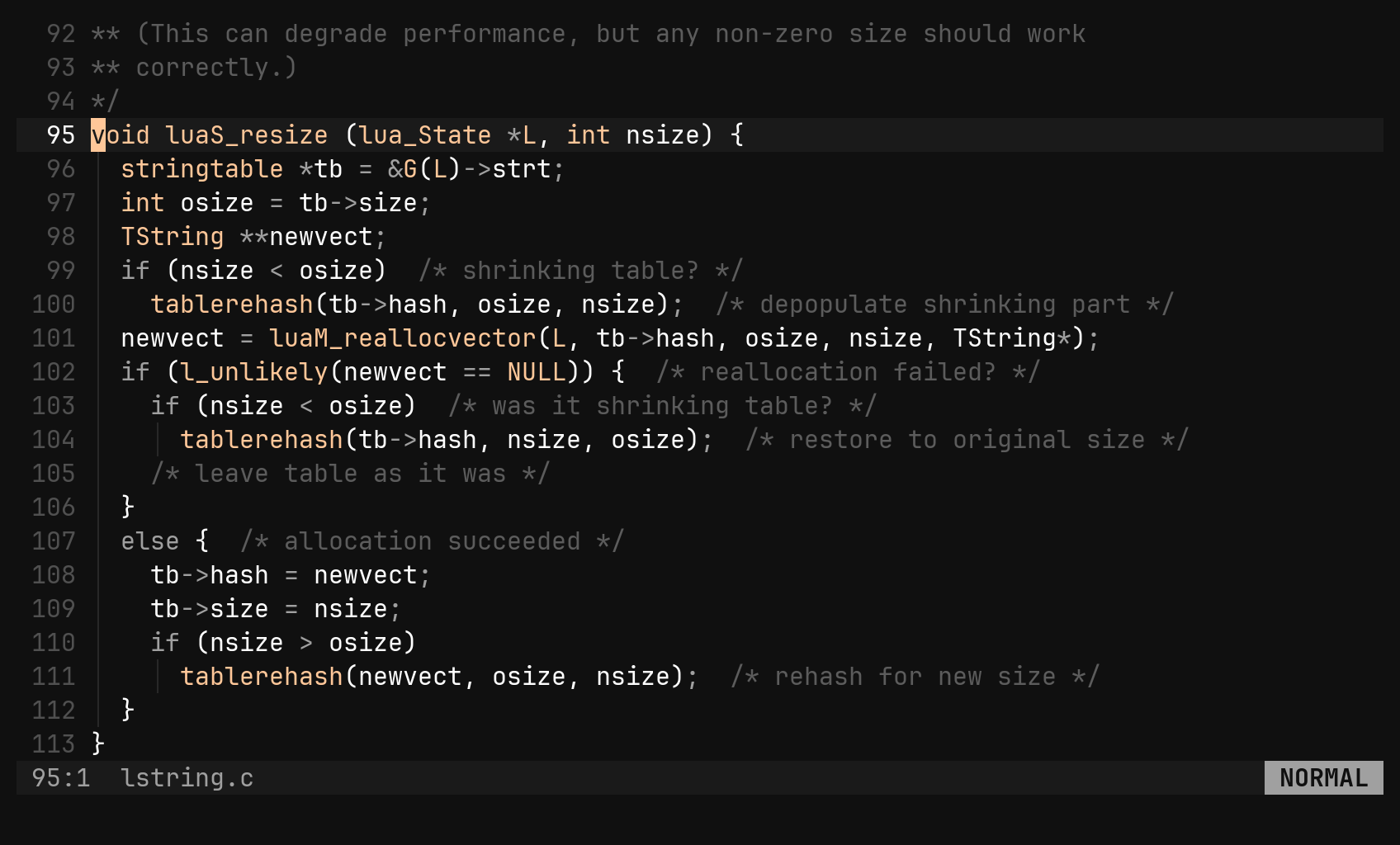
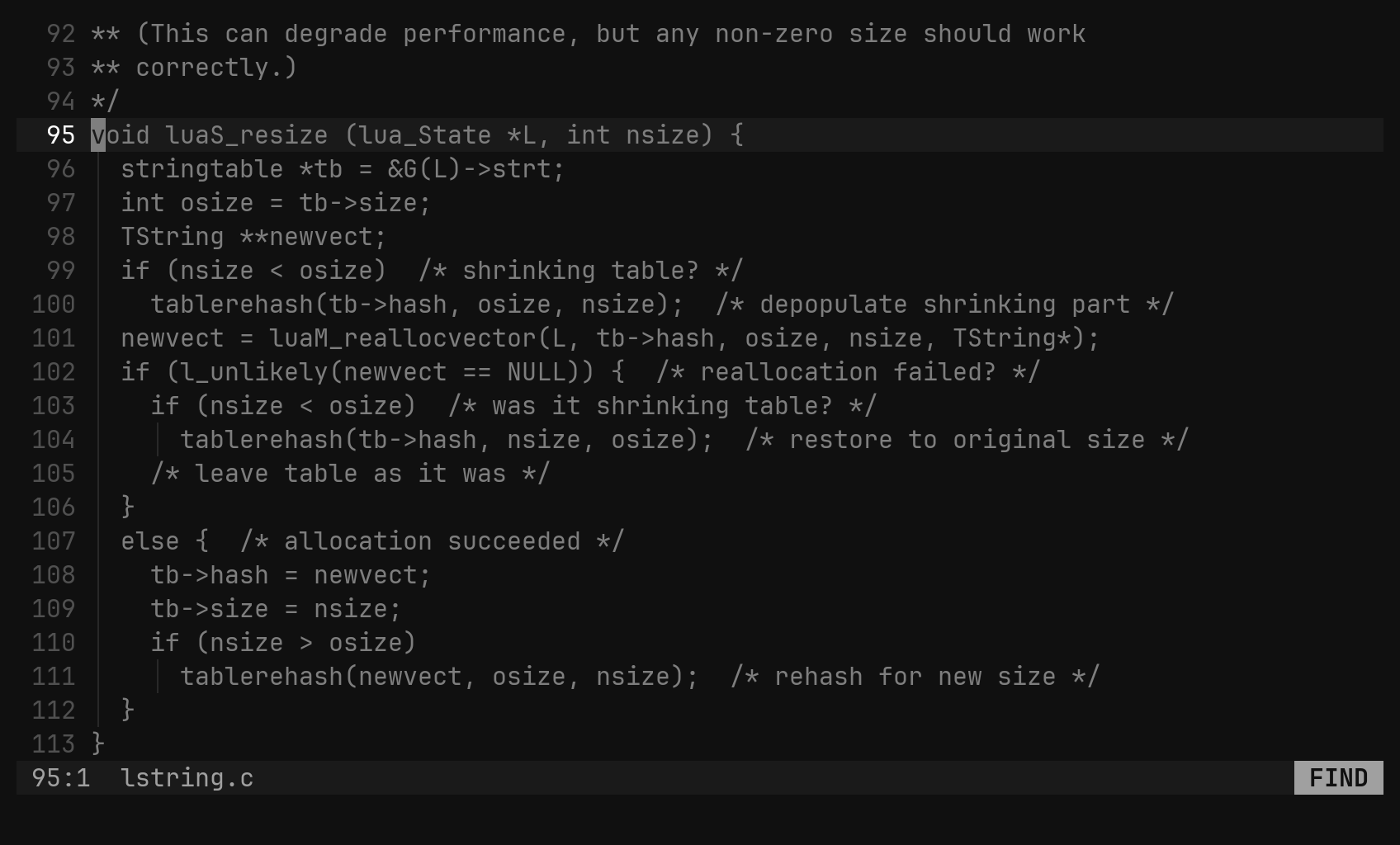
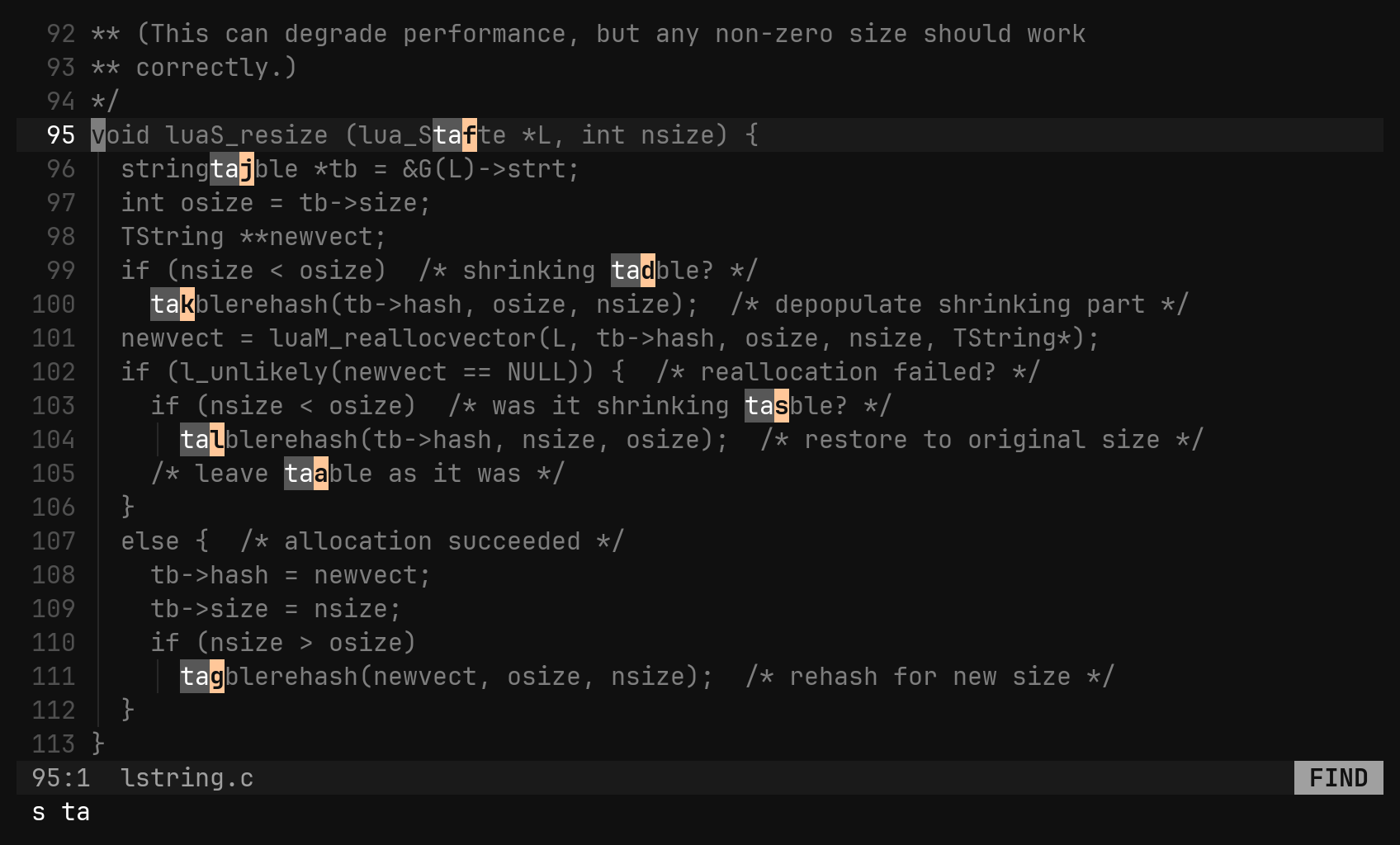
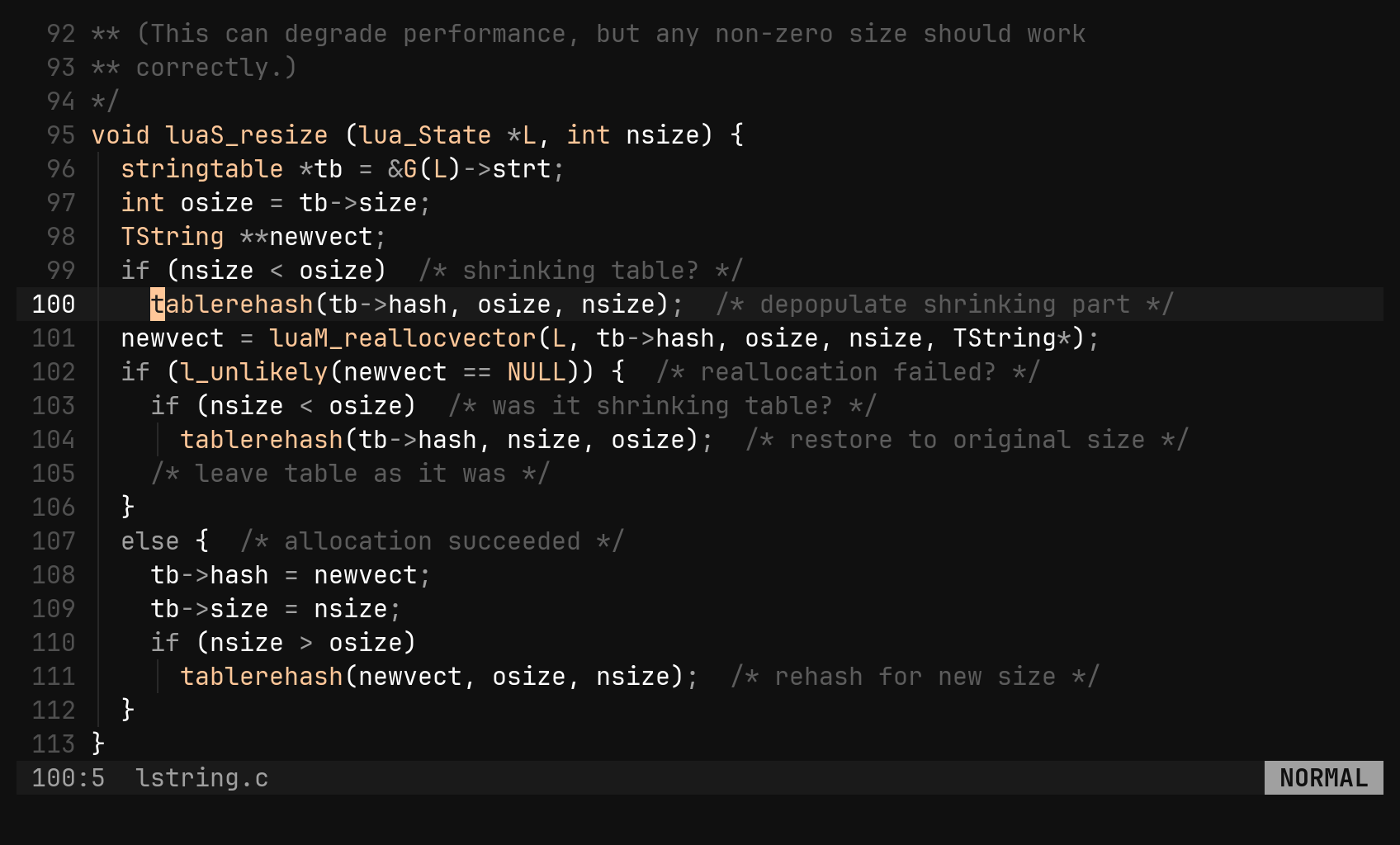
- Only the viewport is searched: this is a jump, not a search.
- The letters never include a character that could narrow the search, so you can keep typing or jump at any moment without switching modes.
- Letters are inserted between cells, so the text after a match stays readable.
- Smartcase, like
/.Backspacetakes a character back,Escleaves, and a query that matches nothing leaves by itself.
s is “substitute a character” — cl spelled shorter. cl still
works.Walk the structure: ]] and [[
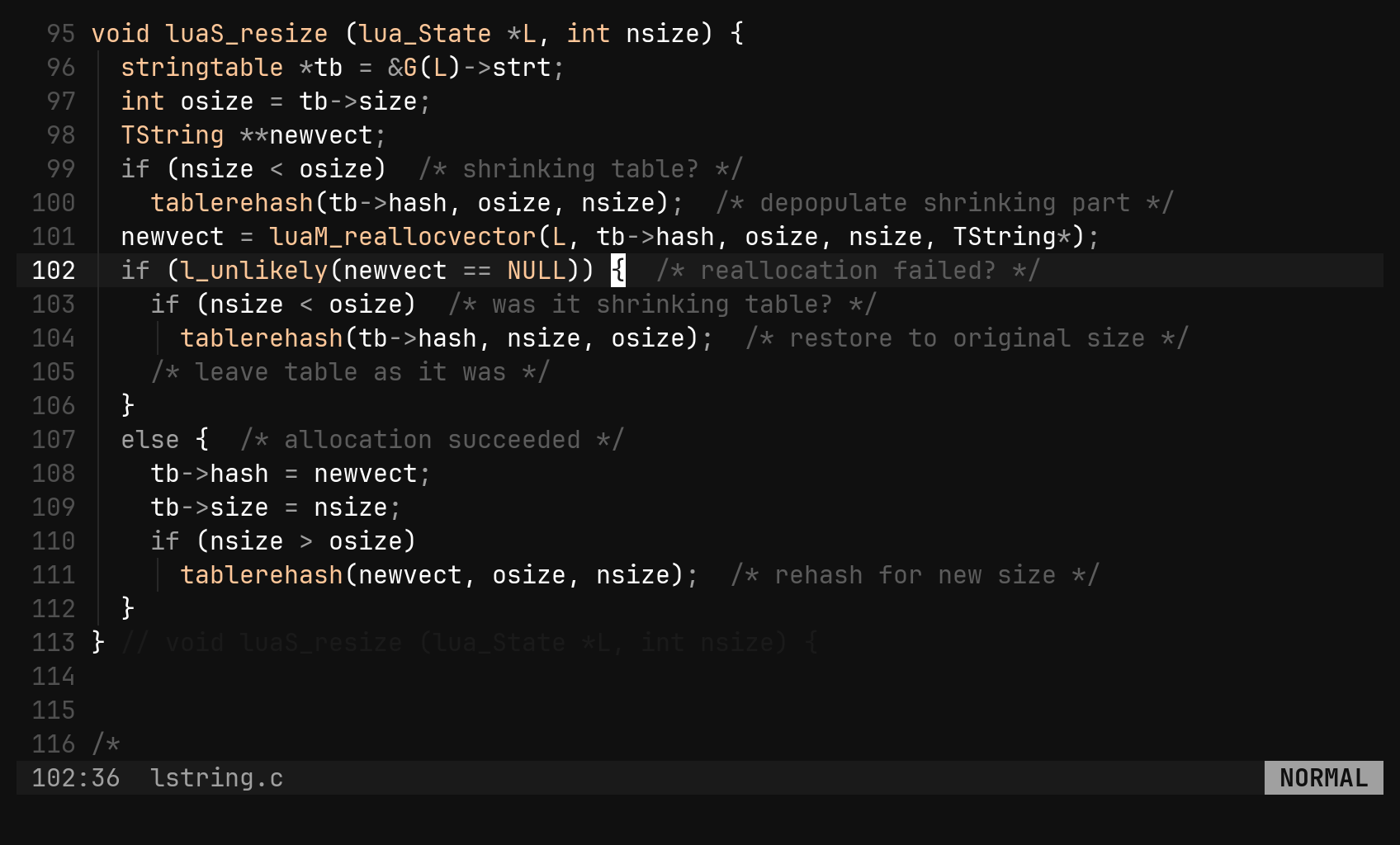
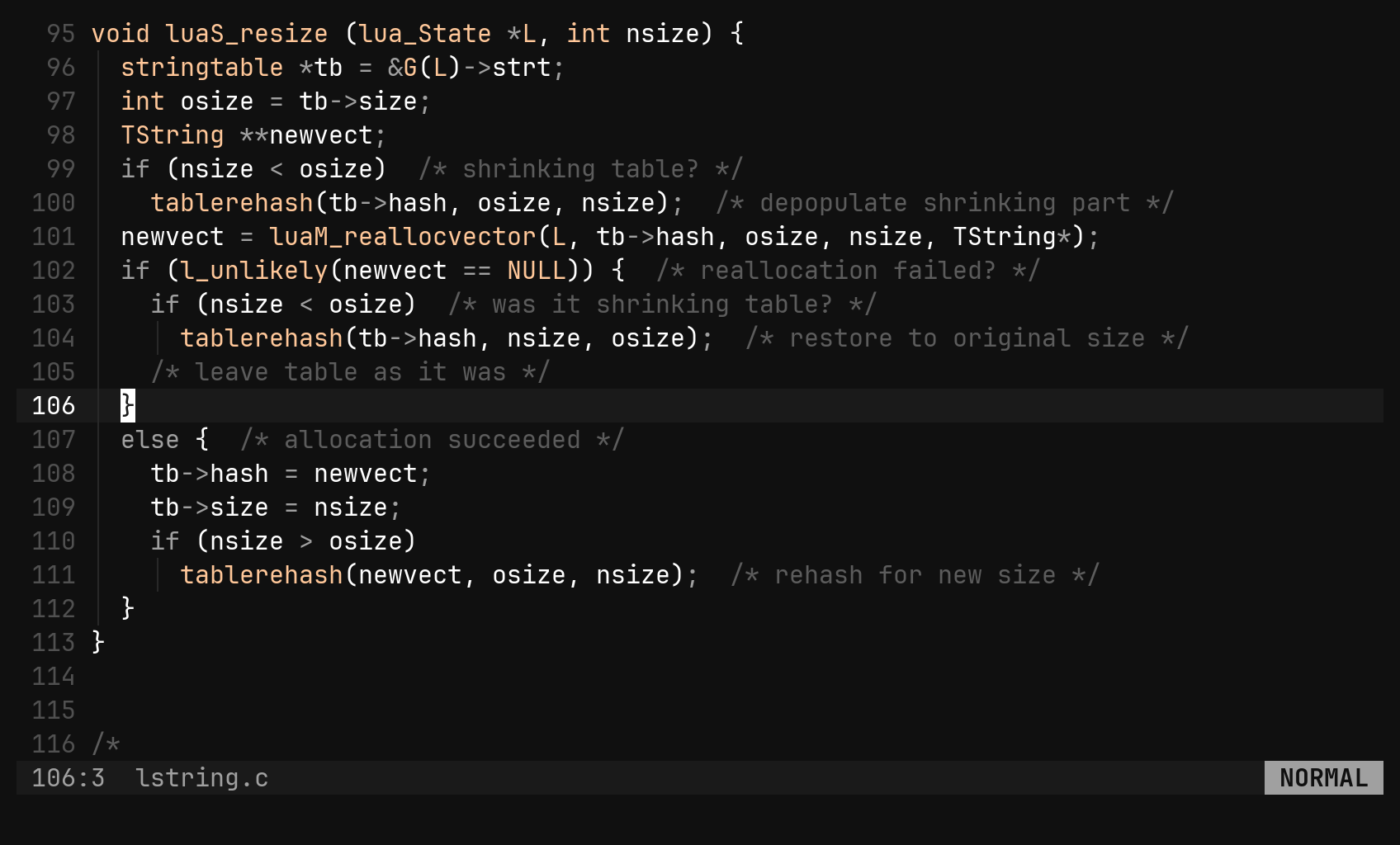
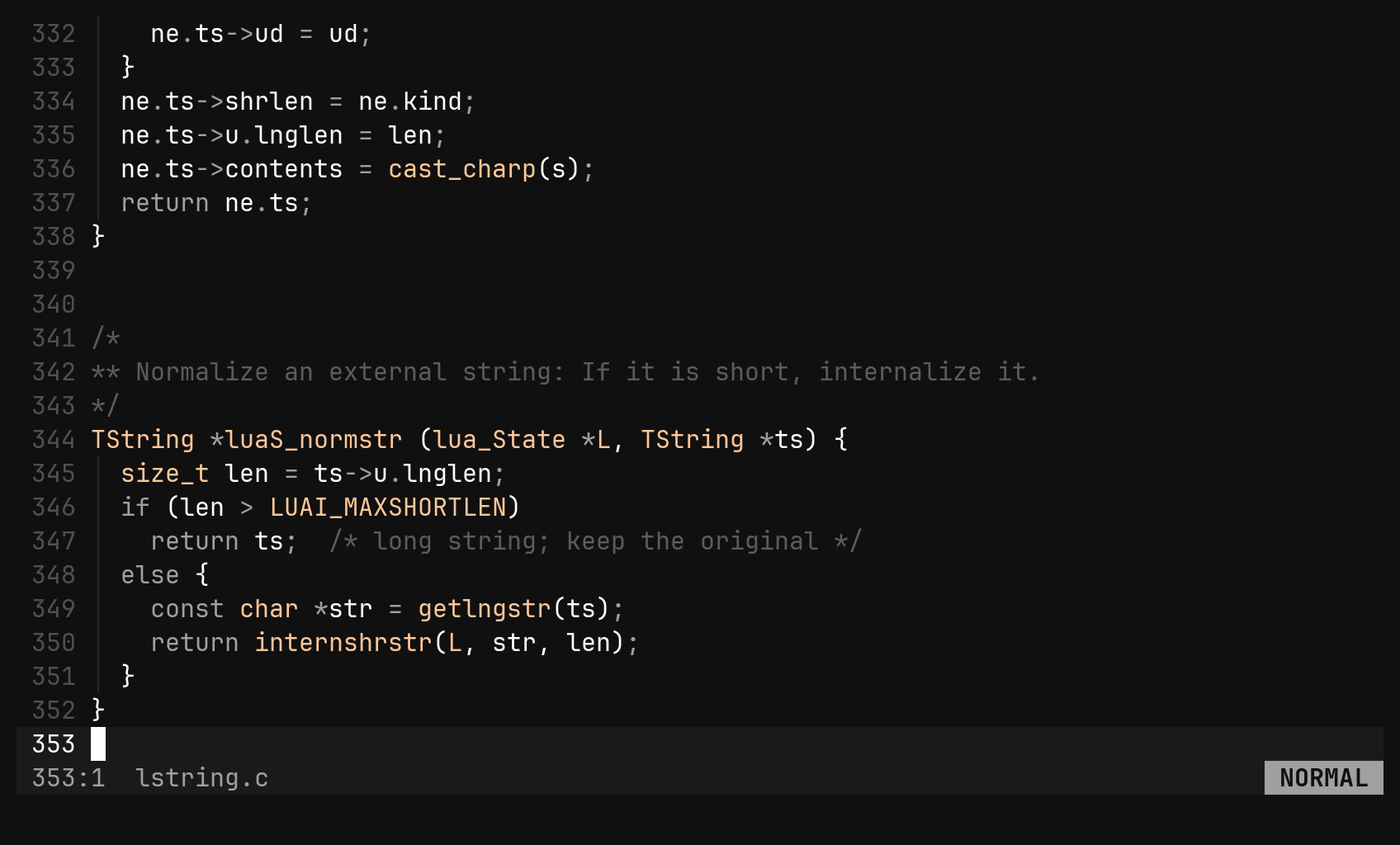
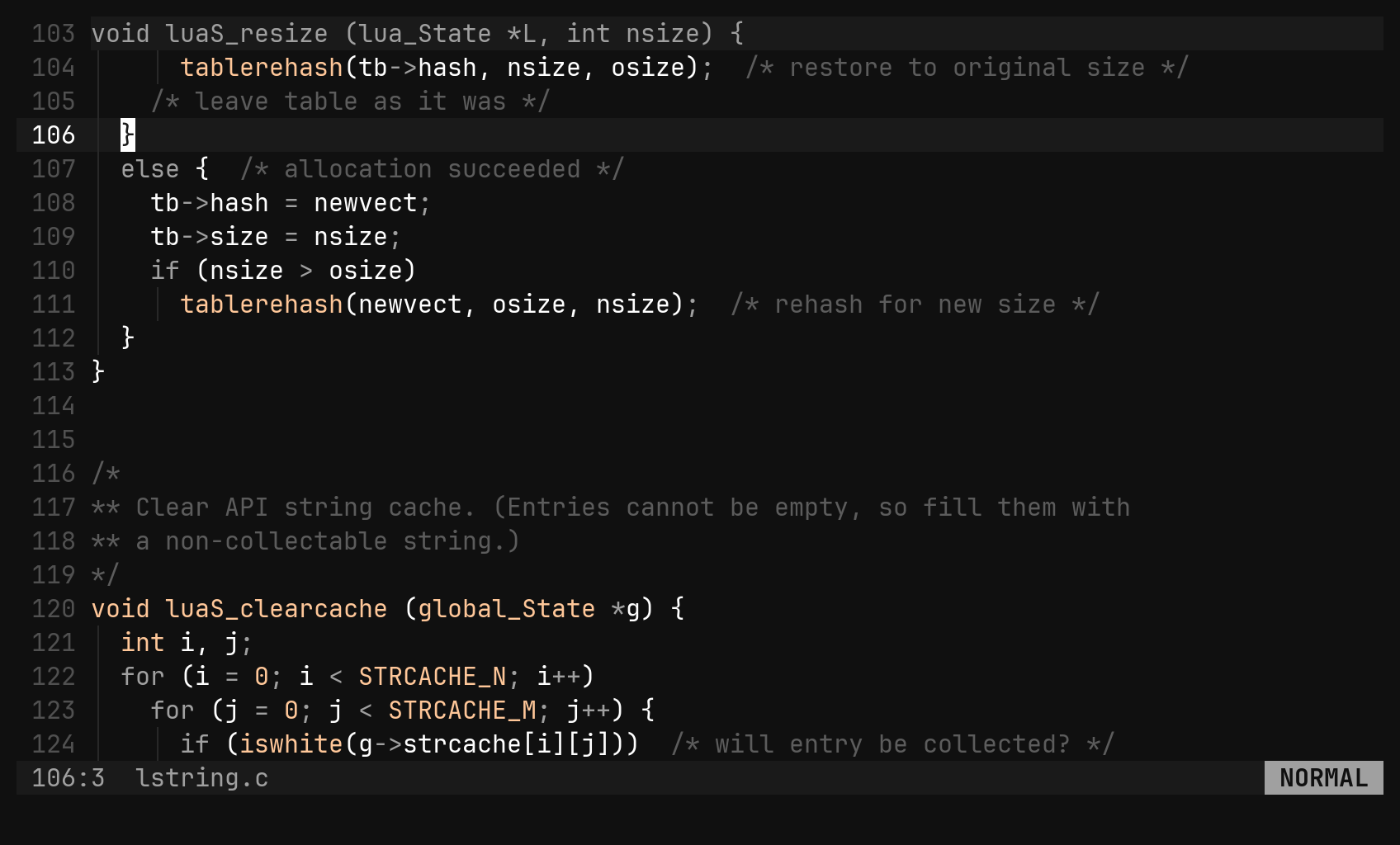
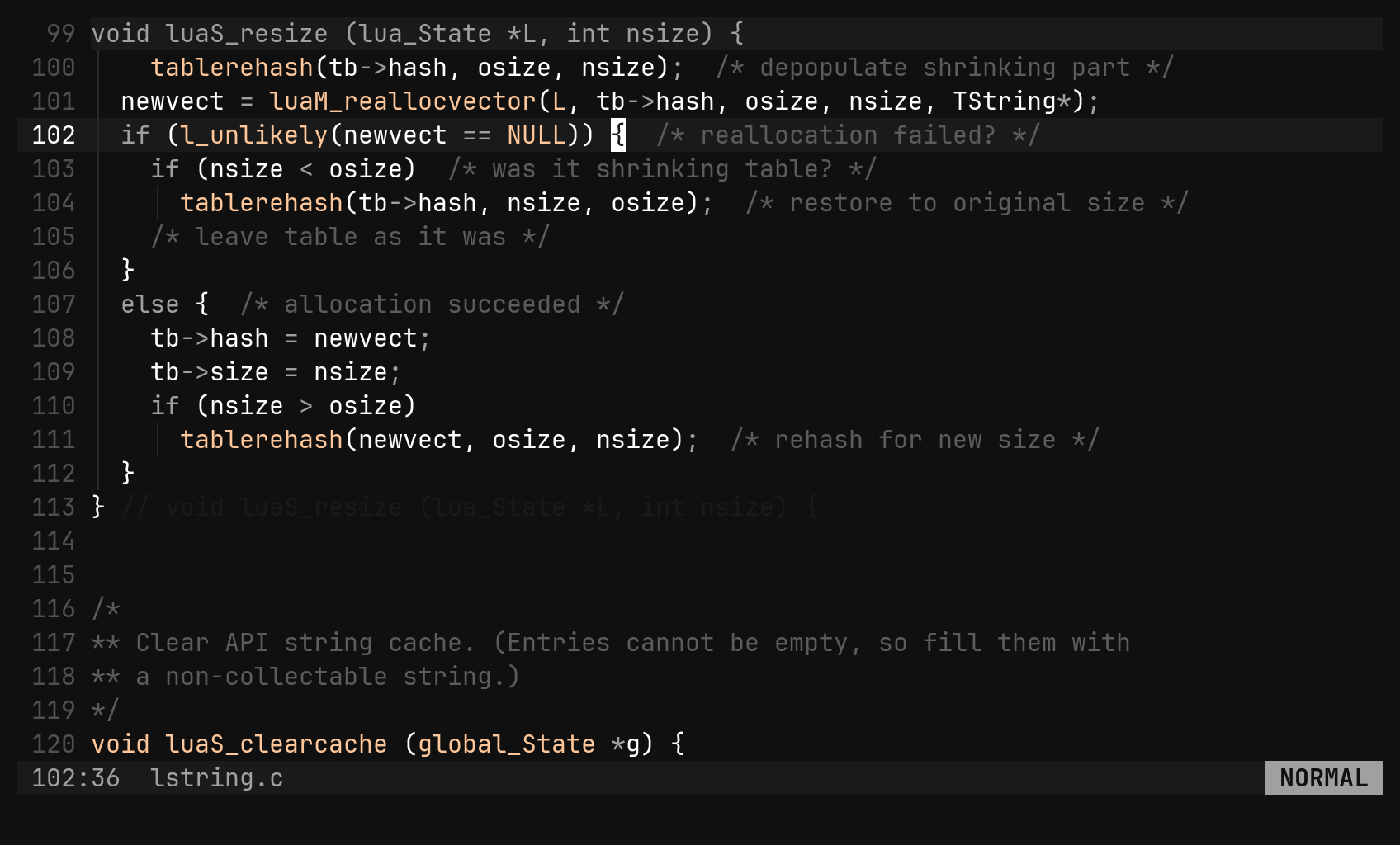
The parse tree knows where every block and argument list starts and ends.
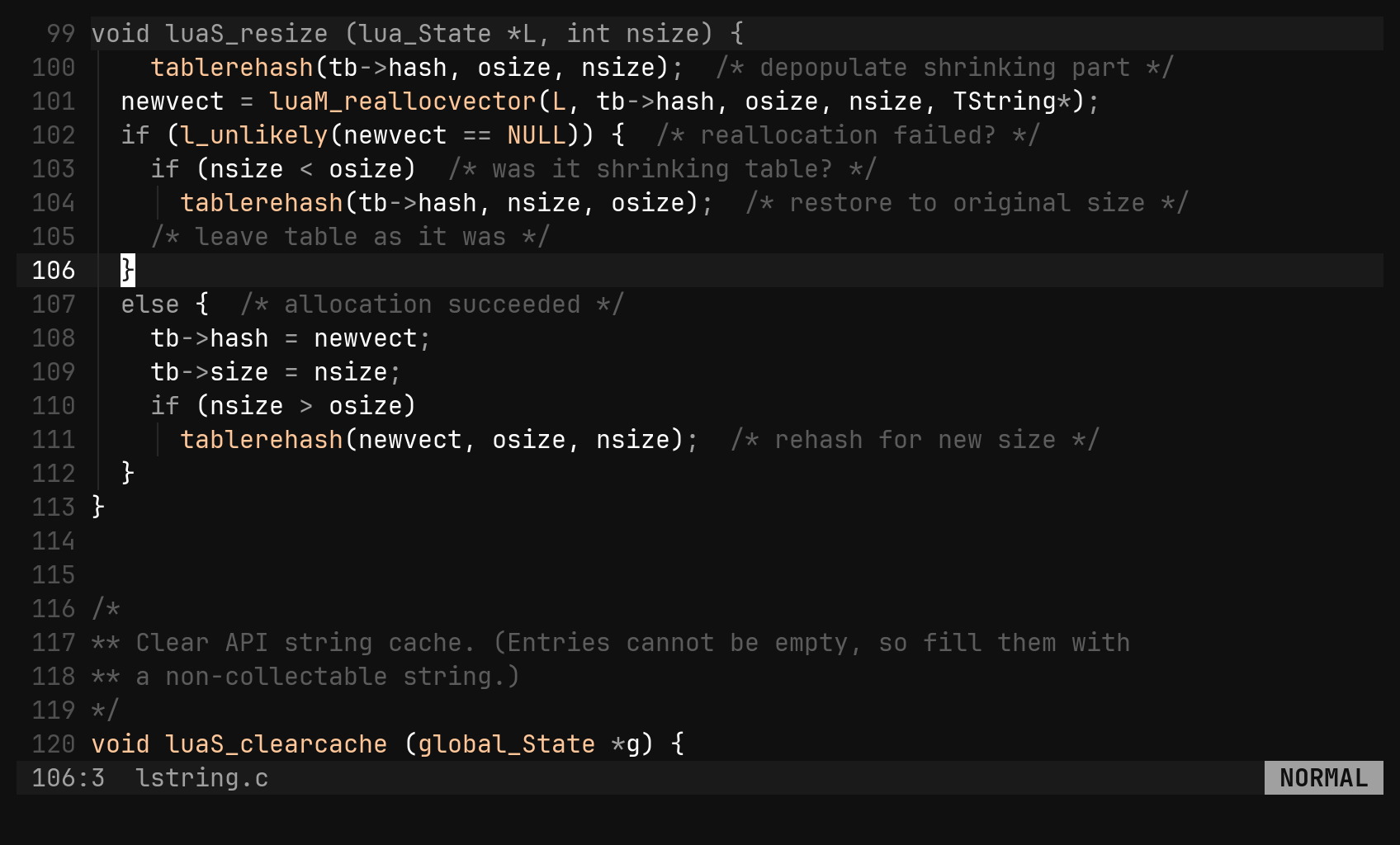
]] and [[ walk those edges the way w walks words: every start and end
of a multi-line block is a stop, and so is every argument, so ]] inside a
signature hops parameter to parameter. :ts paints every stop on screen, and
stays on until :ts again.
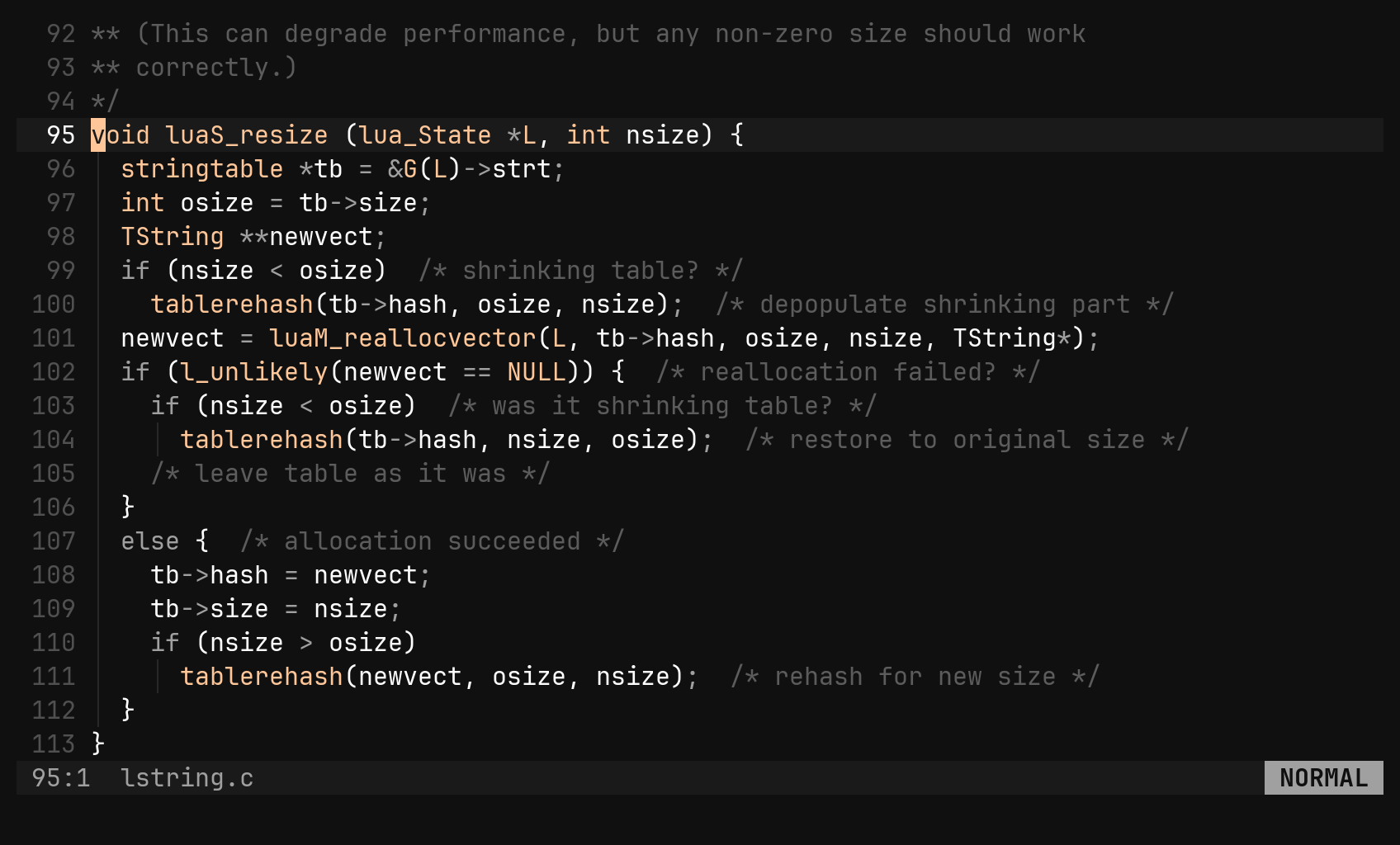
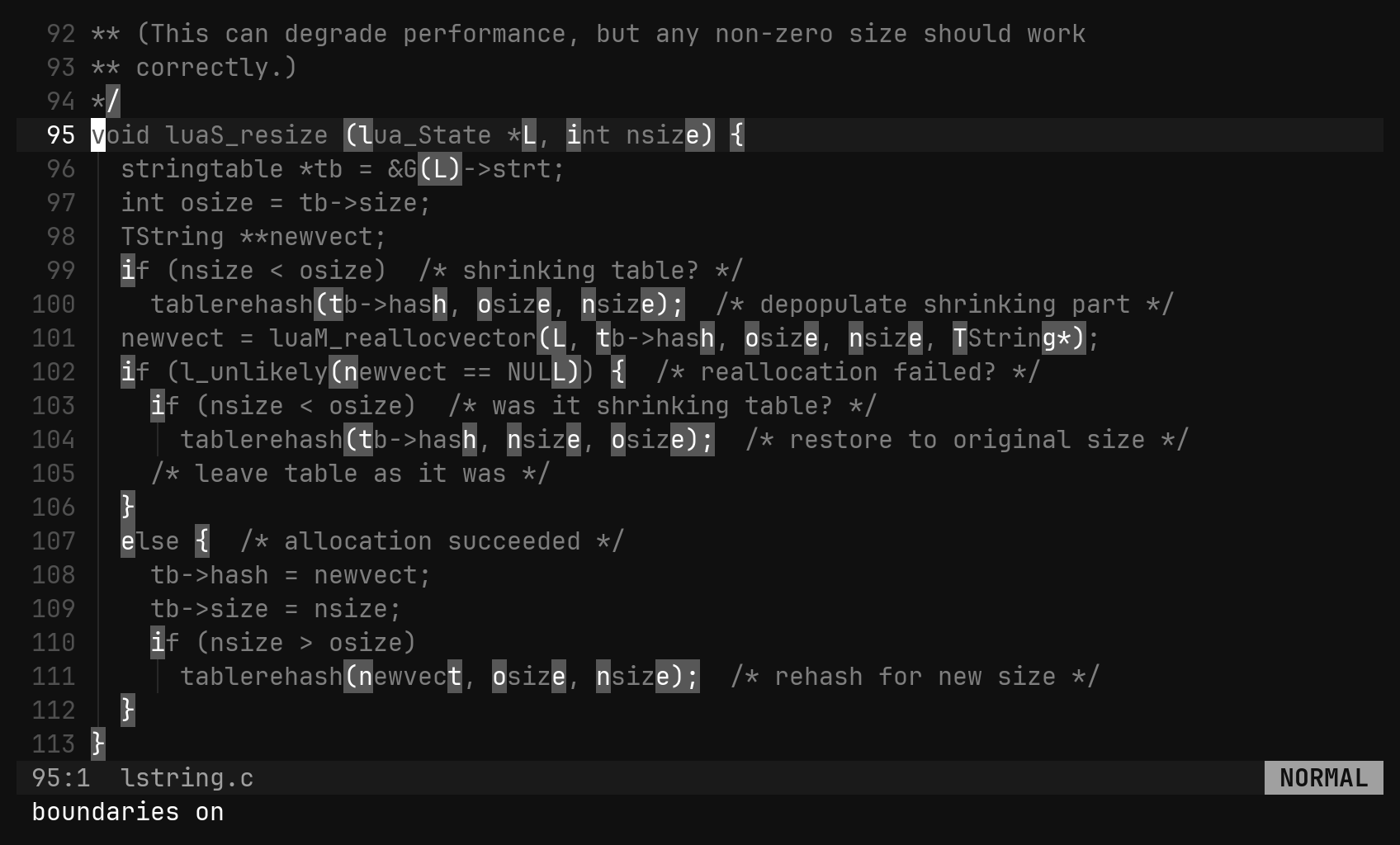
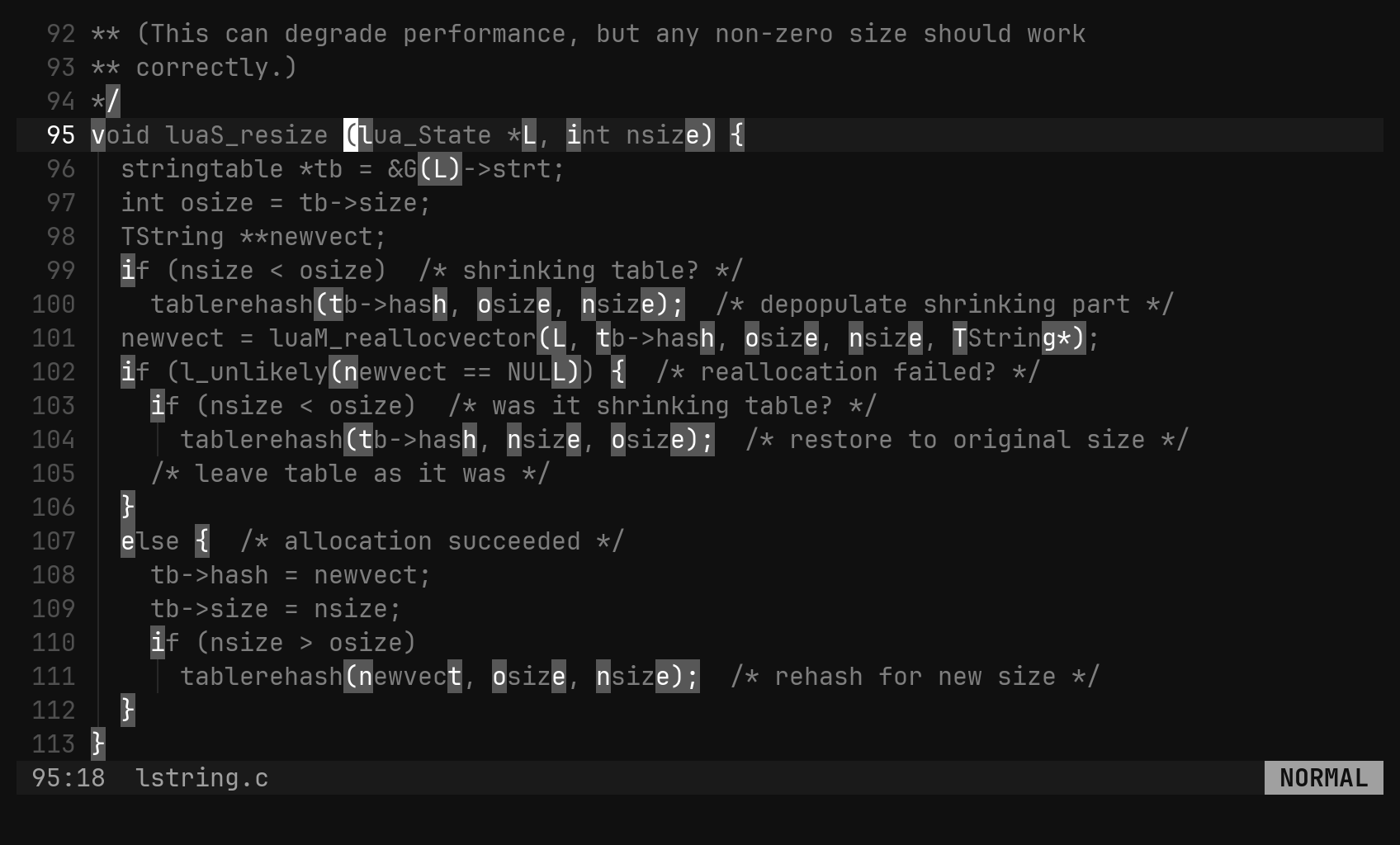
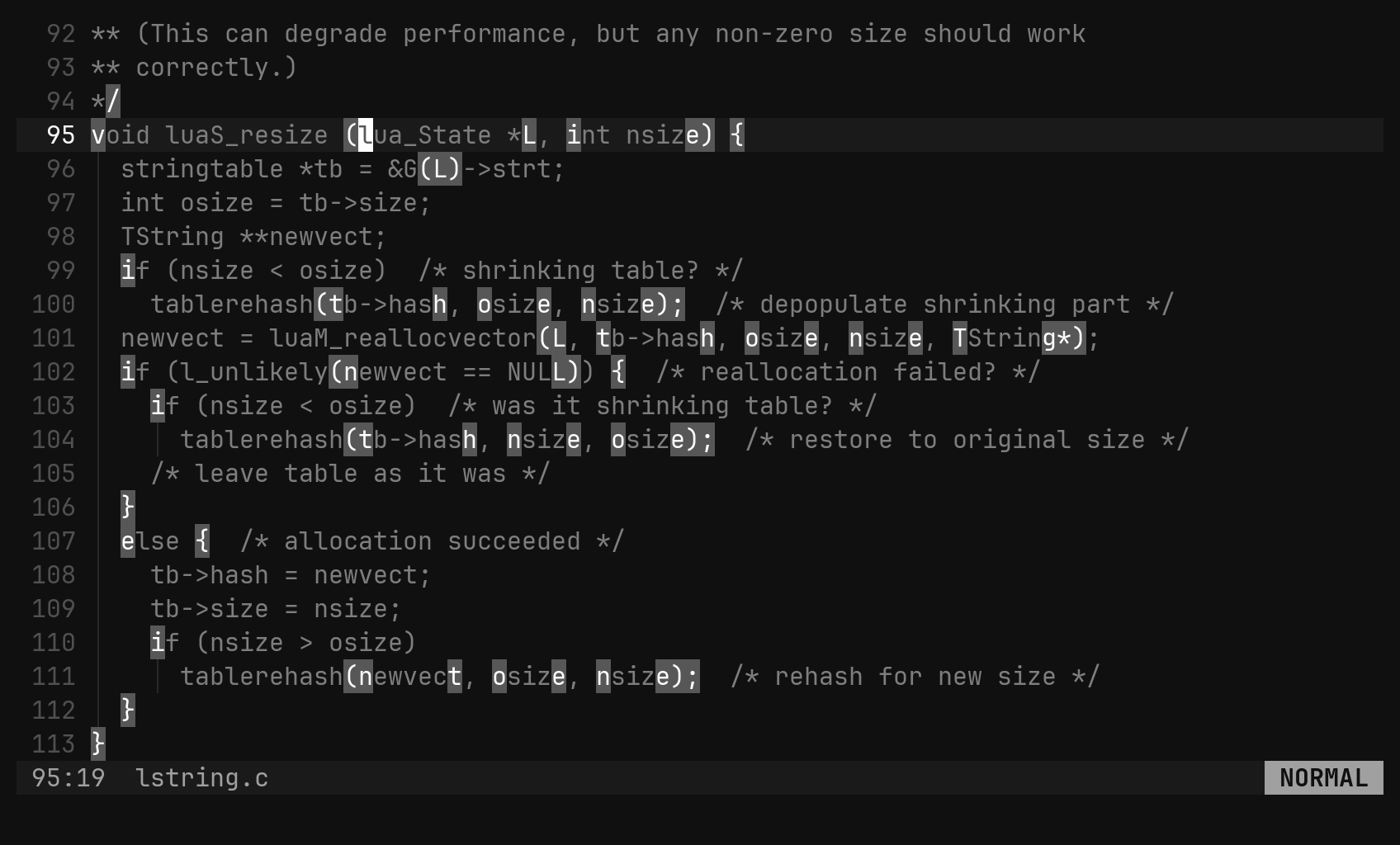
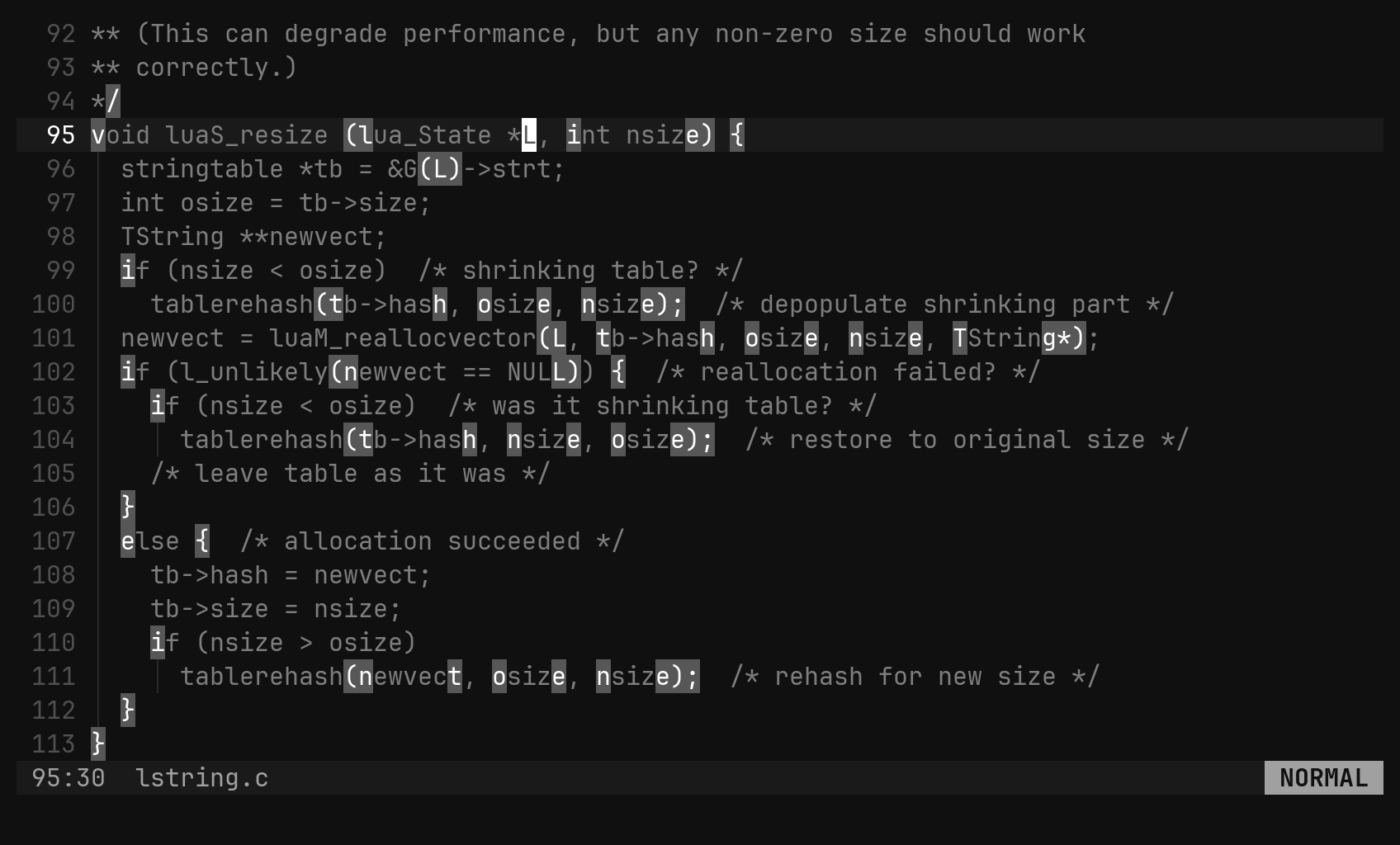
At the last boundary ]] stays put rather than wrapping. In a file bi has no
grammar for, both keys say no syntax tree here.
]] and [[ look for a { in the first column — a C convention.
In bi they follow the parse tree, in any of its twenty grammars.Search
| Key | Does |
|---|---|
/pat ?pat | search forward / backward, wrapping |
n N | repeat the search / repeat it reversed |
* # | whole-word search for the word under the cursor |
:hls :noh | start / stop highlighting every match |
A search is a motion, so d/foo works and stops just before the match. An
all-lowercase pattern matches either case; a capital anywhere makes it
case-sensitive. A bare / repeats the last pattern.
What a search leaves behind is the footer. While a search is live the footer
shows only the search: the pattern, prefixed with the direction you are
travelling, and [4/11] — which match you are on, out of how many.
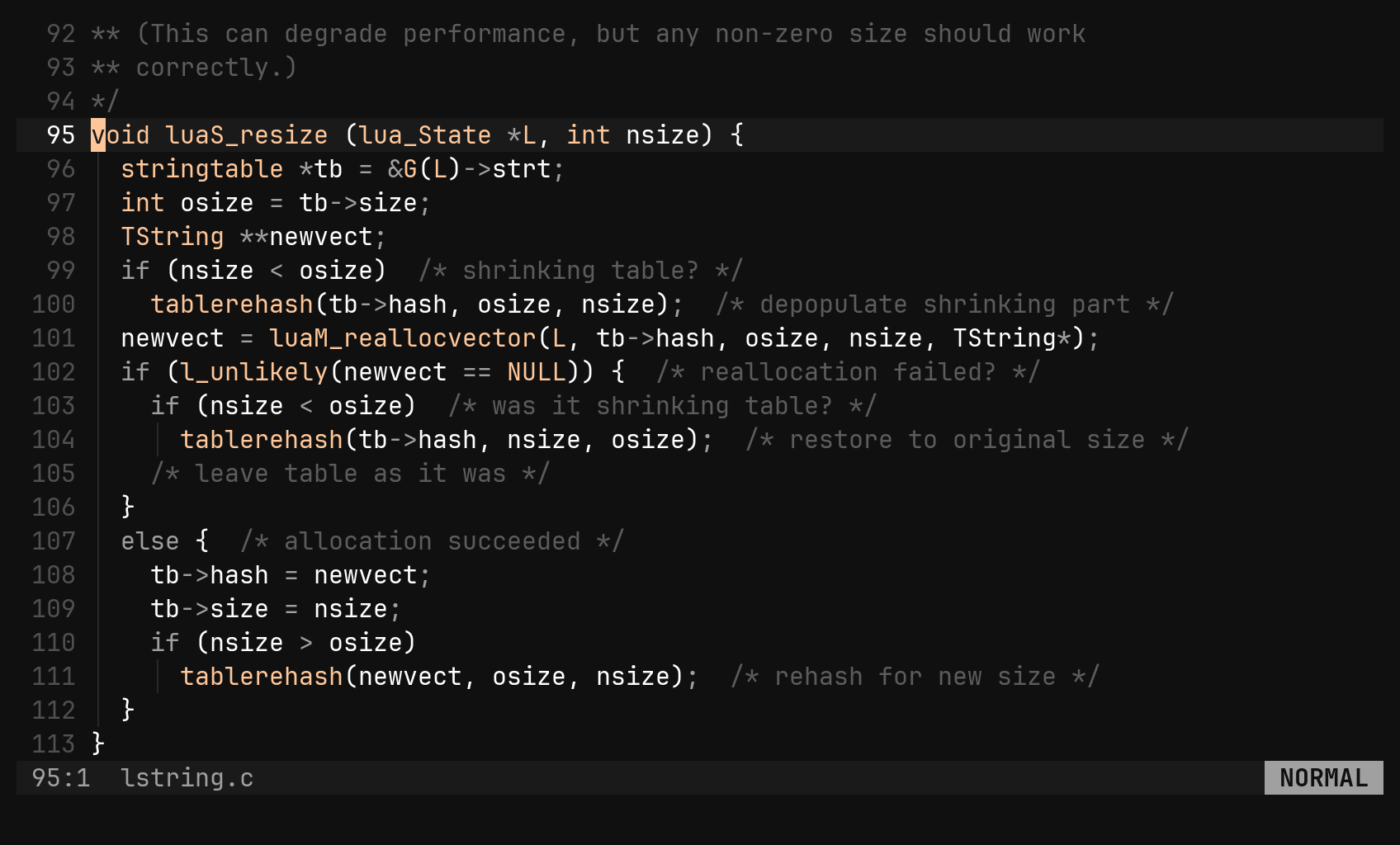
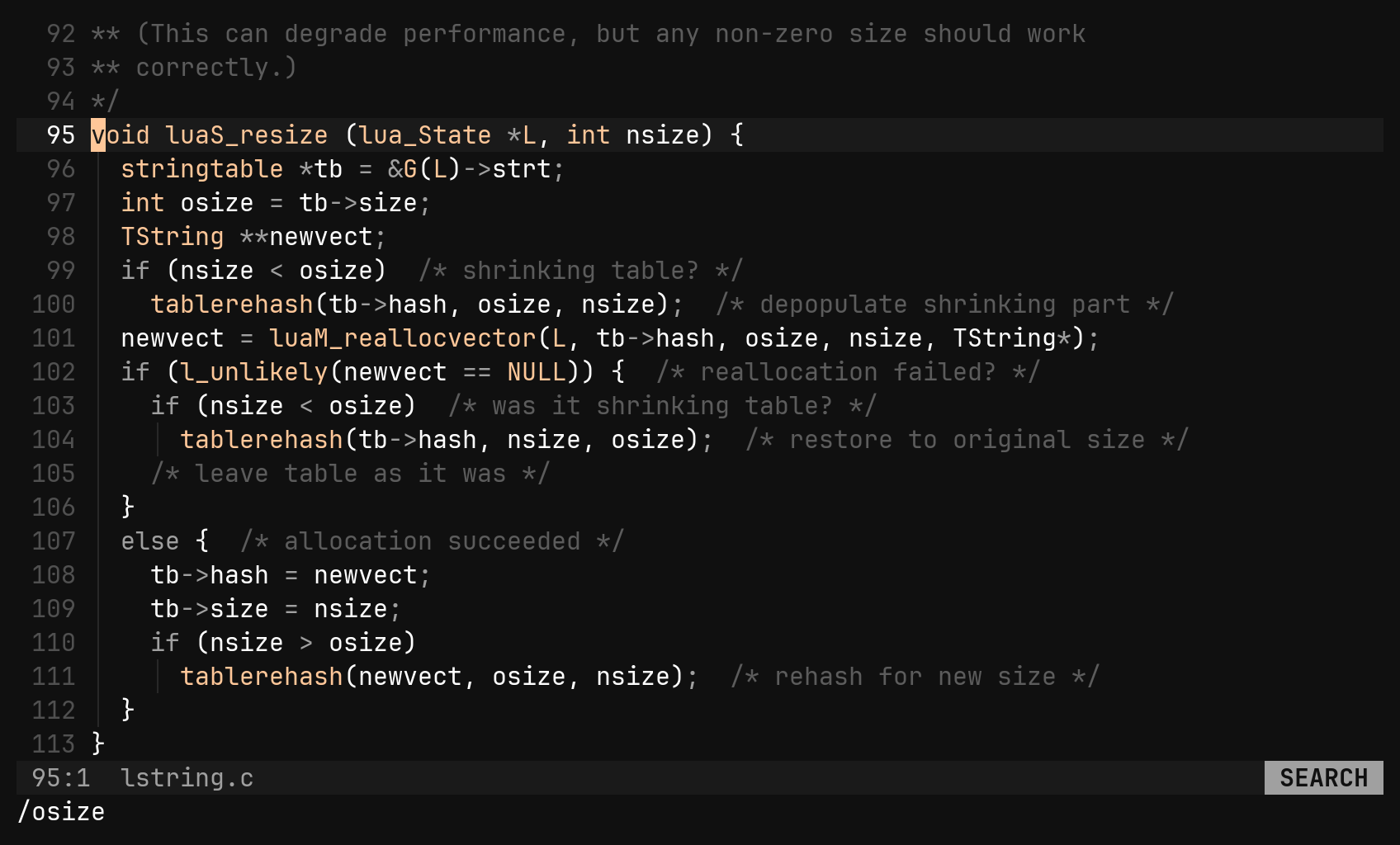
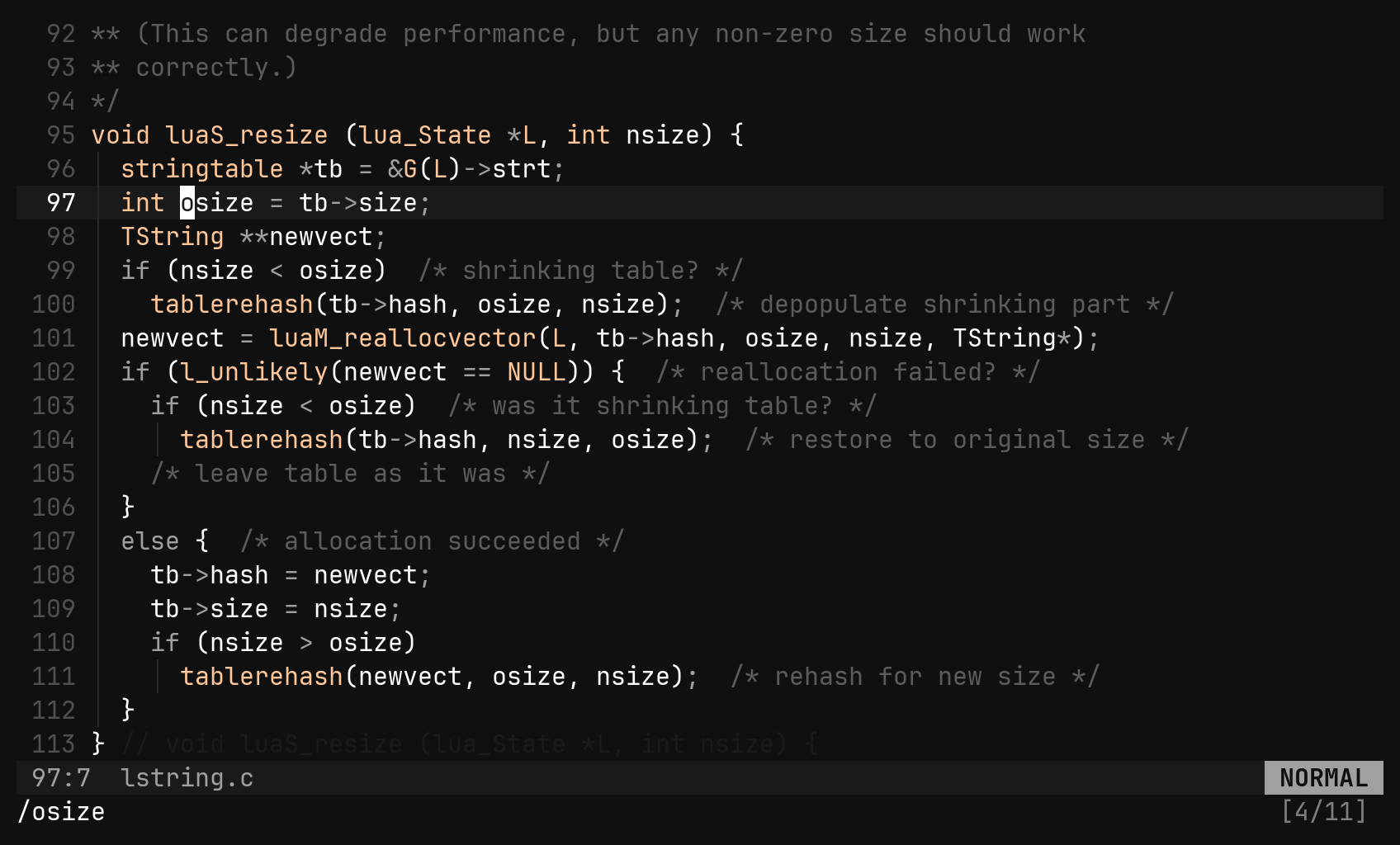
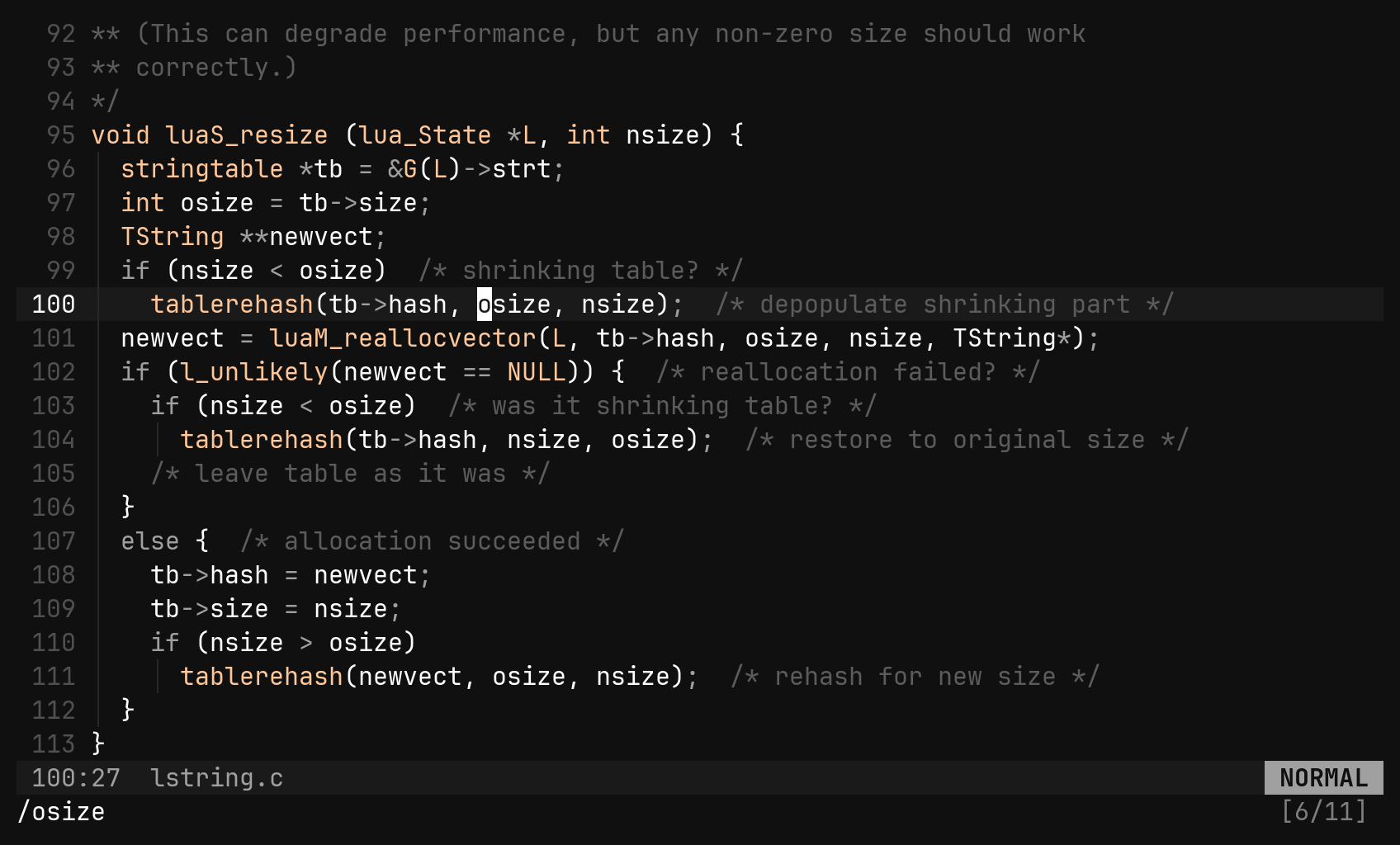
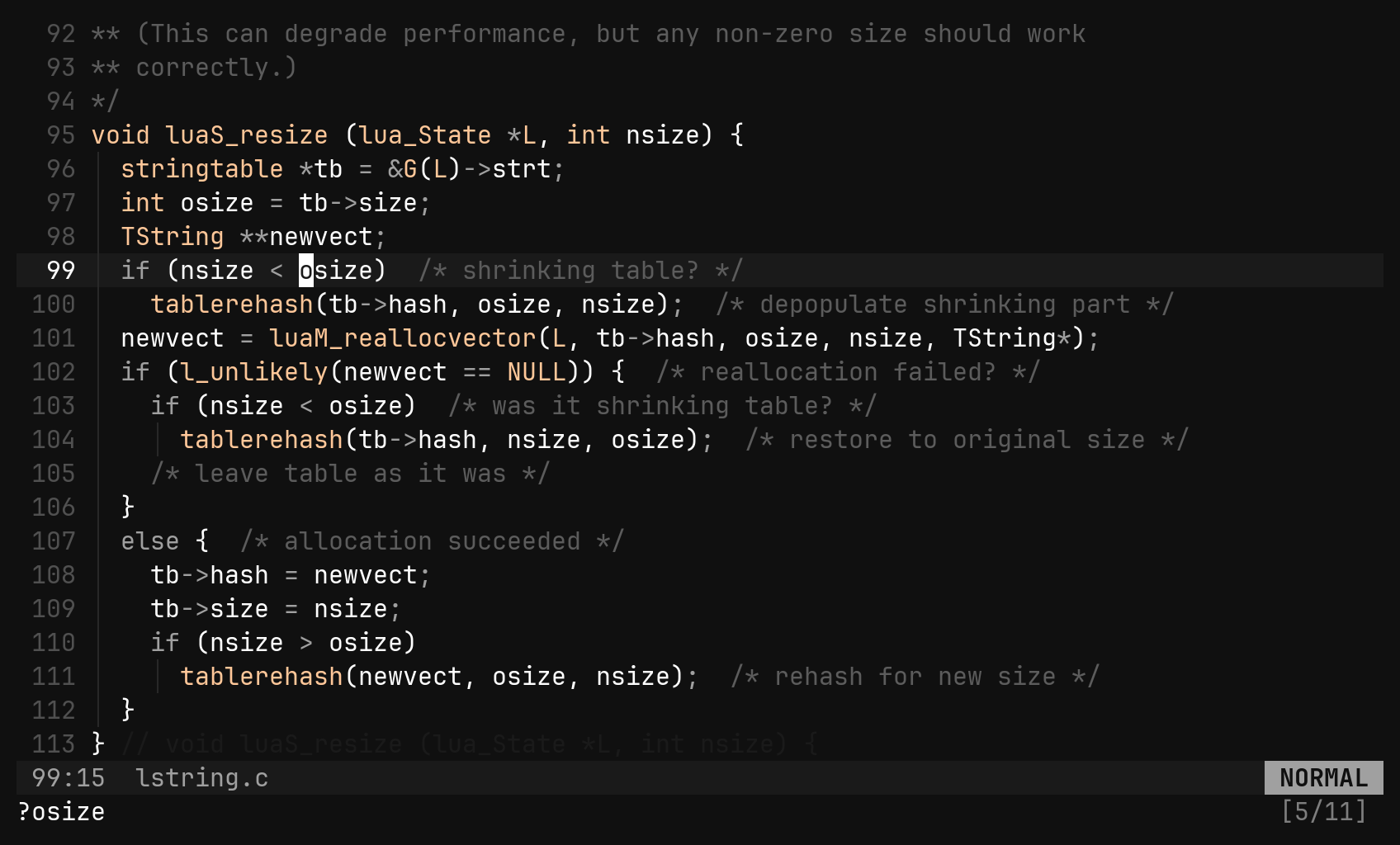
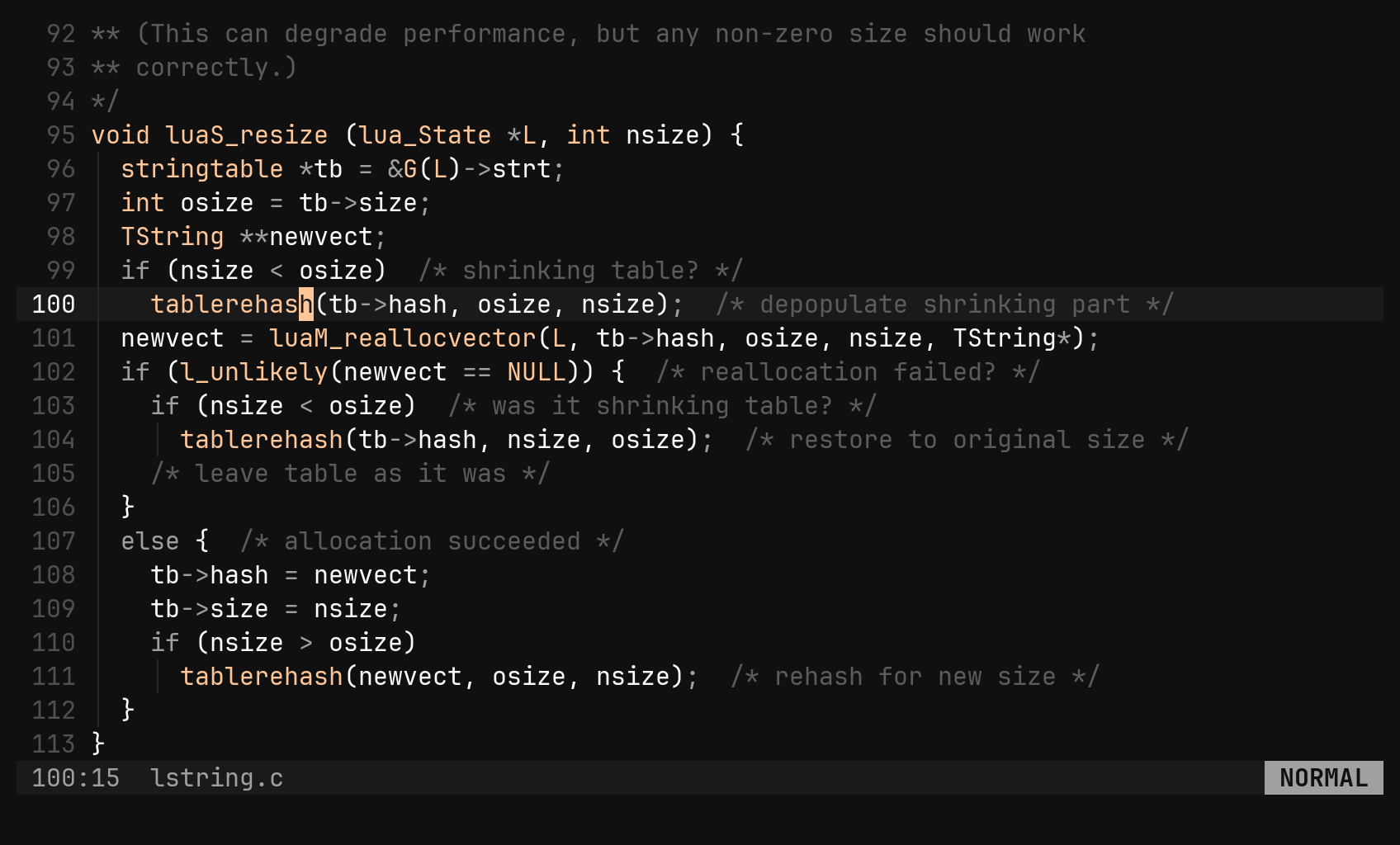
shortmess dance — :hls if you want the paint. Patterns are literal:
bi’s search has no regular expressions yet.The jump list
Big moves are jumps: G, gg, :{n}, /, ?, n, N, *, #,
%, {, }, gd, a picker, :e, :b, Ctrl-^. Ctrl-O goes back to
where you were before one, across files, and Ctrl-I goes forward again.
Small motions you can see — w, j, f — are not recorded.
The list belongs to the window, not to the file in it. A pane that
displaces the text — :find’s results, :results, a tree, a picture —
records the place it displaced, so Ctrl-O after Enter on a hit goes back
to where you typed :find. Going text → tree → a different file keeps the
list too.
| Key | Does |
|---|---|
Ctrl-O | back to before the last jump |
Ctrl-I, Tab | forward again |
'' | toggle to the position before the latest jump |
Tab is Ctrl-I byte for byte in a terminal, so it is jump-forward too. For
the next buffer use :bn, gb or Ctrl-^.Scrolling
| Key | Does |
|---|---|
Ctrl-E Ctrl-Y | move the window one line down / up; the cursor only moves if it would fall off |
Ctrl-D Ctrl-U | half a window down / up, cursor along |
H M L, zz zt zb and Ctrl-F Ctrl-B are deliberately absent for
now.