Multiple cursors
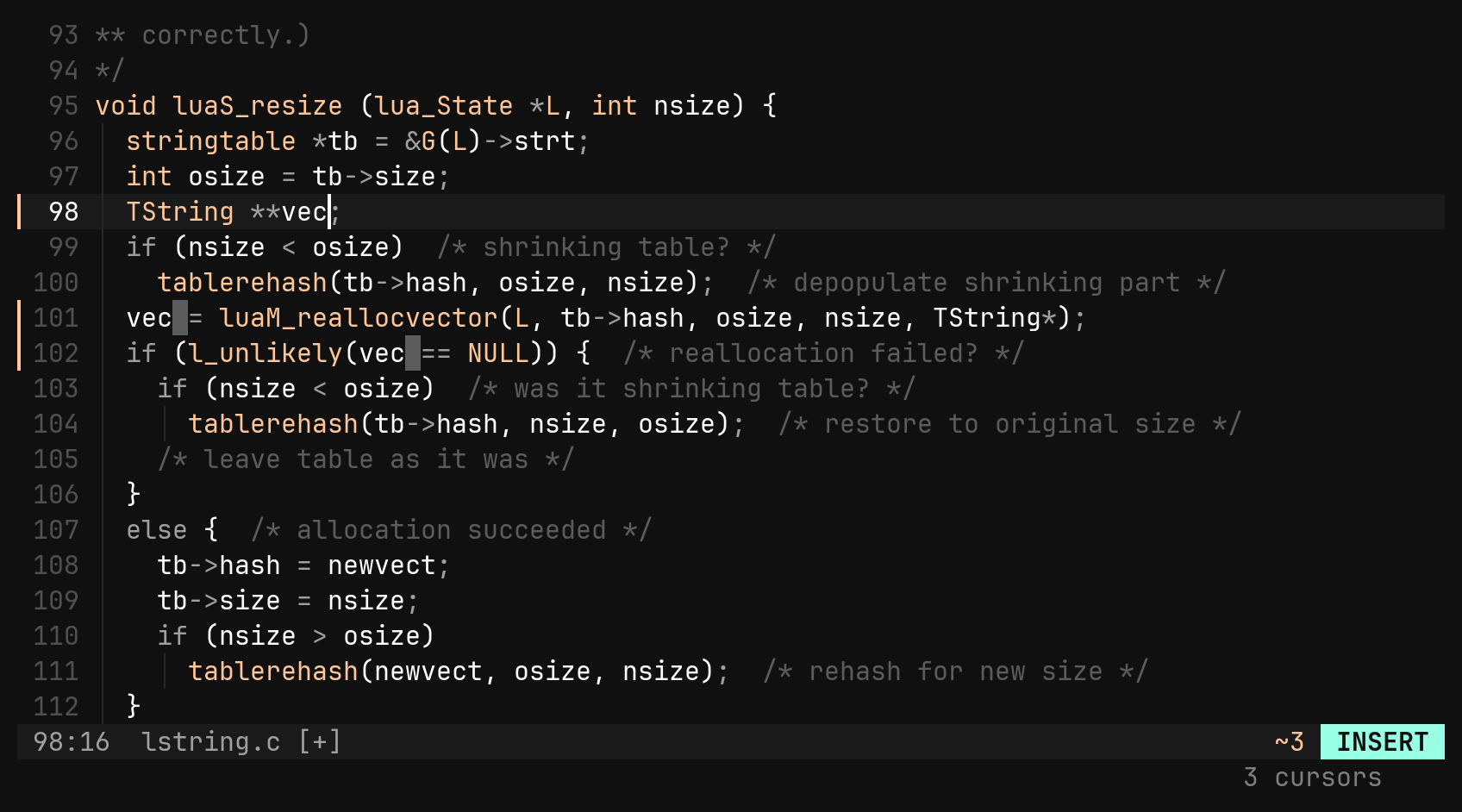
Vim has none of this, so the keys are bi’s own. Every command runs at every cursor, and the whole thing is one undo step, including the cursors themselves.
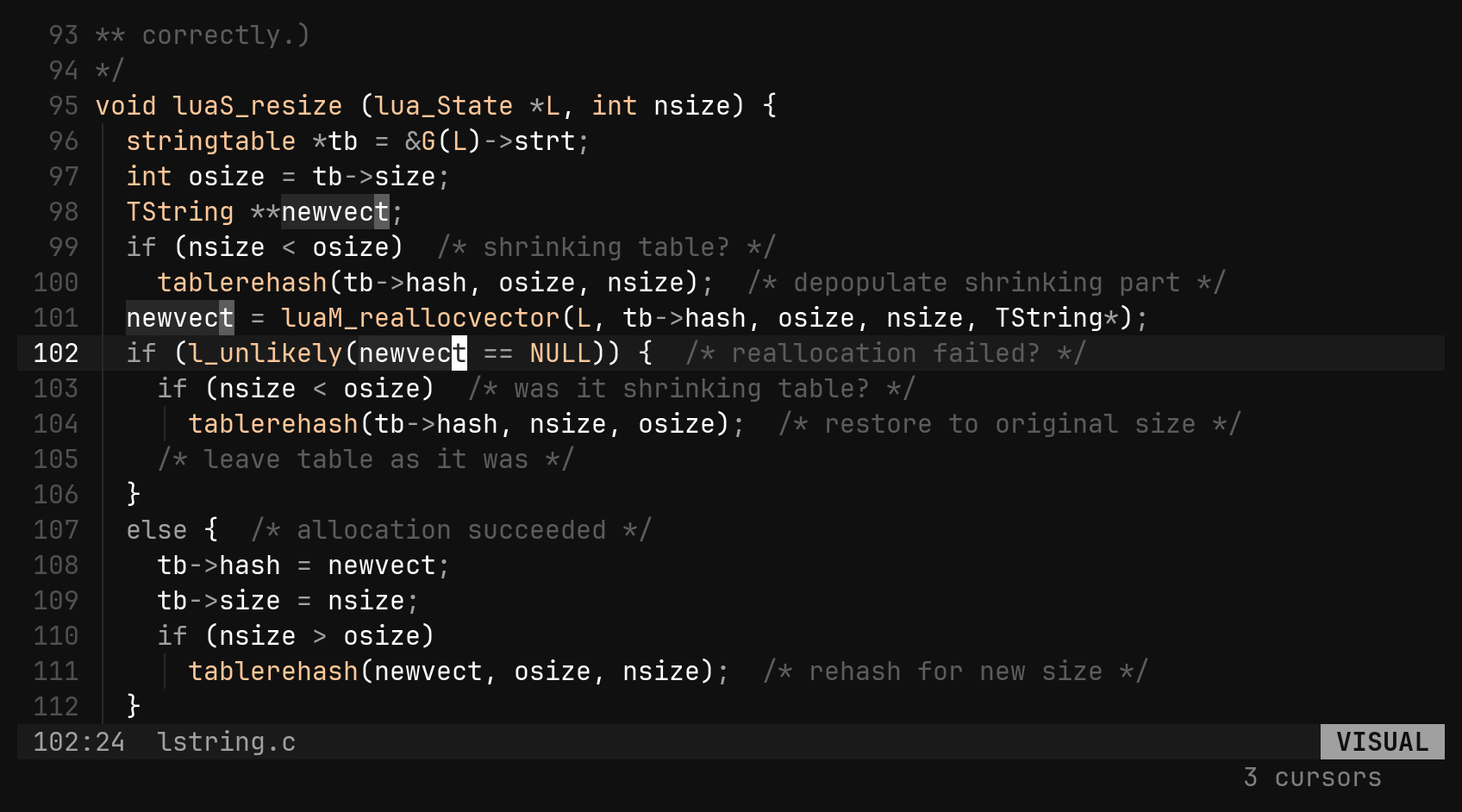
The terminal has one real cursor. bi puts it on the primary selection and draws the others as grey cells. The footer shows how many there are, because the mode label alone cannot tell you.
| Key | Does |
|---|---|
Ctrl-N | add a cursor at the next occurrence of the word under the cursor, wrapping |
Ctrl-X | skip: move the newest cursor on to the next occurrence instead |
Ctrl-Alt-Down Ctrl-Alt-Up | add a cursor on the line below / above, same column |
Esc | collapse back to one cursor |
Ctrl-N: the next occurrence
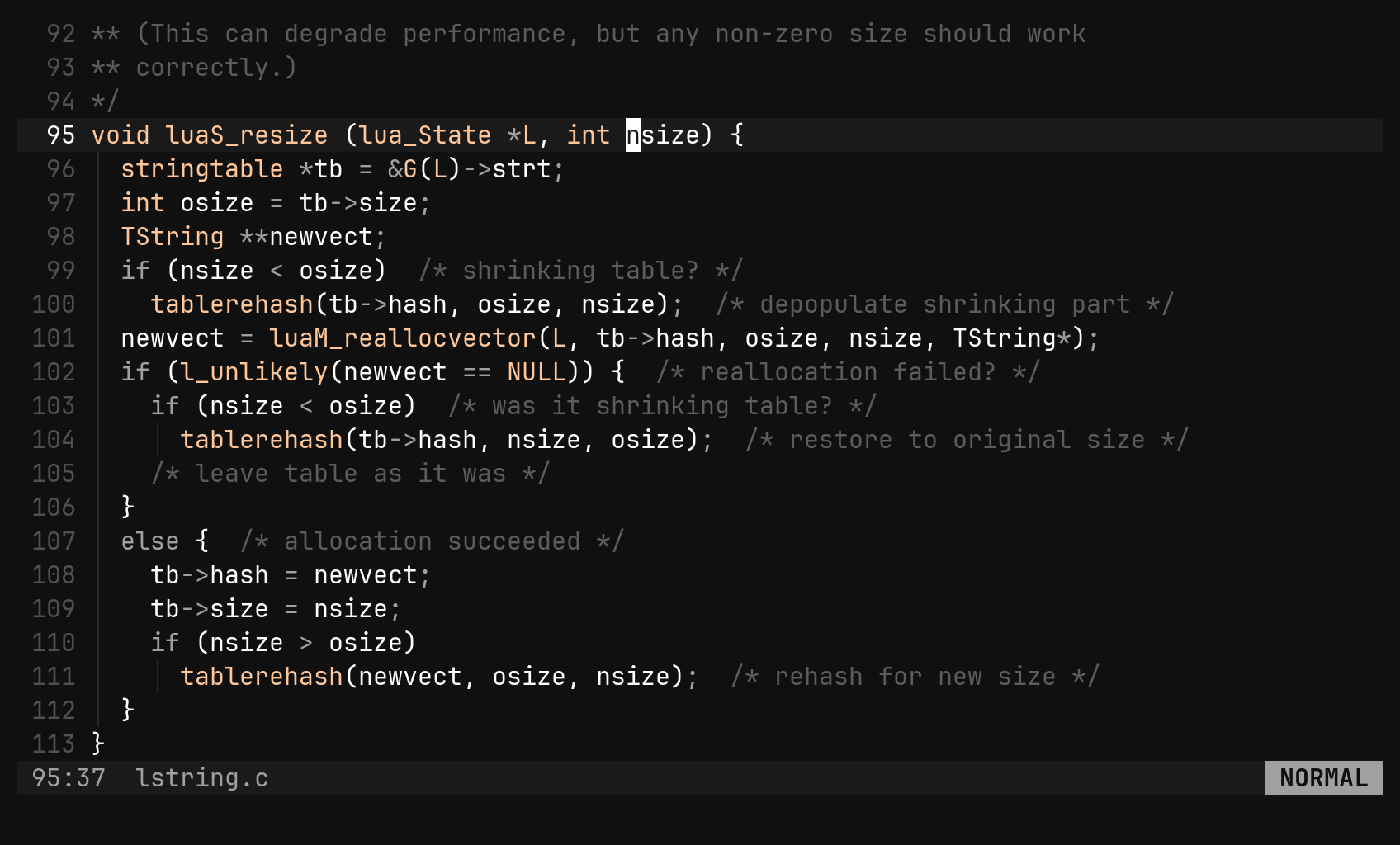
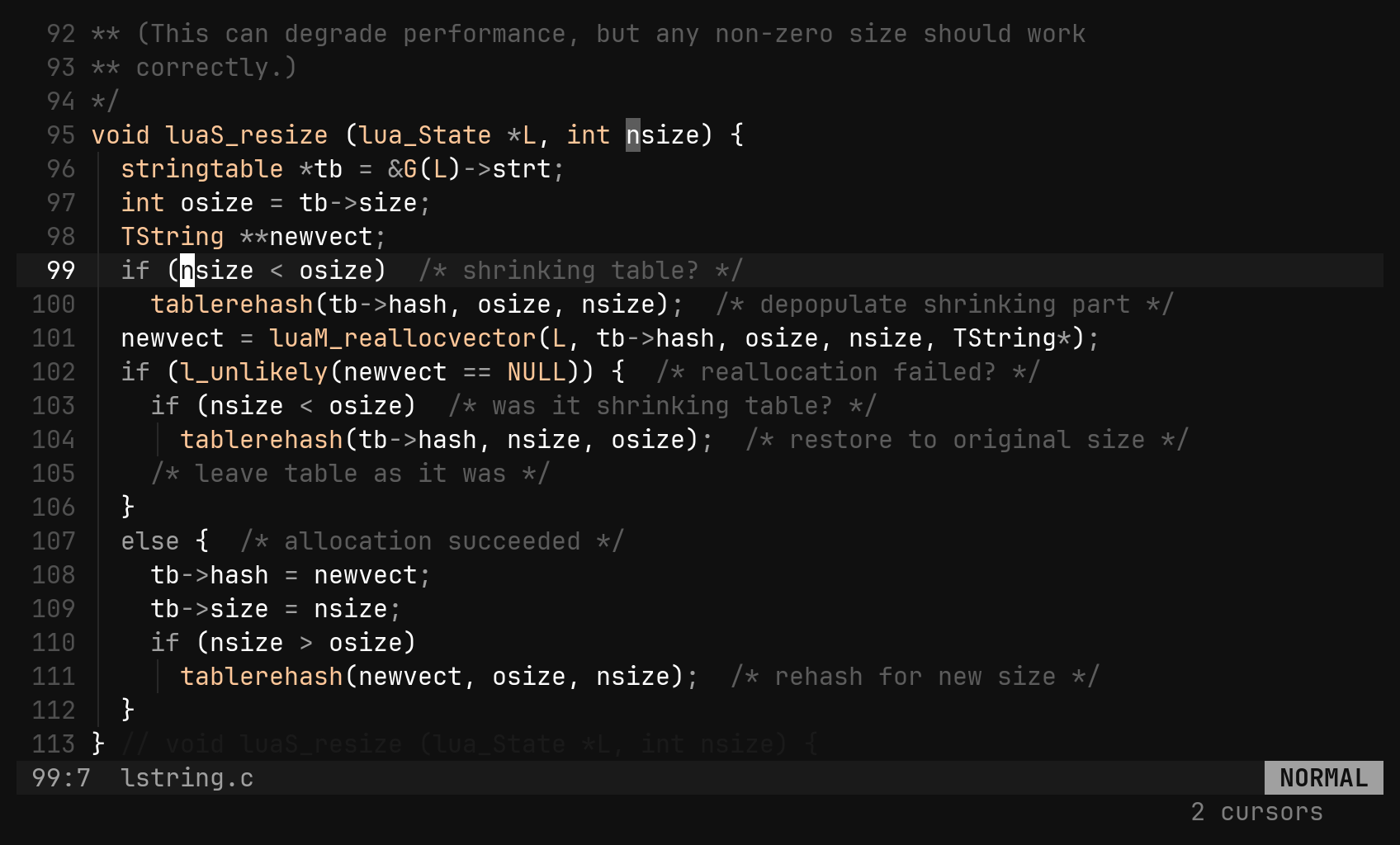
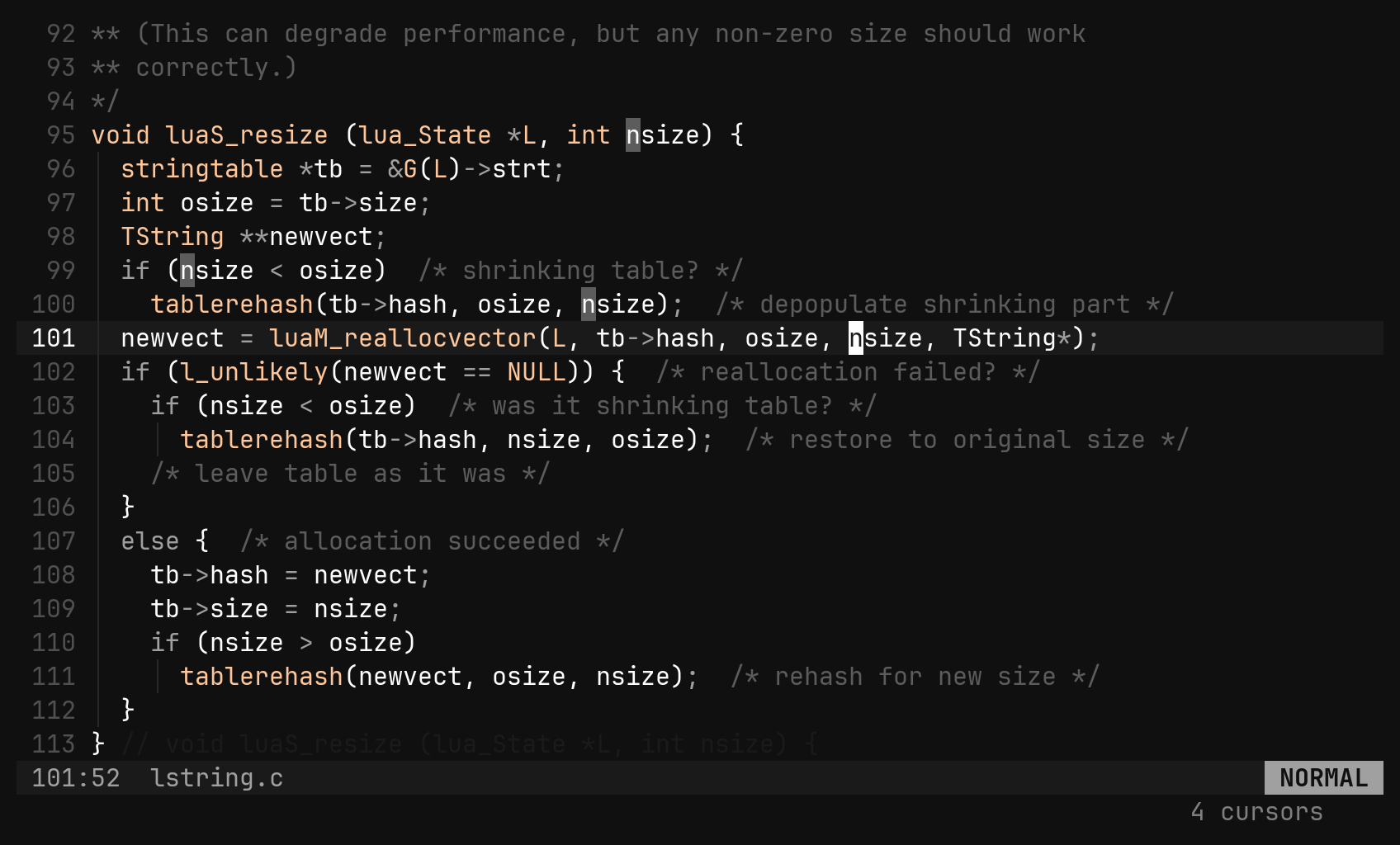
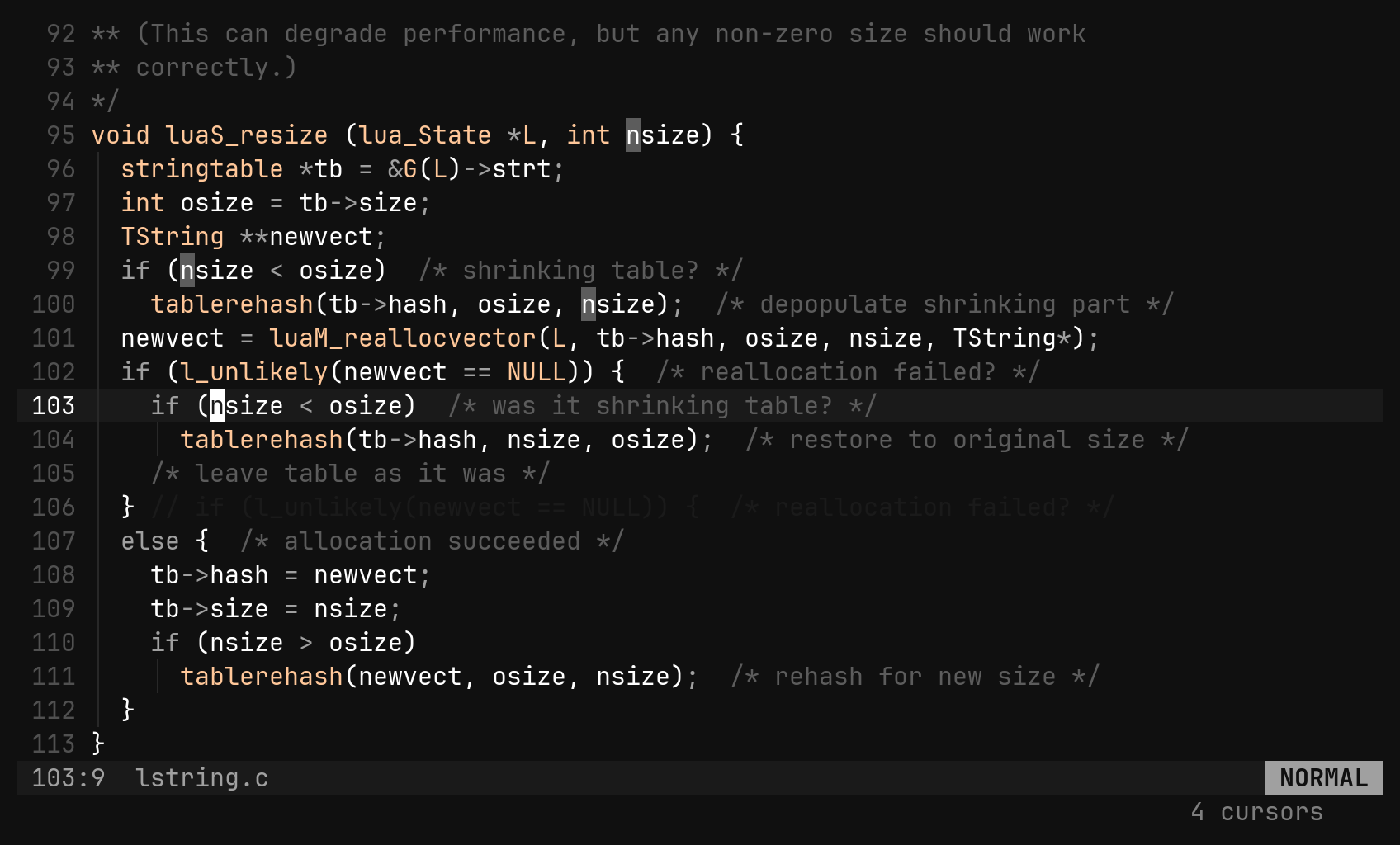
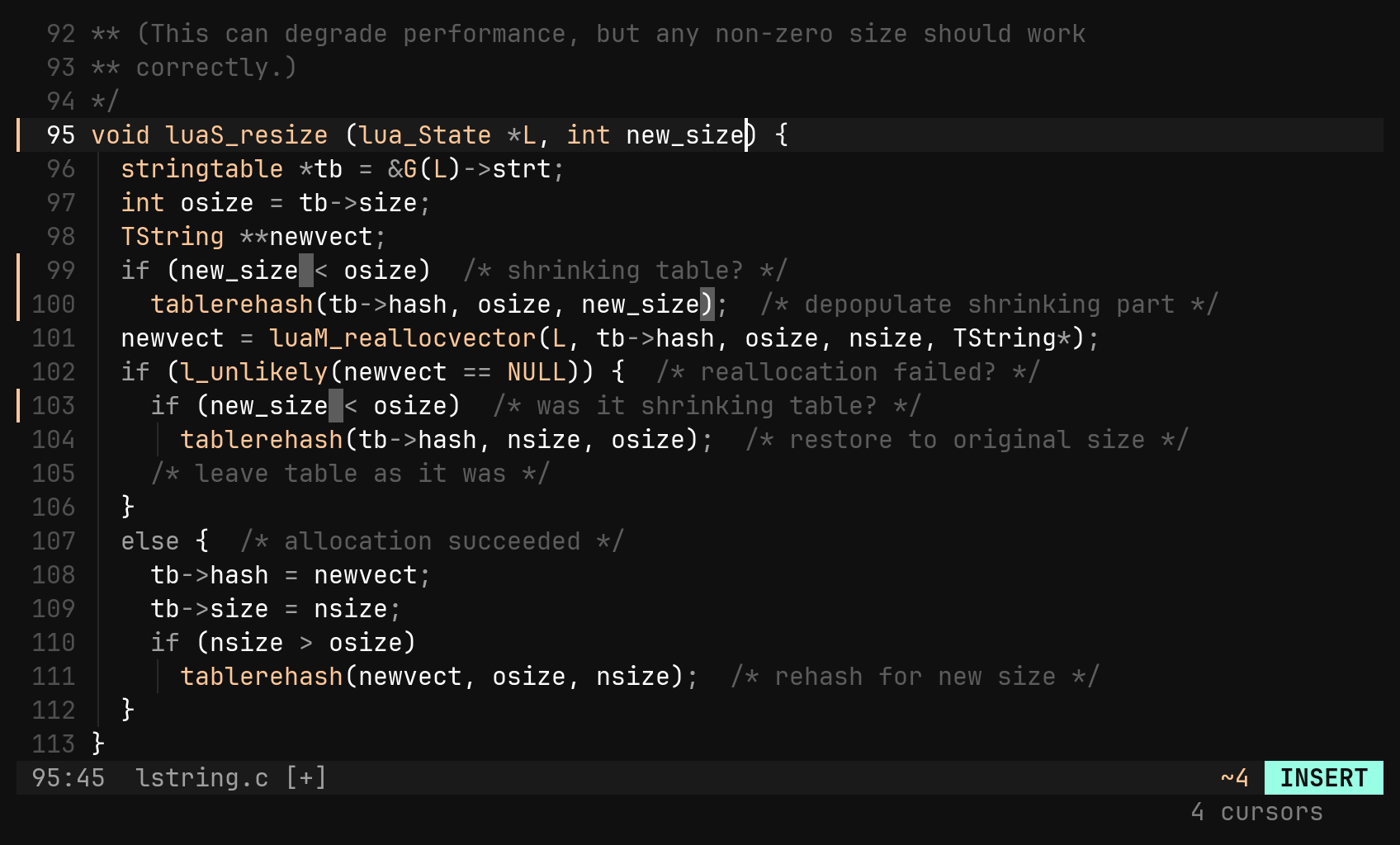
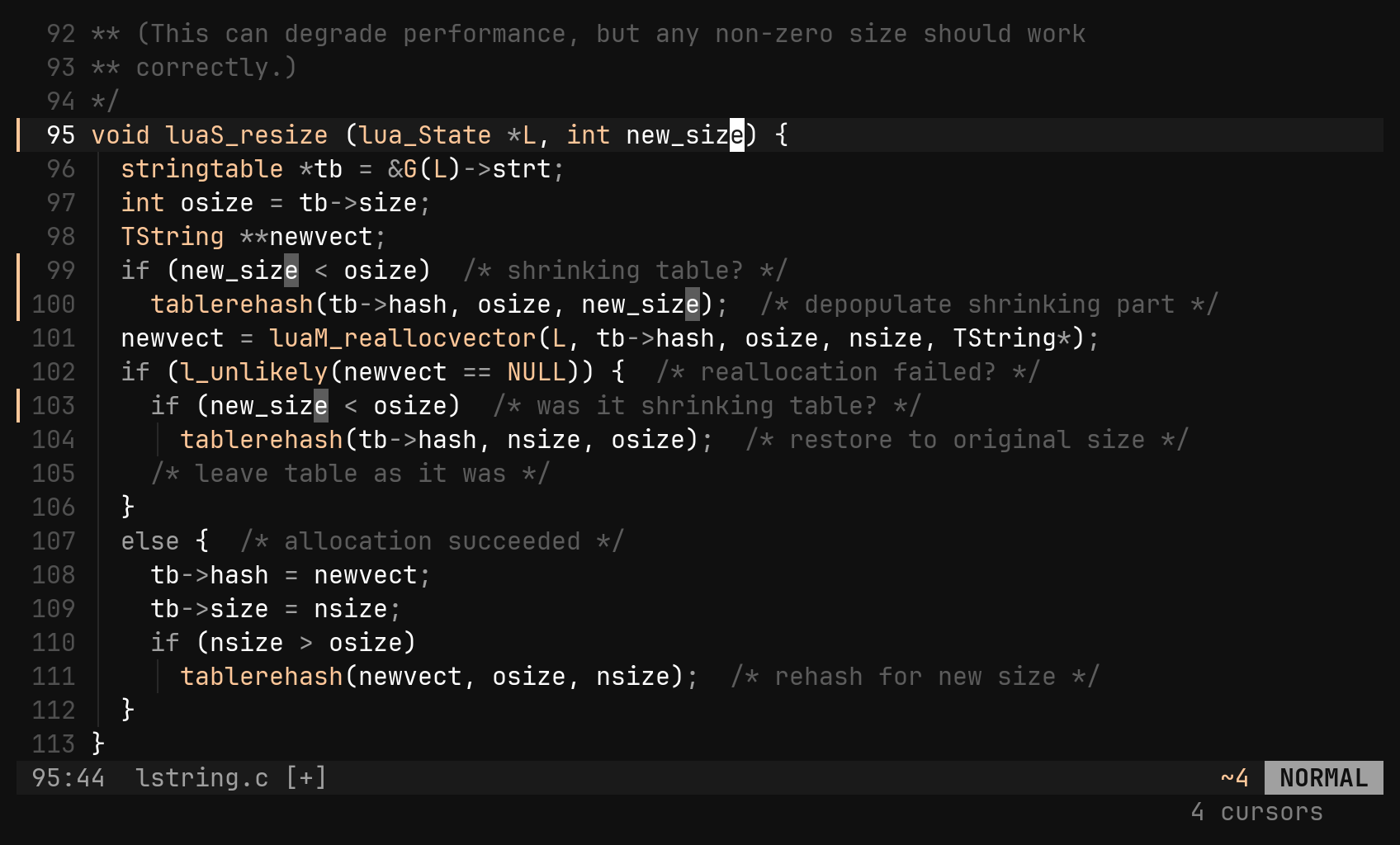
Ctrl-X is the same search as Ctrl-N with the opposite outcome: instead of
leaving a cursor behind, it moves the one you just placed. So Ctrl-N Ctrl-X
Ctrl-N takes the first and third occurrences and leaves the second alone.
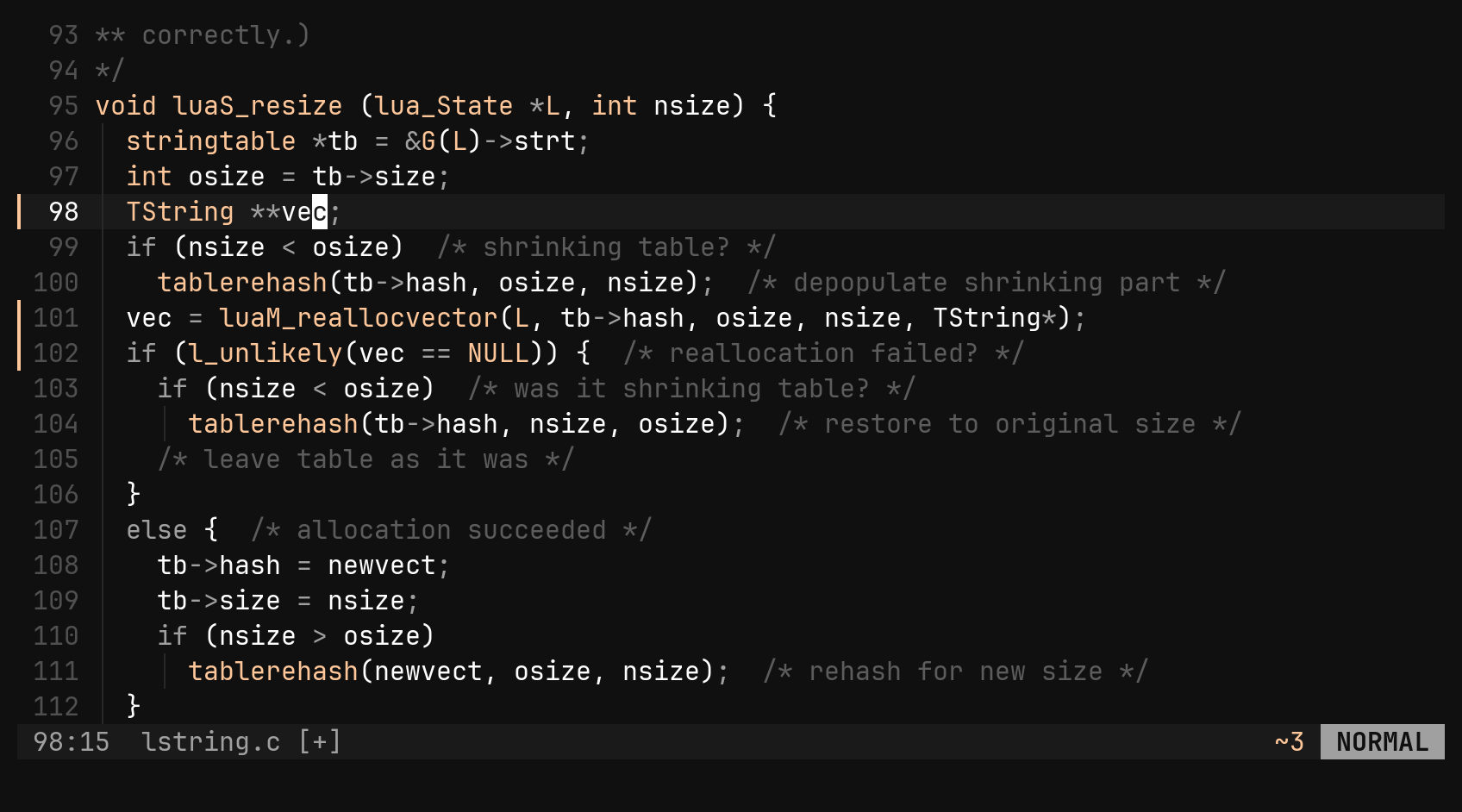
Once the cursors are placed, everything applies at each one: motions,
operators, text objects, insert, and .. One u undoes the edit, and the
cursors come back with it.
A cursor per line
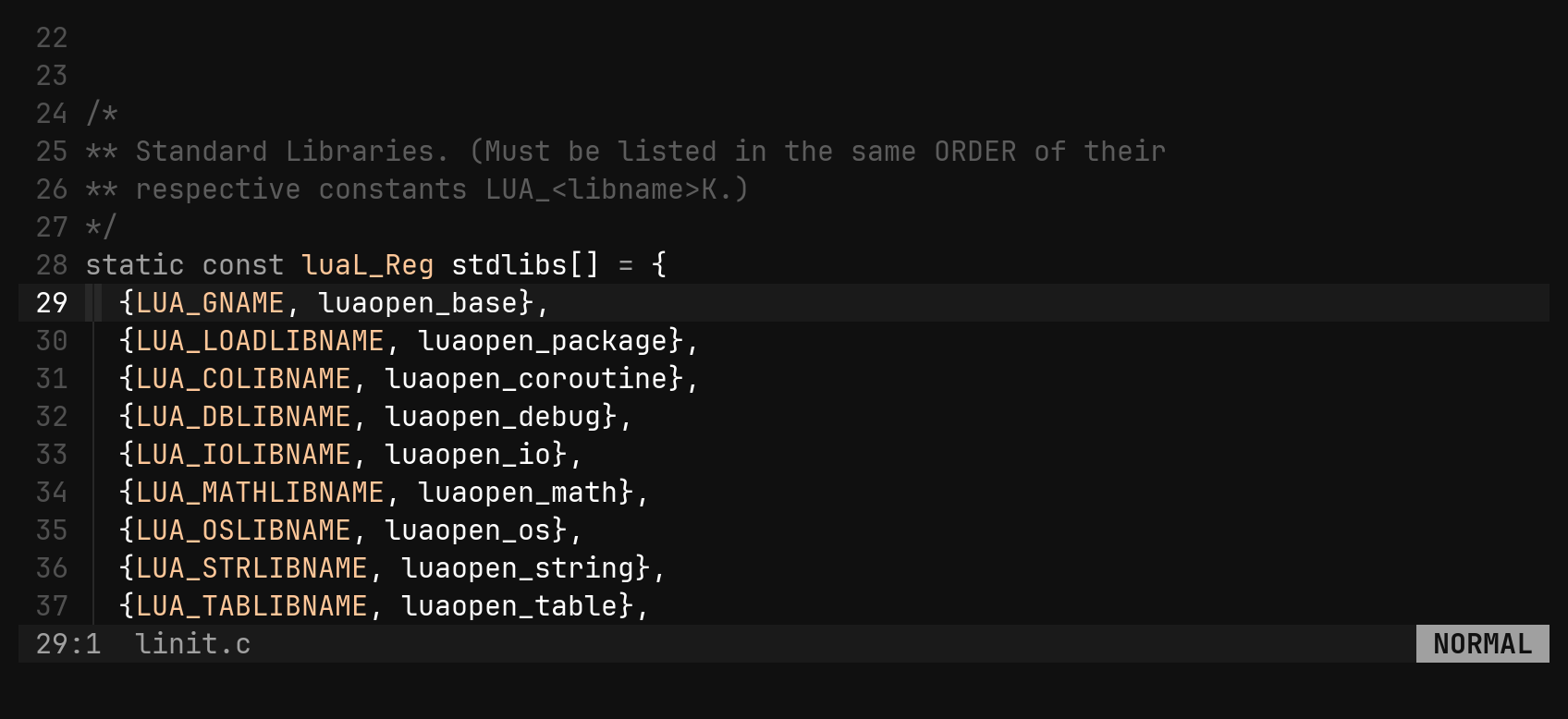
Ctrl-Alt-Down stacks cursors in a column. Use it when the lines have the same
shape but no shared word.
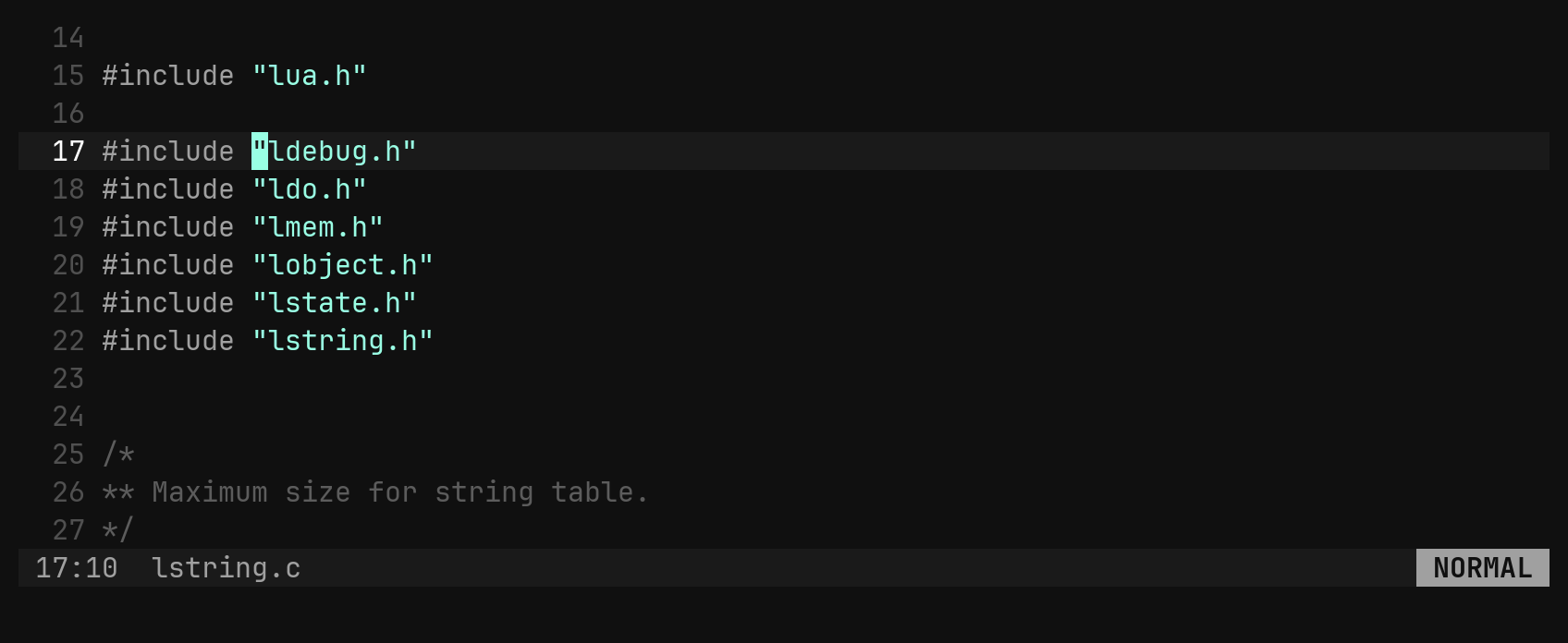
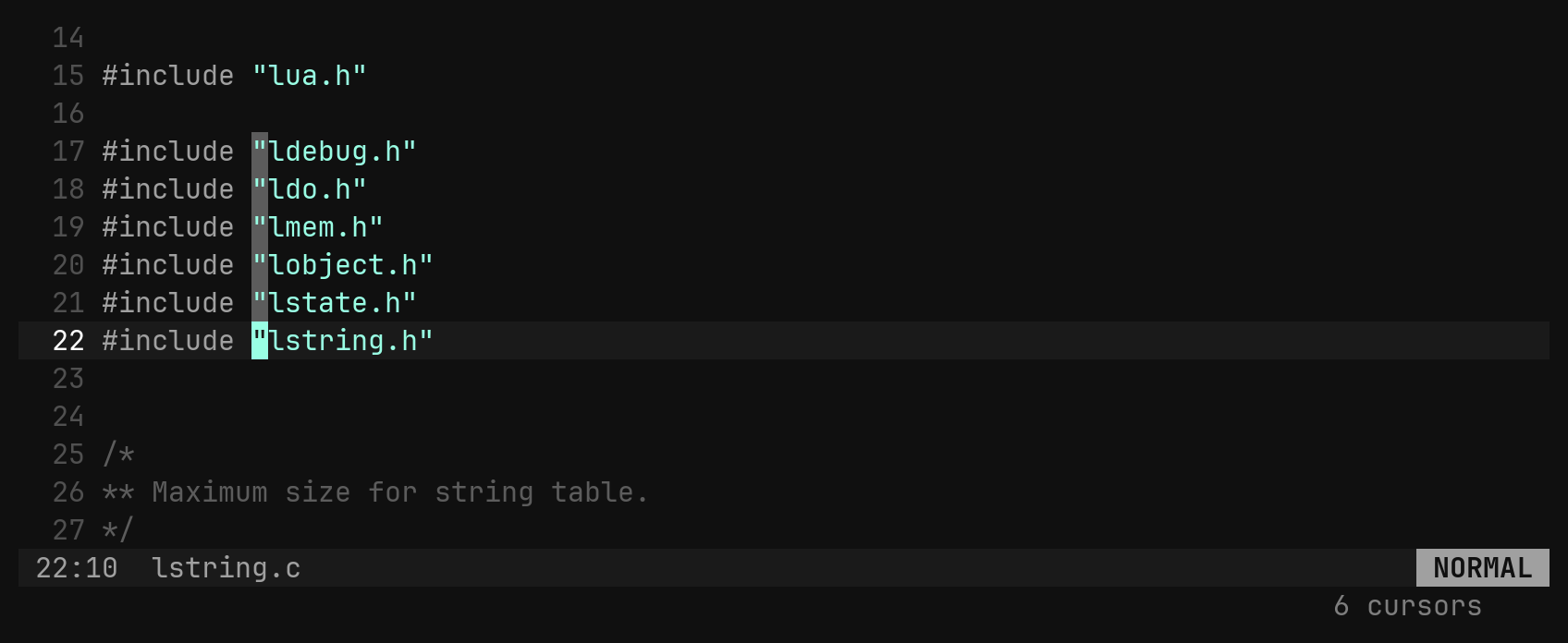
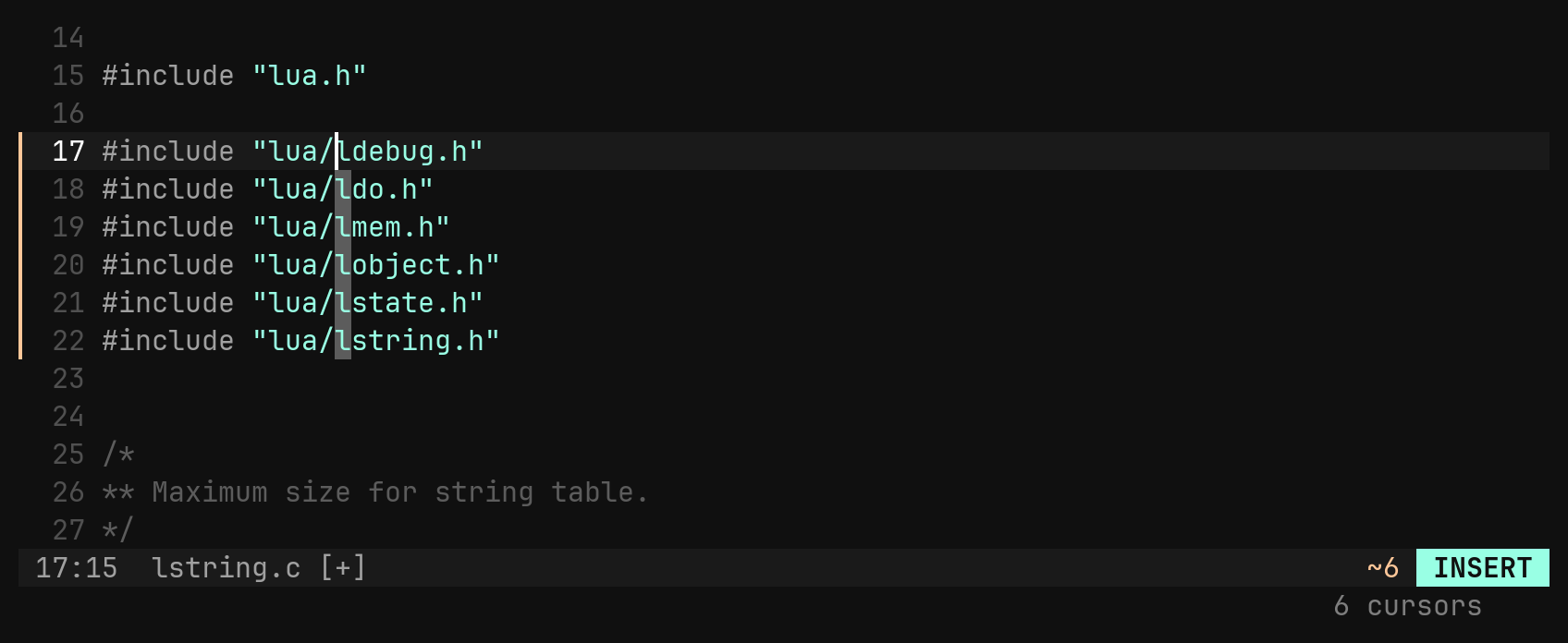
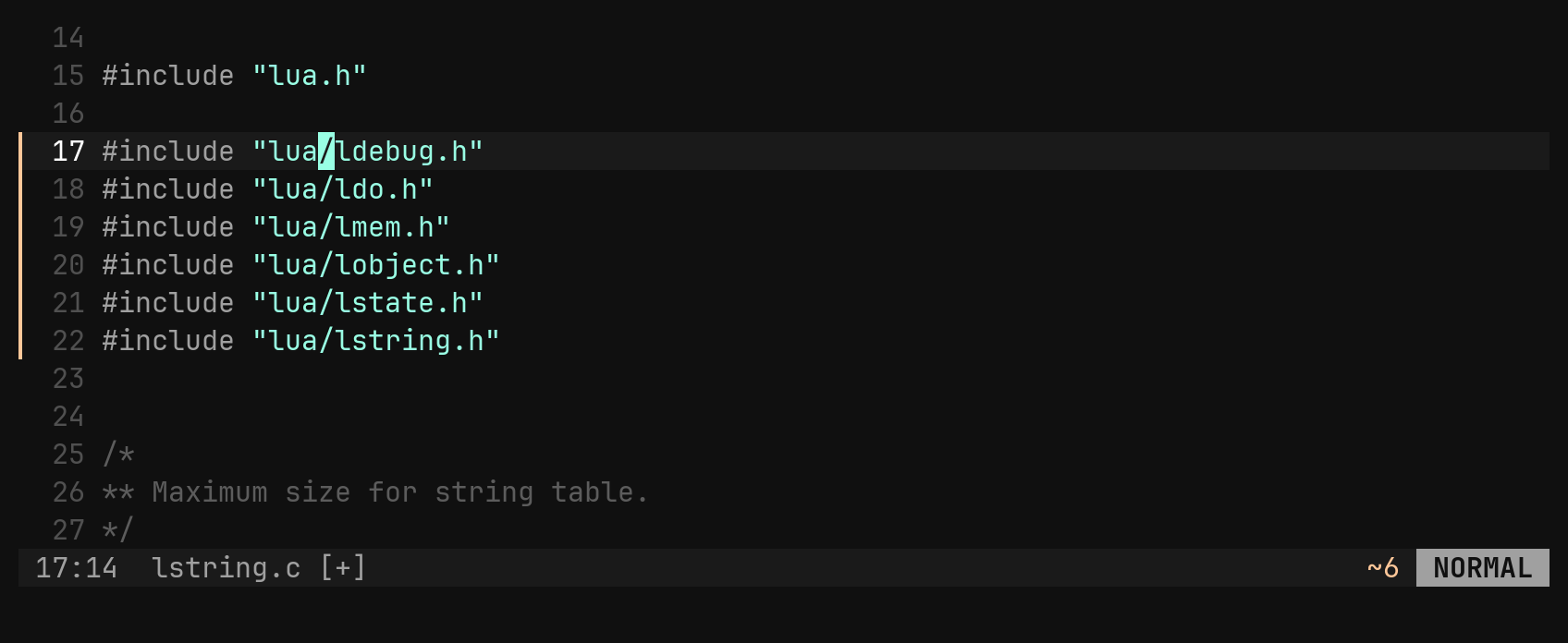
In visual mode: the selection
In visual mode Ctrl-N searches for the selection, not the word under the
cursor. viw, Ctrl-N Ctrl-N, c is a rename of three occurrences.
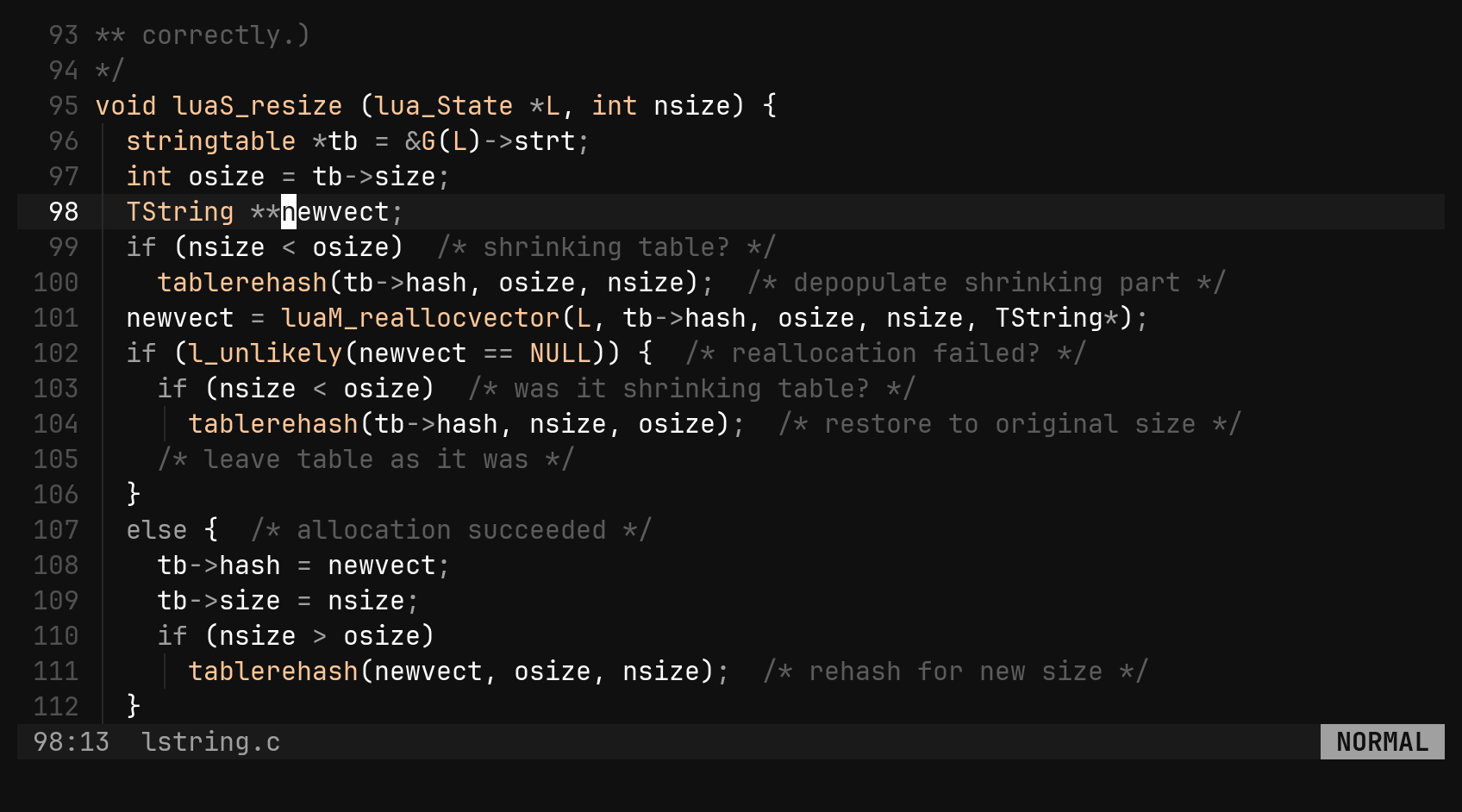
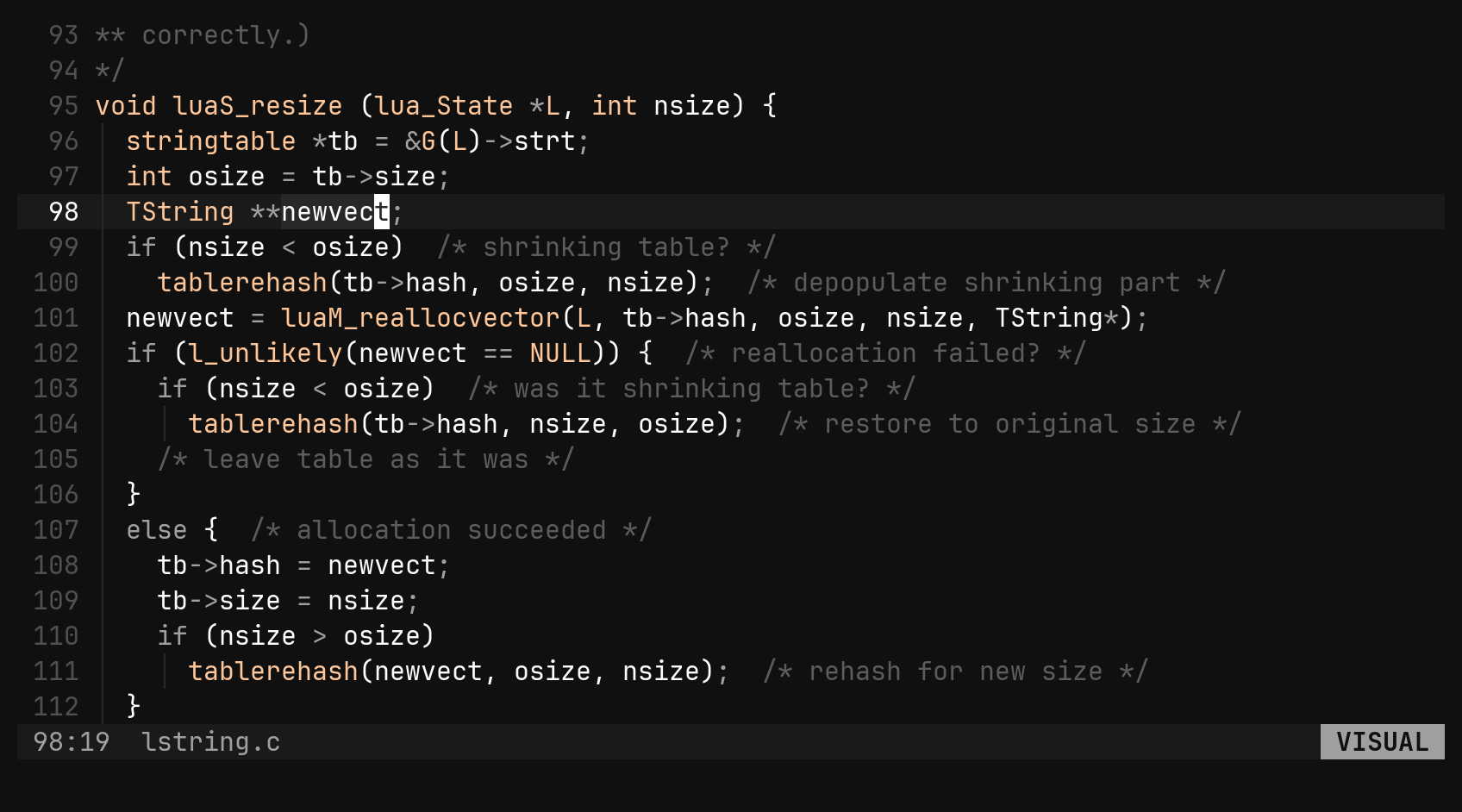
Blockwise visual
Ctrl-V selects a rectangle. Motions move one corner and the block follows, so
Ctrl-V 3j 5l is four rows by six columns.
| Key | Does |
|---|---|
d x c s y r{char} | act on the rectangle |
I A | insert at the left / right edge of every row |
$ | ragged right edge: every row extends to its own line end |
o O | swap corners diagonally / swap only the columns |
p P | replace the rectangle; a charwise entry lands on every row |
S{char} | wrap each row’s columns |
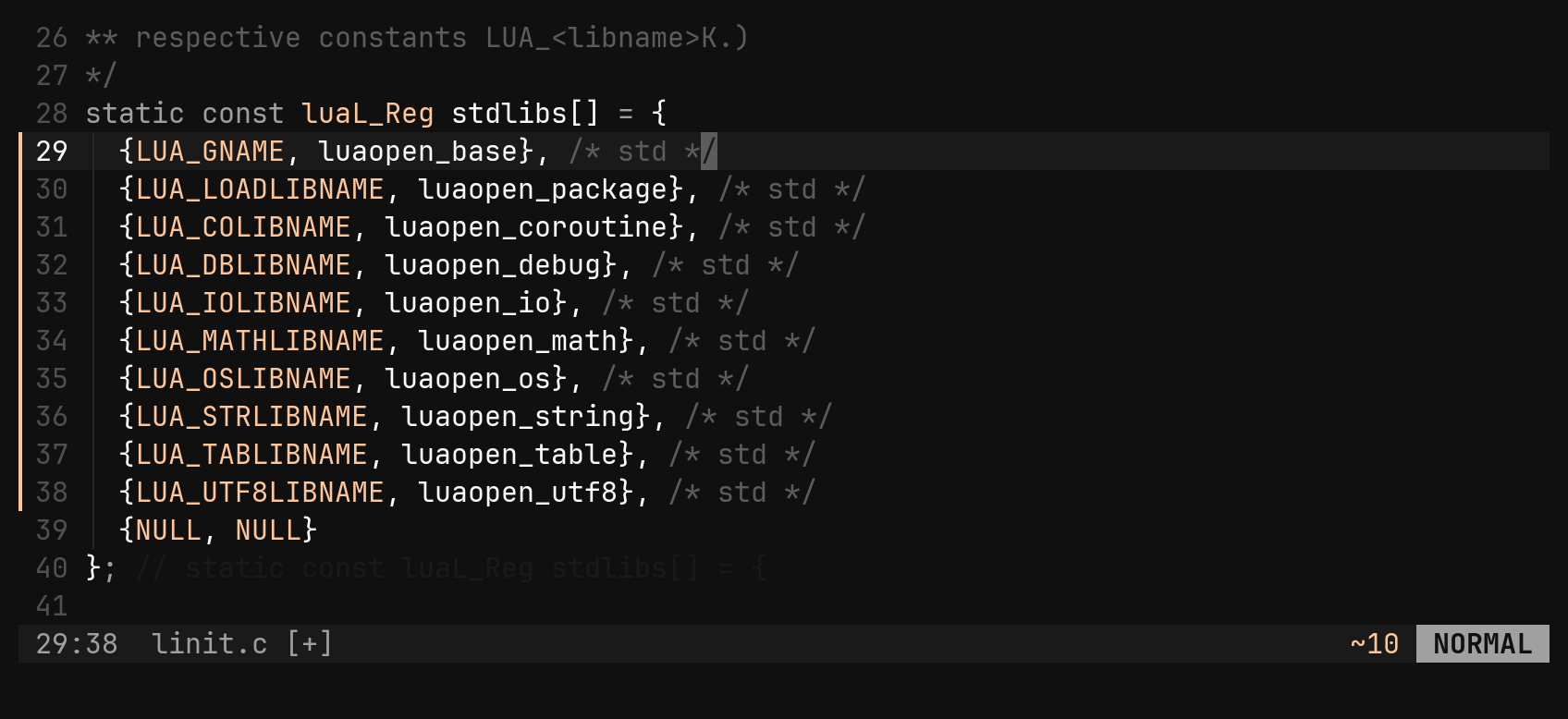
c, I and A leave a real cursor on every row, so the text appears on every
row as you type.
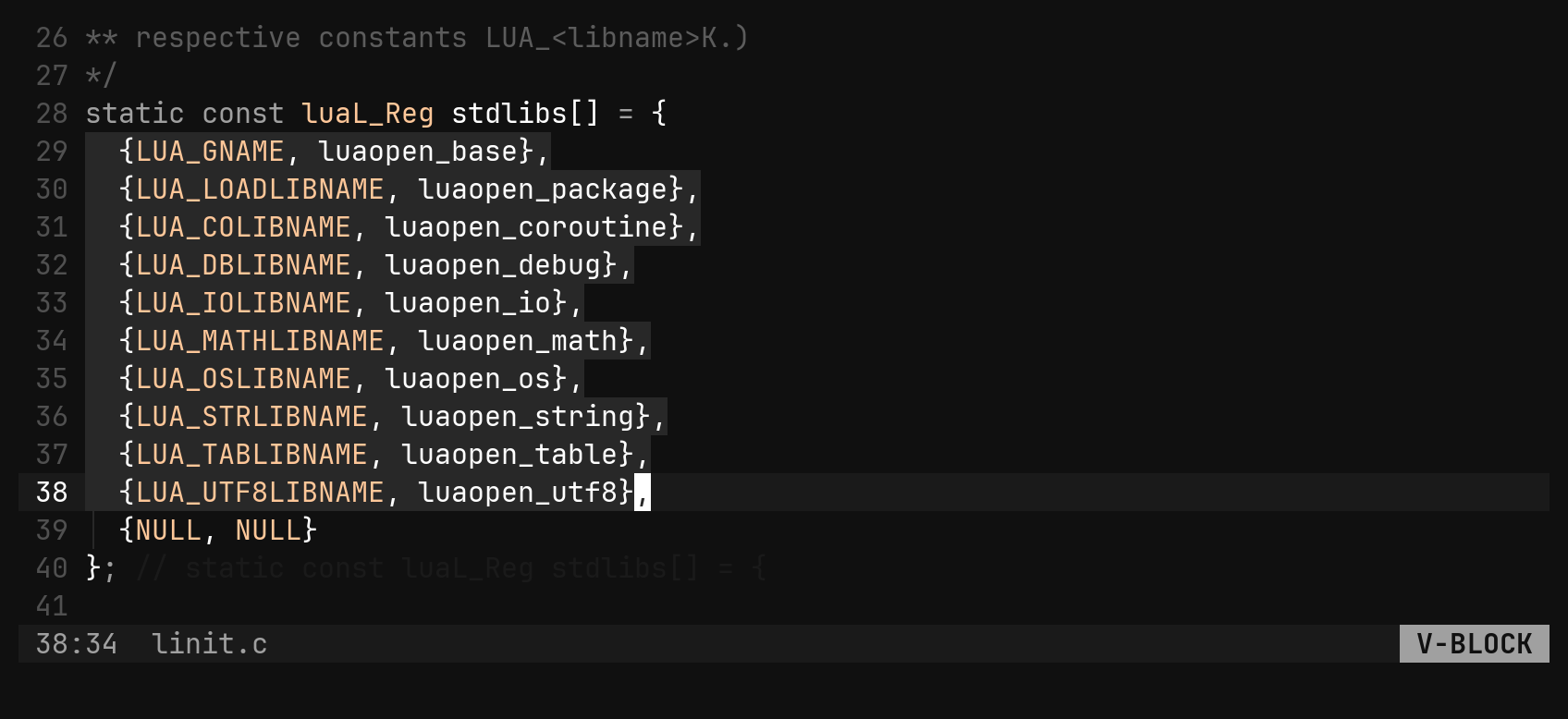
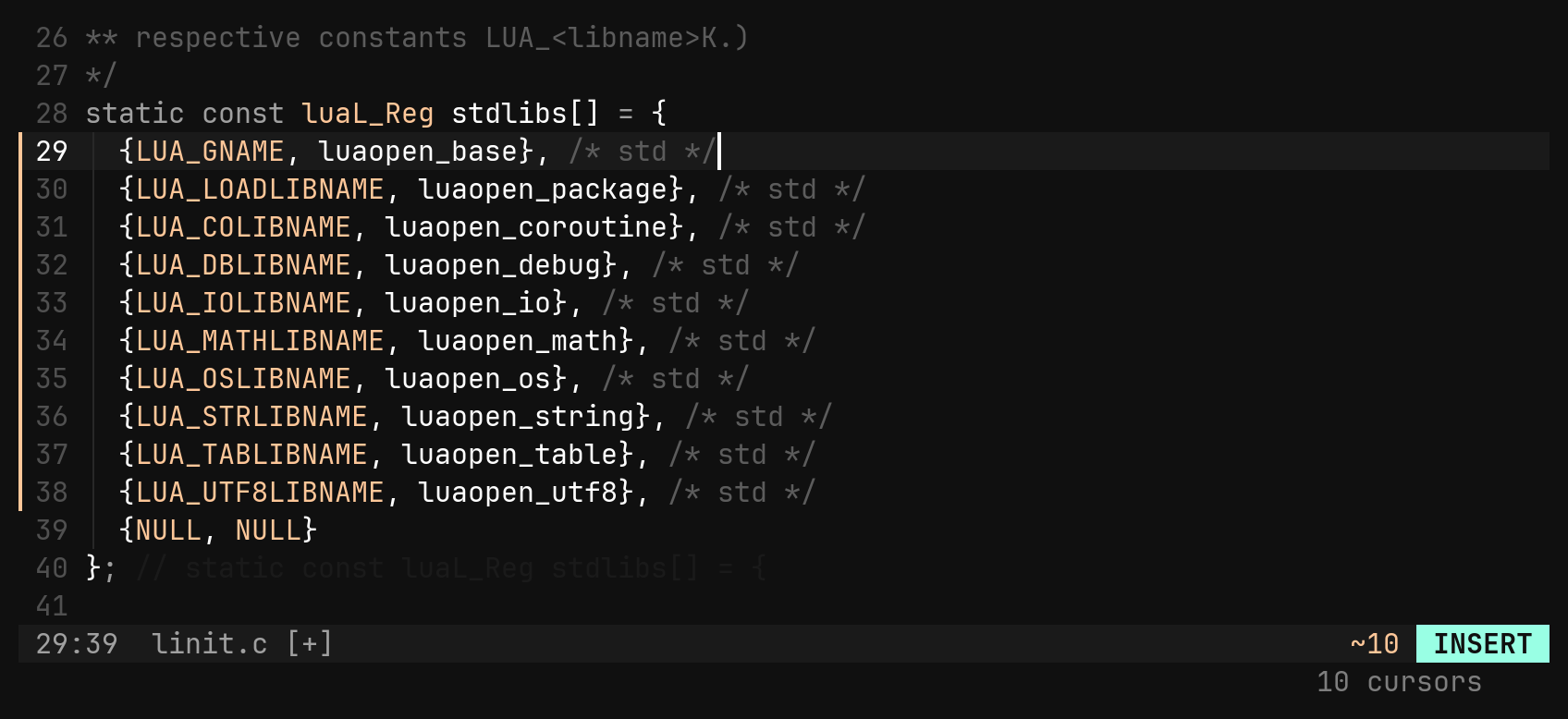
Rows too short to reach the block are skipped, except by A, which pads them
with spaces so the appended text lines up. A yanked block is one register entry
and pastes back as a rectangle.
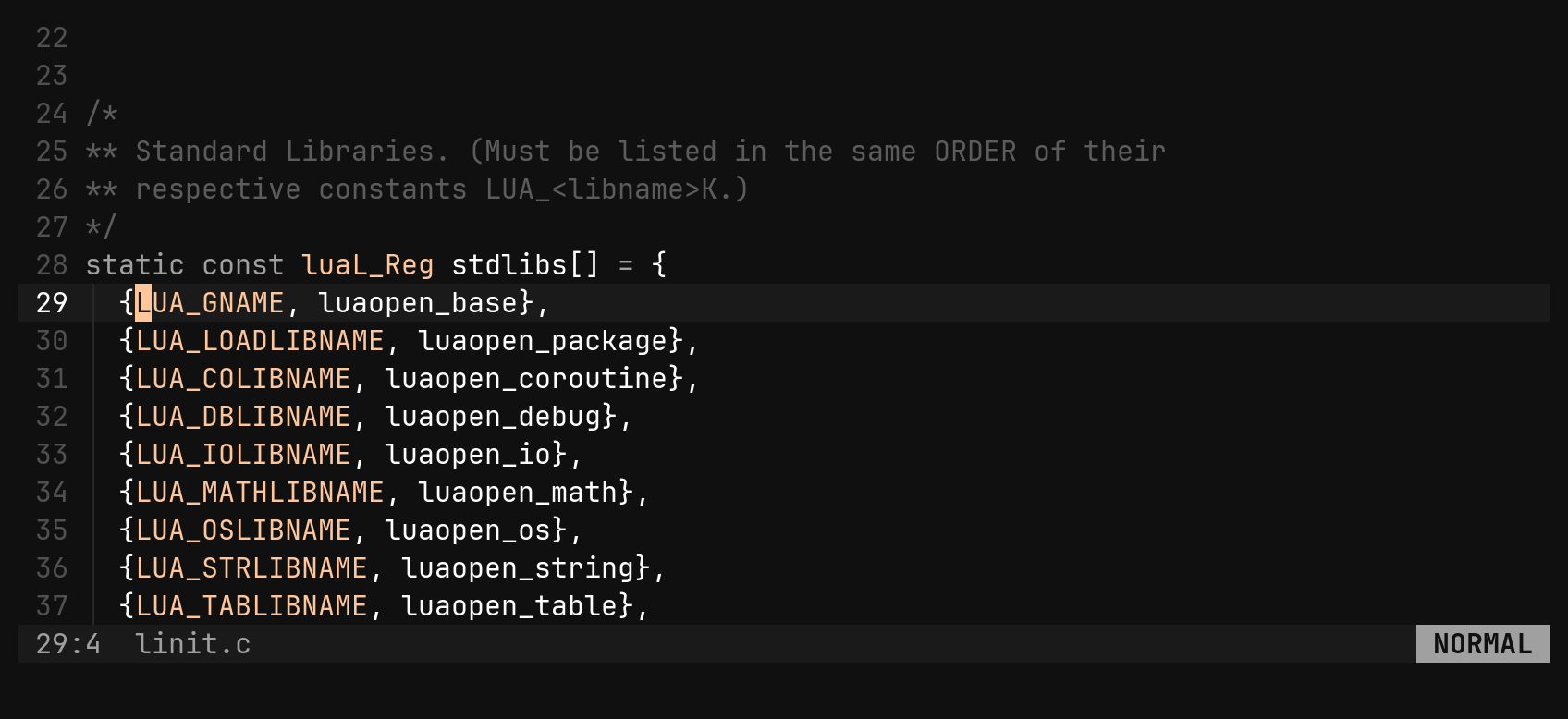
Esc. bi’s cursors are real, so you see every row change as you
type. The file ends up the same.:'v: commands over the selection’s shape
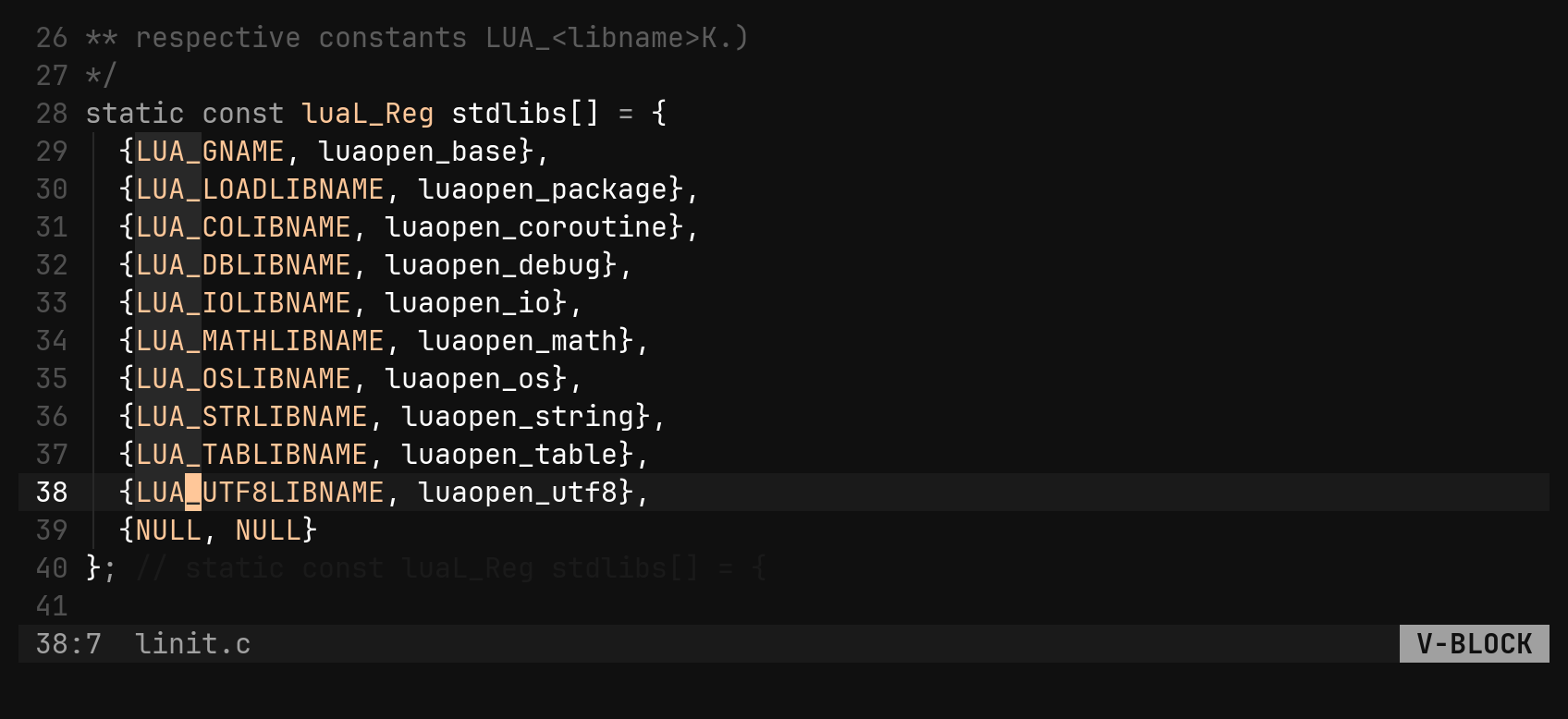
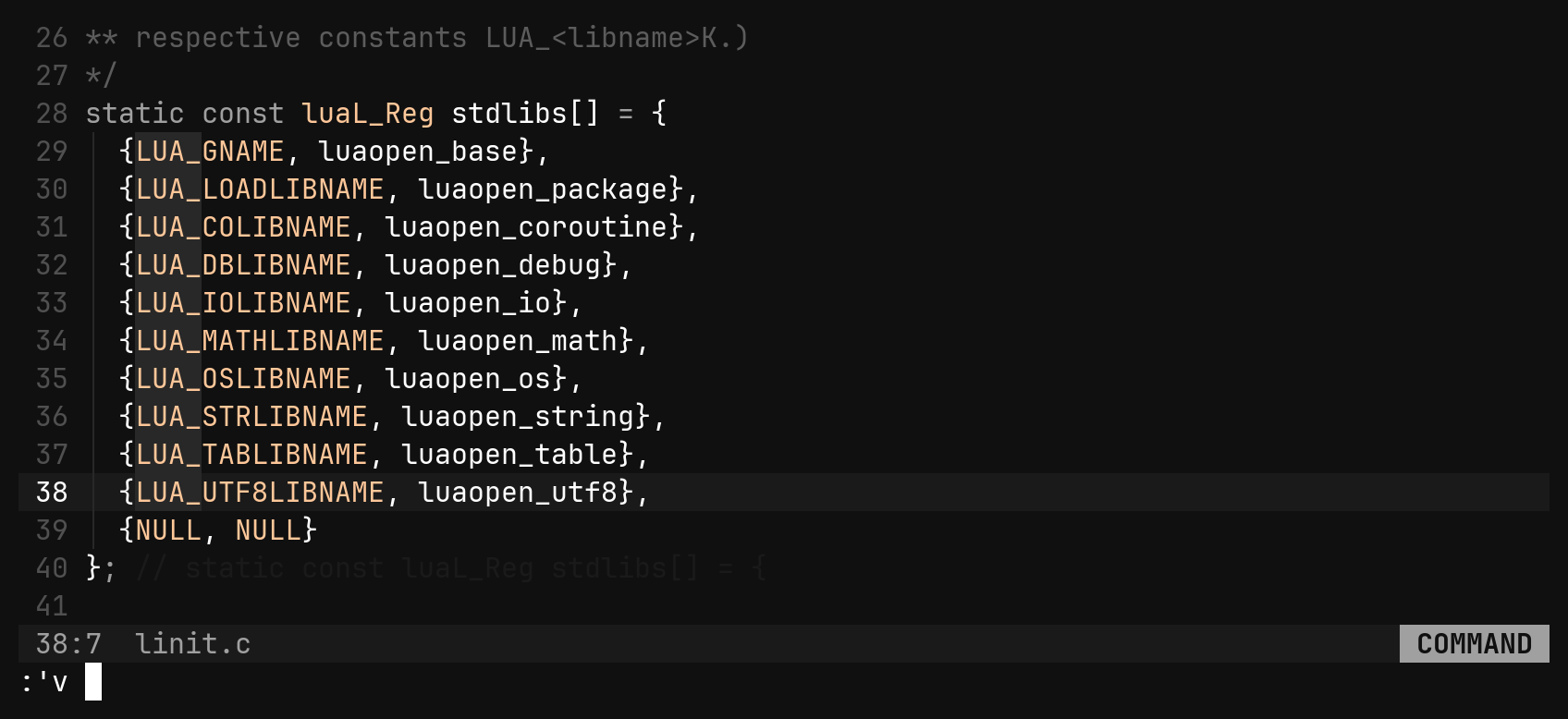
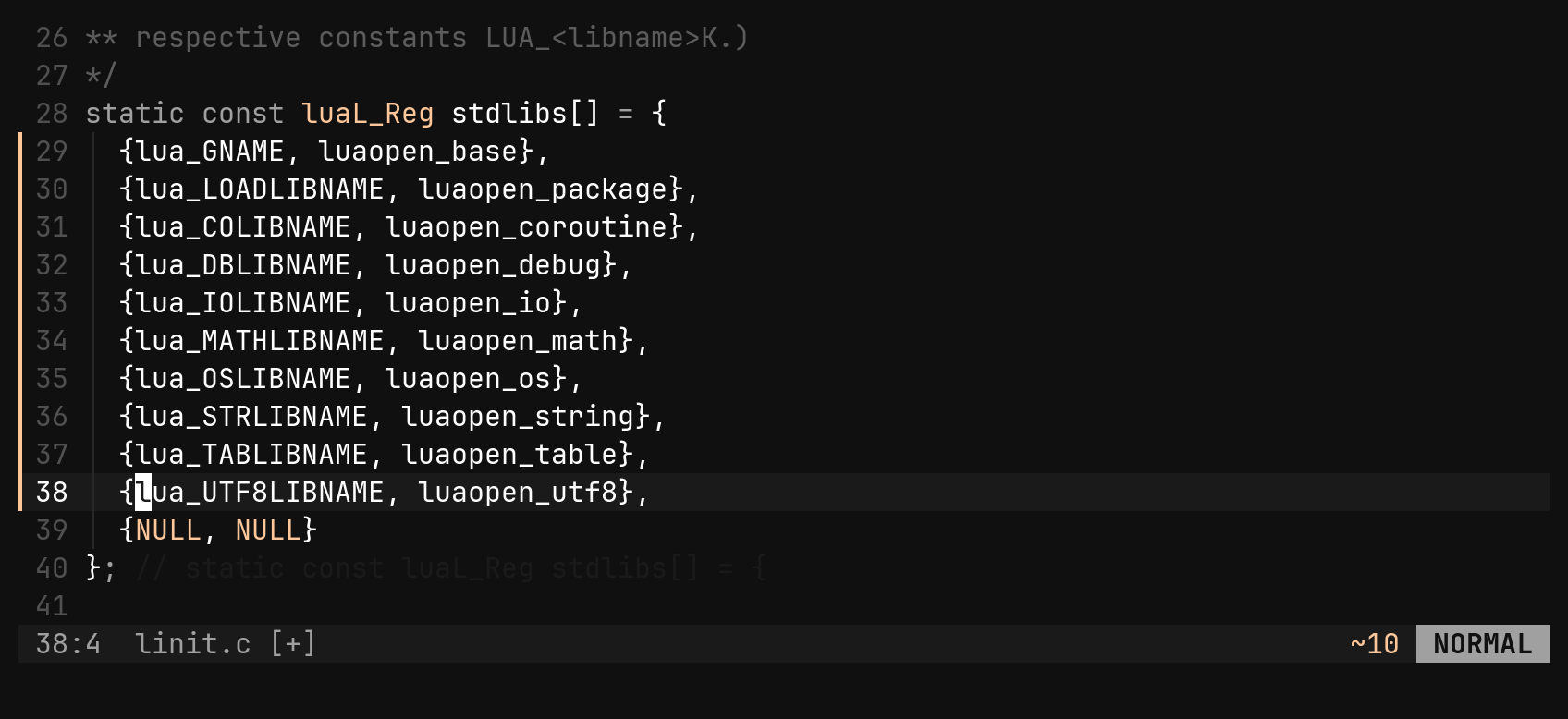
Pressing : with a selection prefills 'v, which means the selection itself,
whatever shape it has. A command that rewrites text (:case, :s, :sort)
then acts on exactly those characters: the columns of a rectangle, not the
whole rows.
'<,'> still works and still means the rows. The 'v prefill is there so you
can see which of the two you are running.