Files, buffers and windows
The file tree, the file picker, the buffer switcher, the alternate file, and splits you can jump between with one letter.
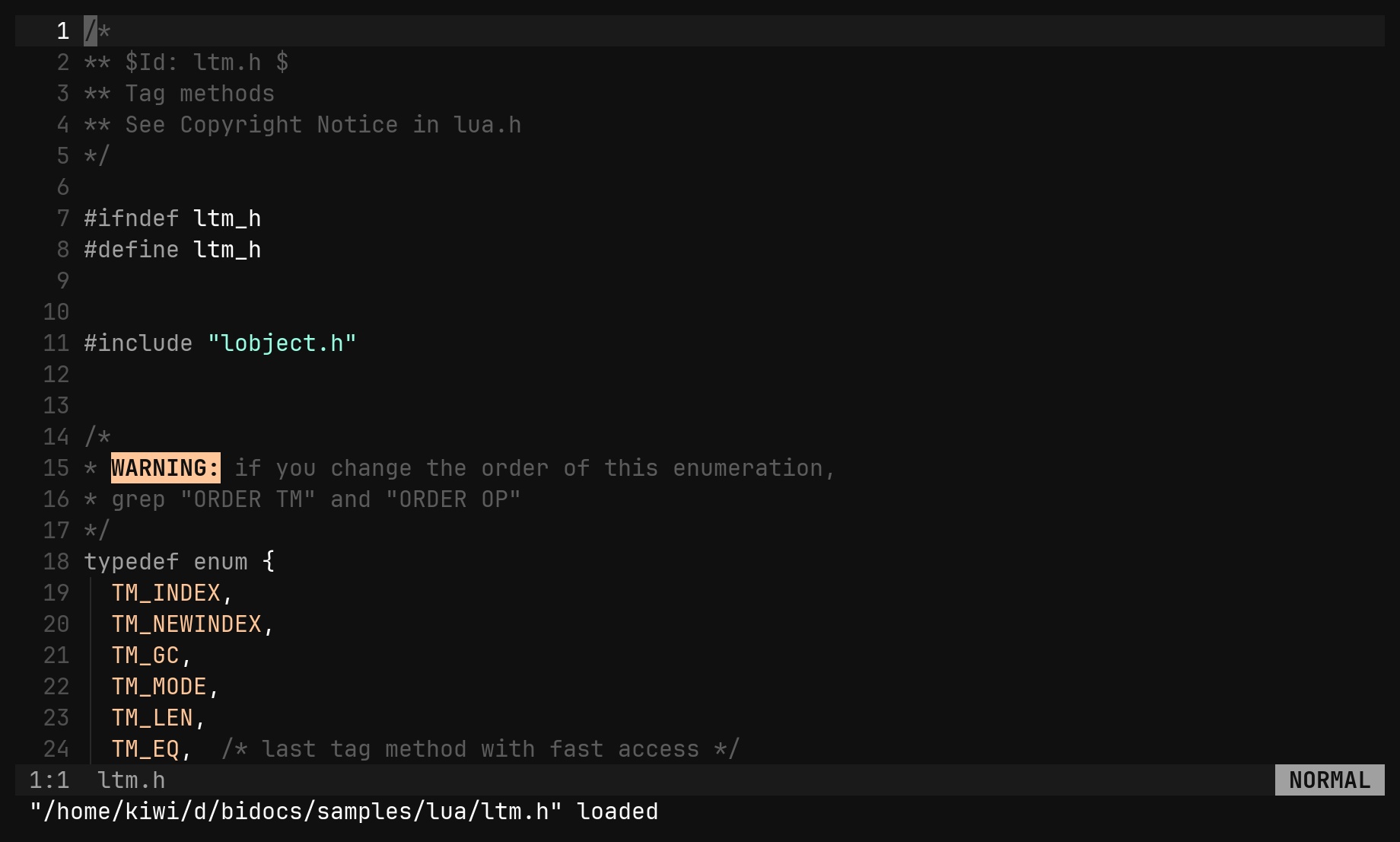
bi keeps the project in reach without plugins: a tree that edits the
filesystem, a picker over every file, a switcher over what is open, and a key
that knows lstring.c belongs with lstring.h.
The other file: ga and gA
Every language has a pair — a .c and its .h, thing.go and
thing_test.go. ga (:alt) opens the other one without typing a path.
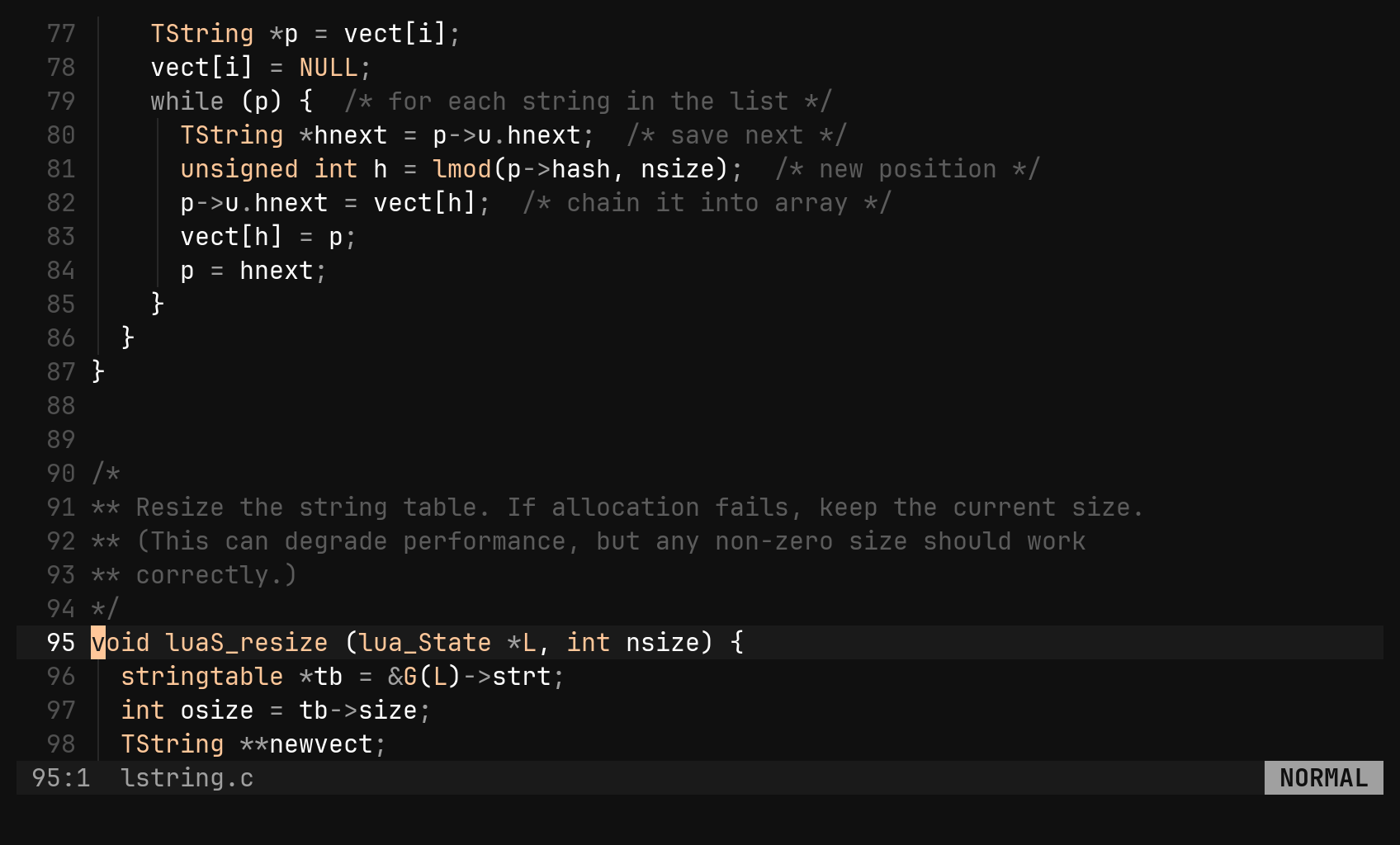
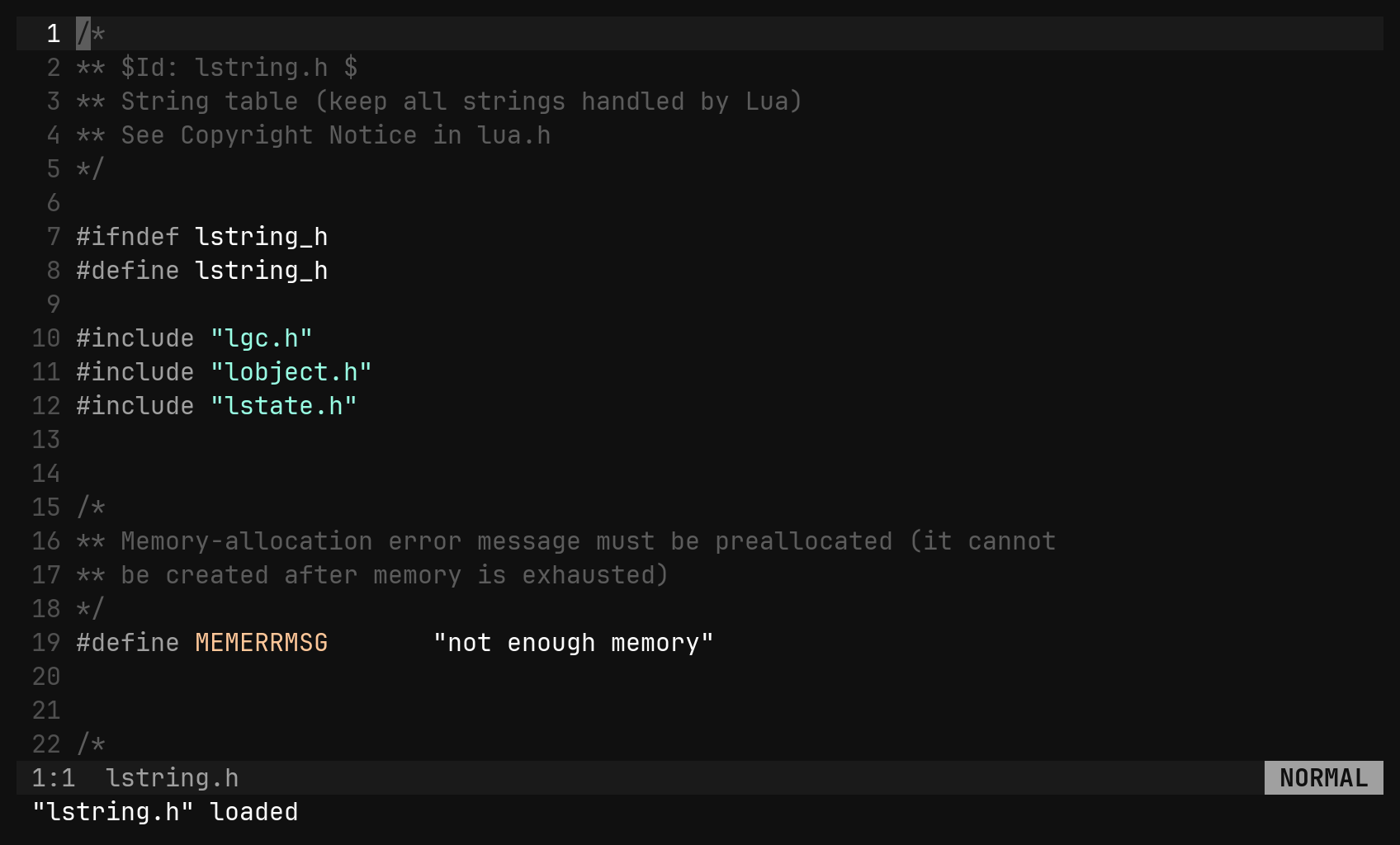
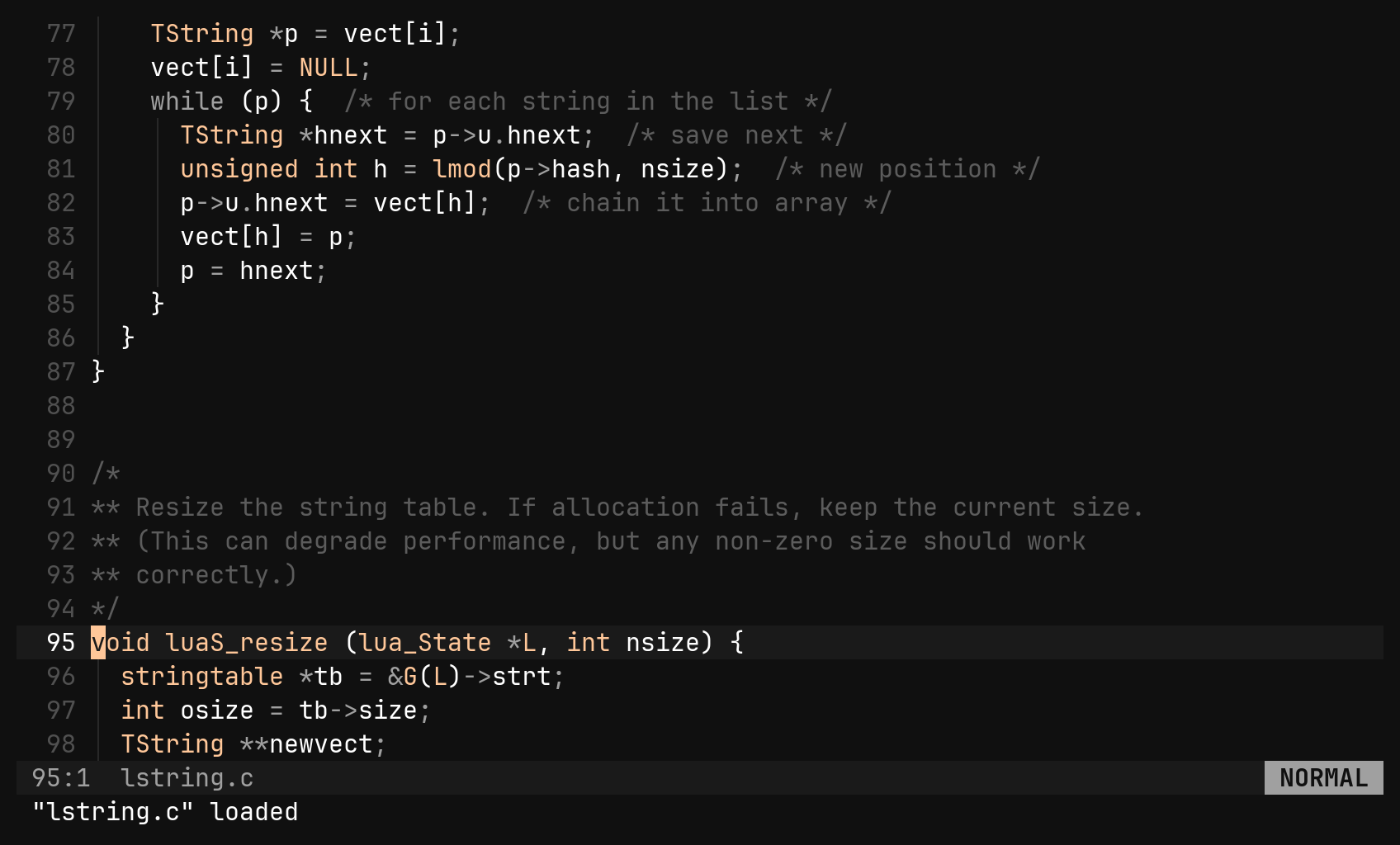
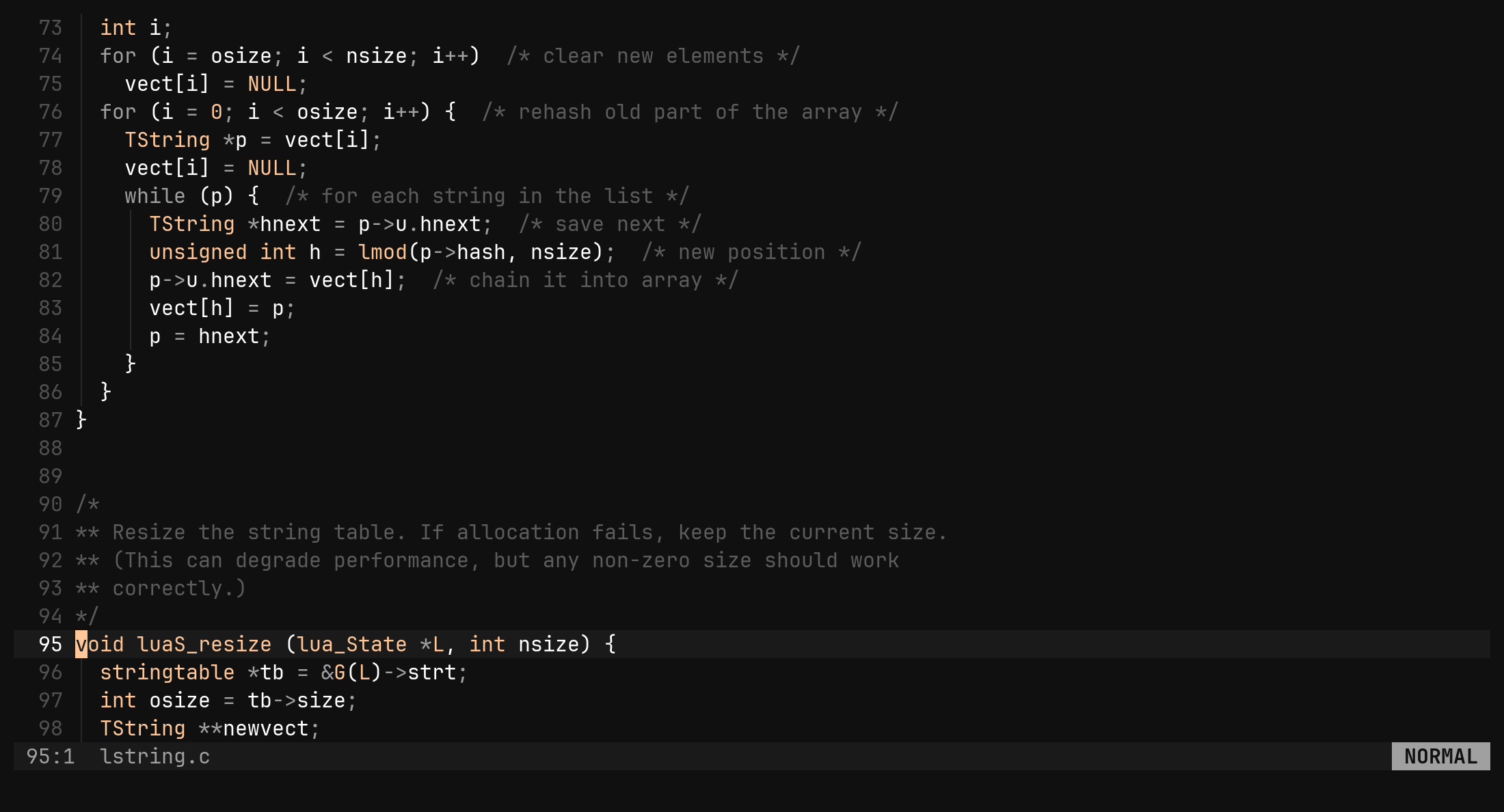
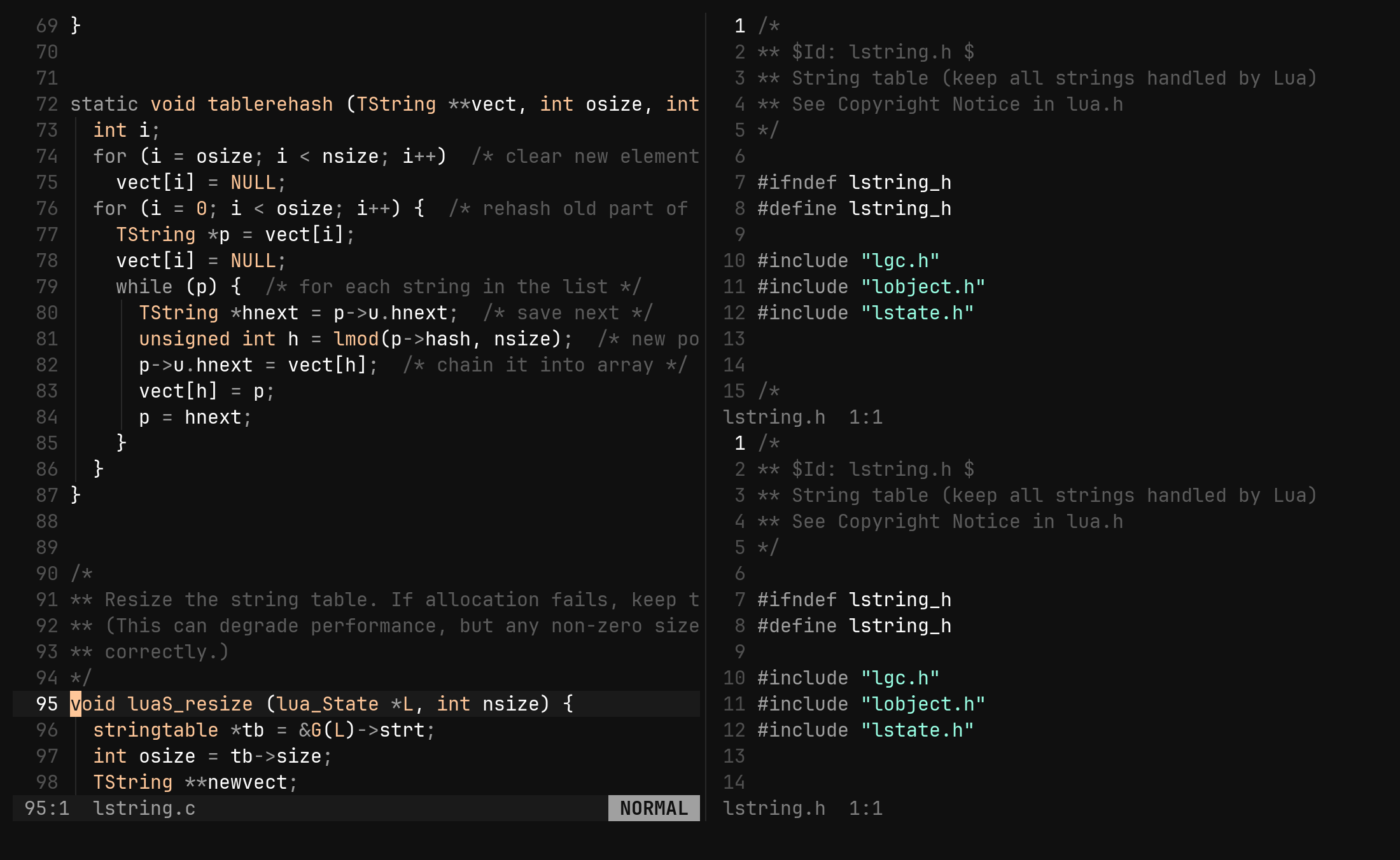
gA (:valt) does the same in a vertical split, so both halves stay on screen.
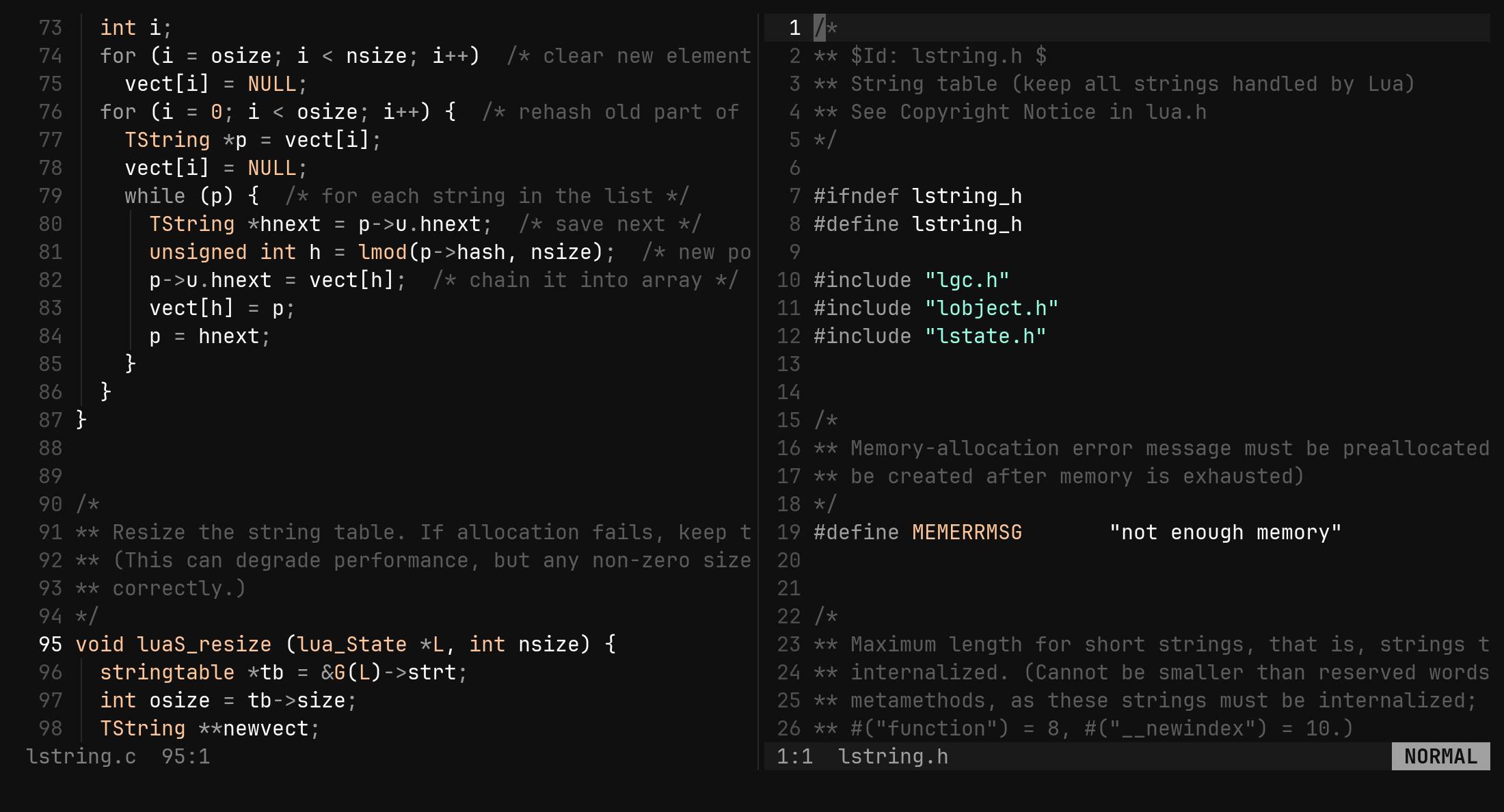
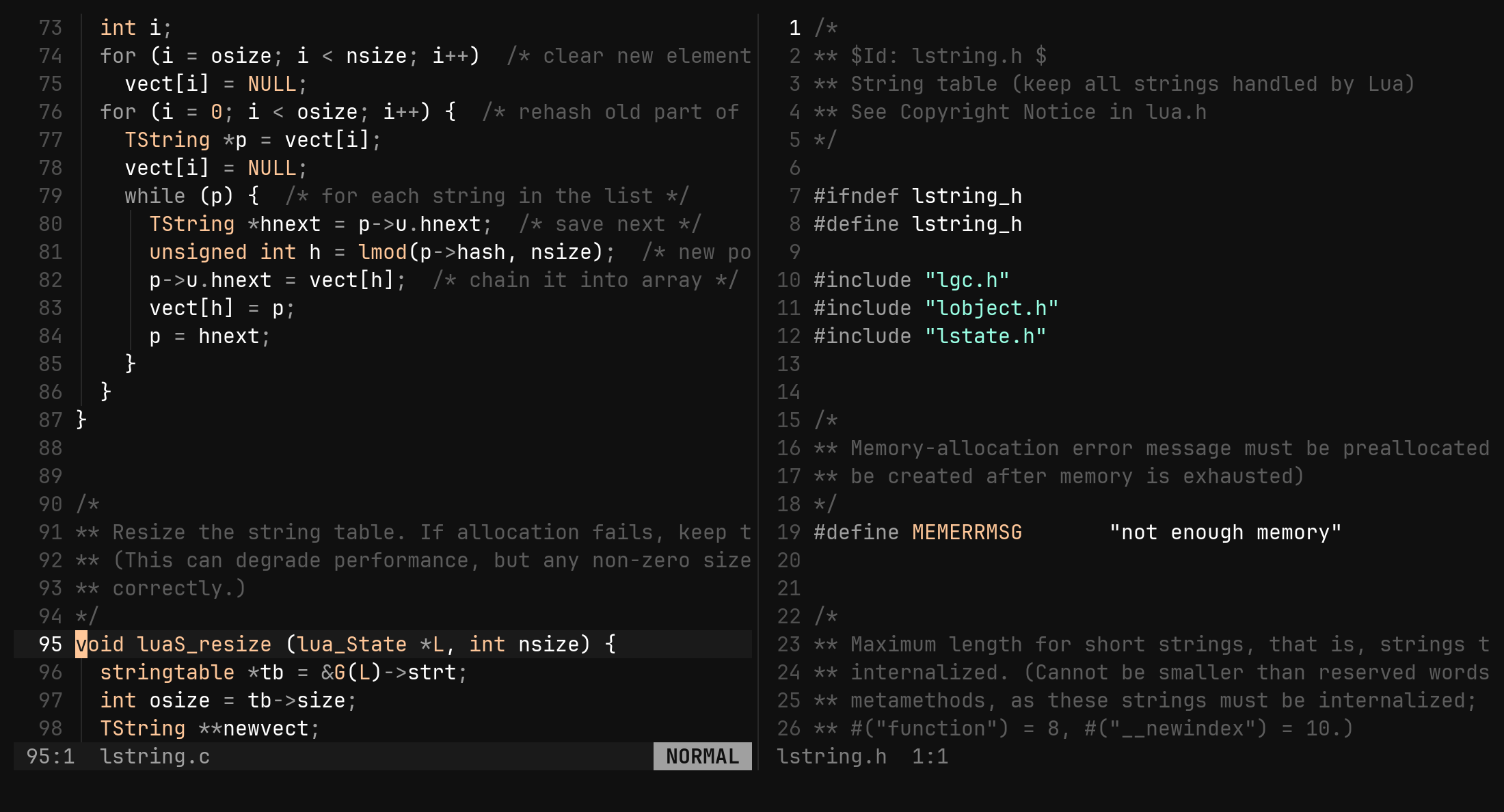
The pairs are rules in [alternate], walked in order: the first pattern that
matches your path decides, then the first of its targets that exists is opened.
* matches anything, separators included, and stands for the same text on the
right.
[alternate]
"*_test.go" = ["*.go"]
"*.go"      = ["*_test.go"]
"*.c"       = ["*.h"]
"*.h"       = ["*.c"]
"*.cpp"     = ["*.hpp", "*.h"]
Go, C and C++ are built in; a pattern you write replaces bi’s for that pattern.
Order matters — *_test.go has to come before *.go, or a test file becomes
its own alternate. :alt never creates a file: if nothing exists it tells you
which names it tried.
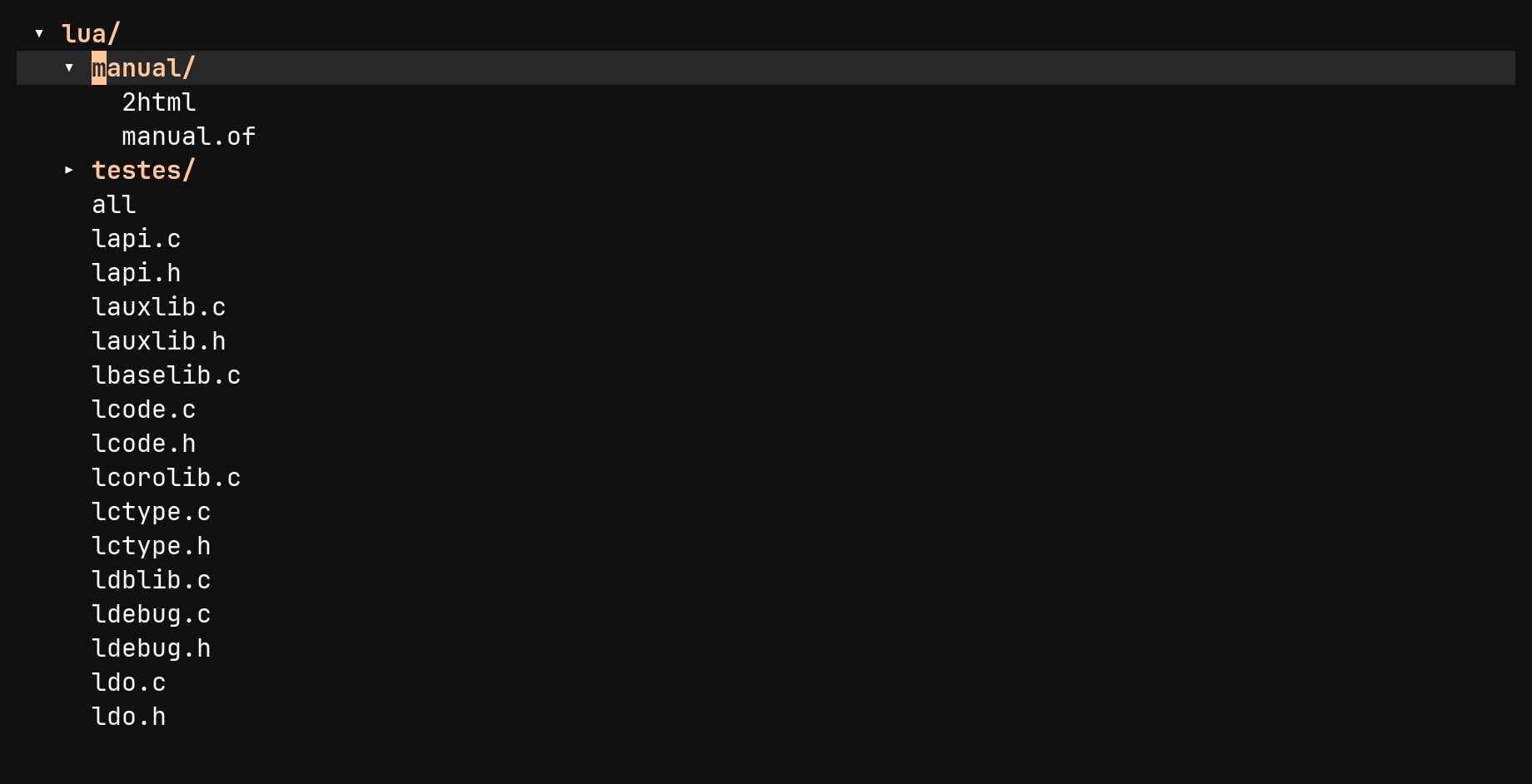
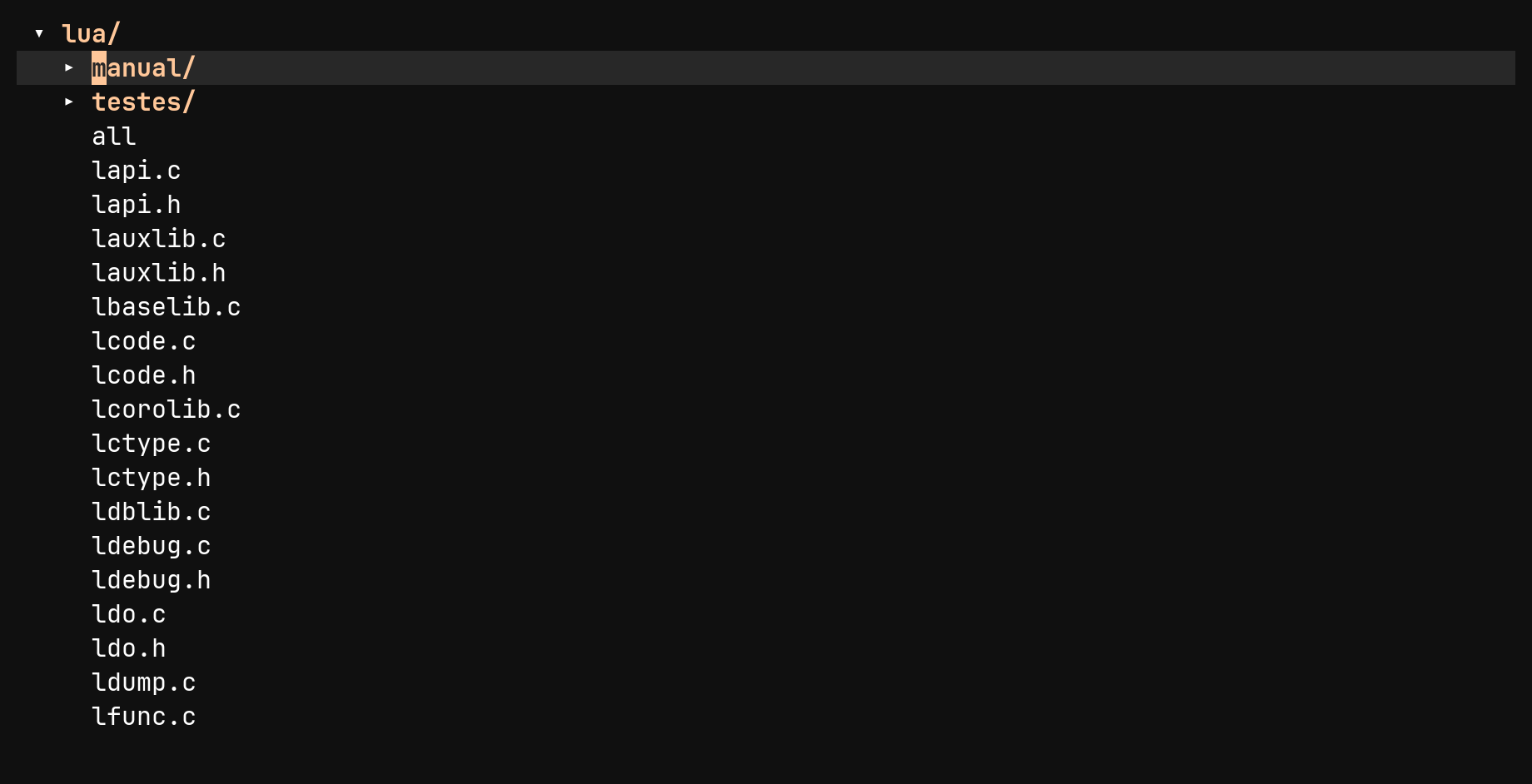
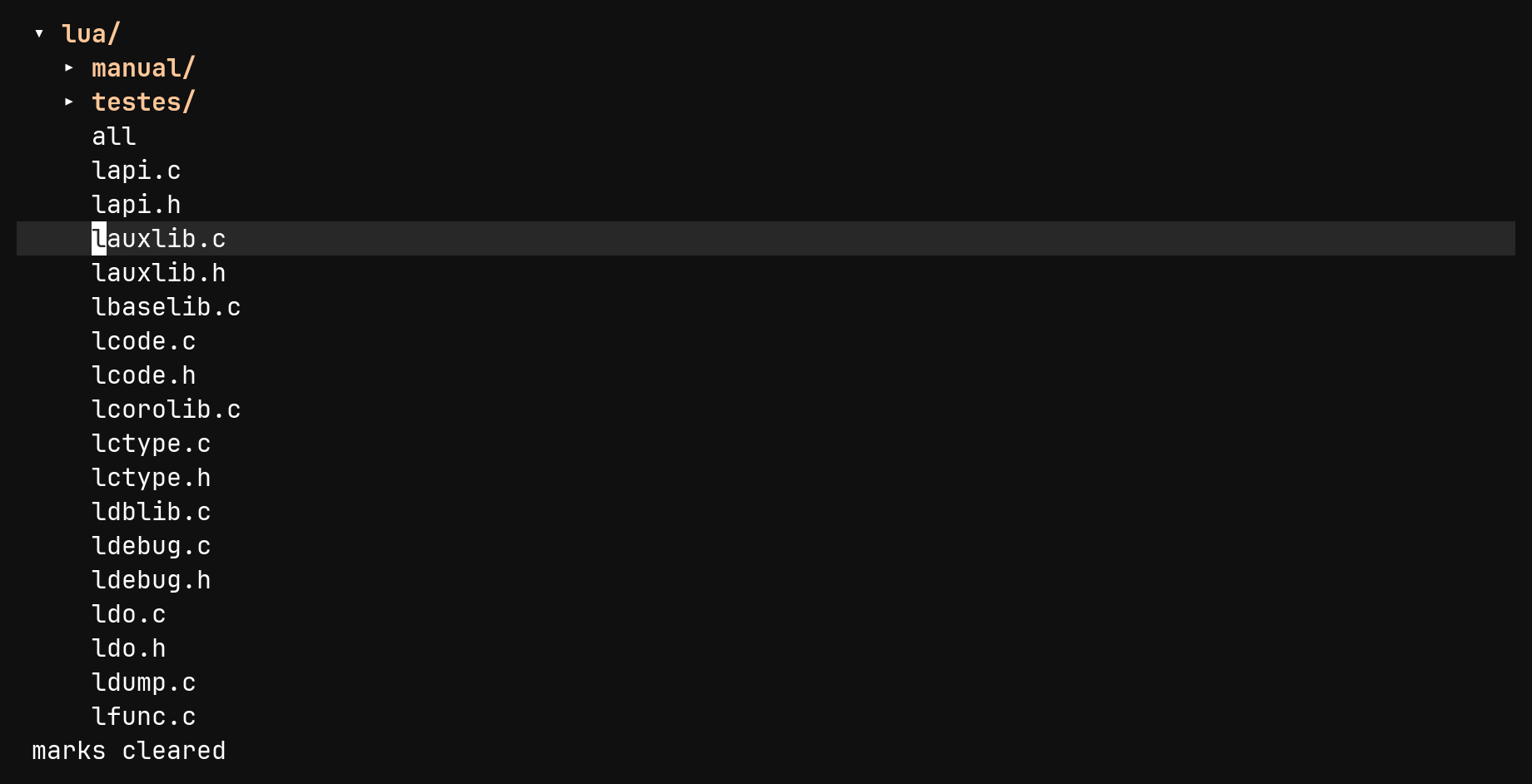
The file tree
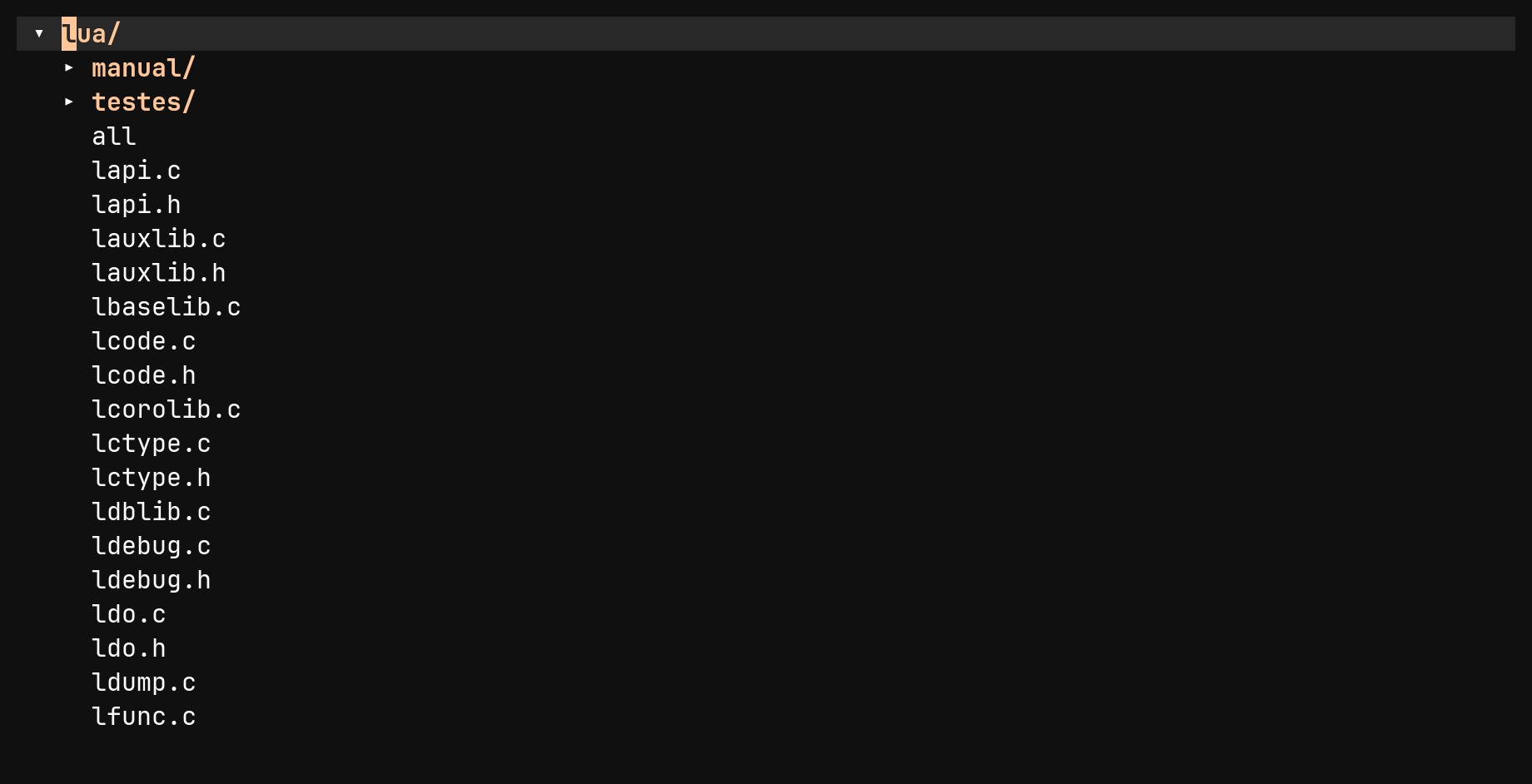
bi . opens a directory, and so do :e, :sp and :vs given one. - goes
from a file back up into the tree, and Ctrl-W e shows or hides it as a
sidebar beside the file you are reading.
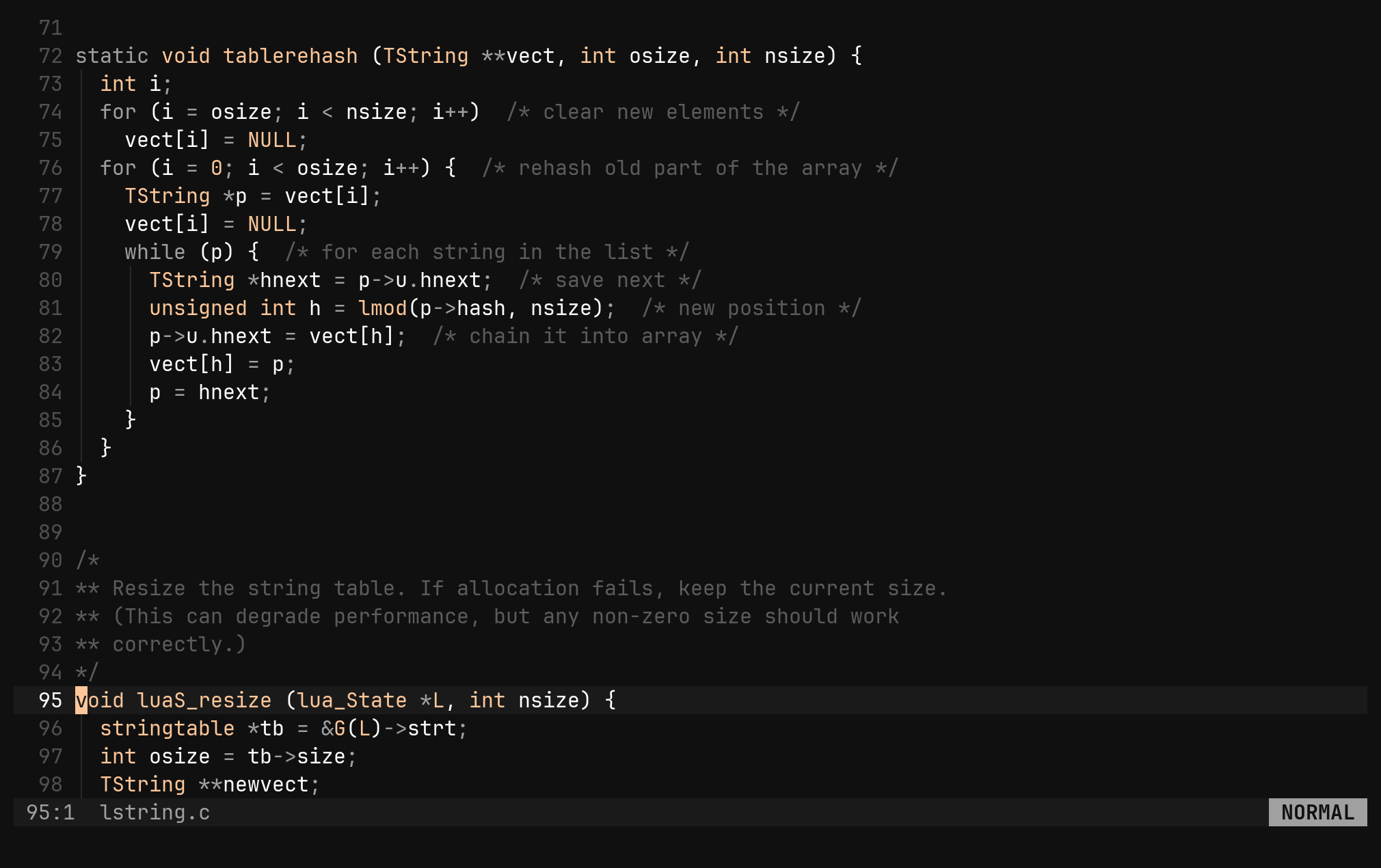
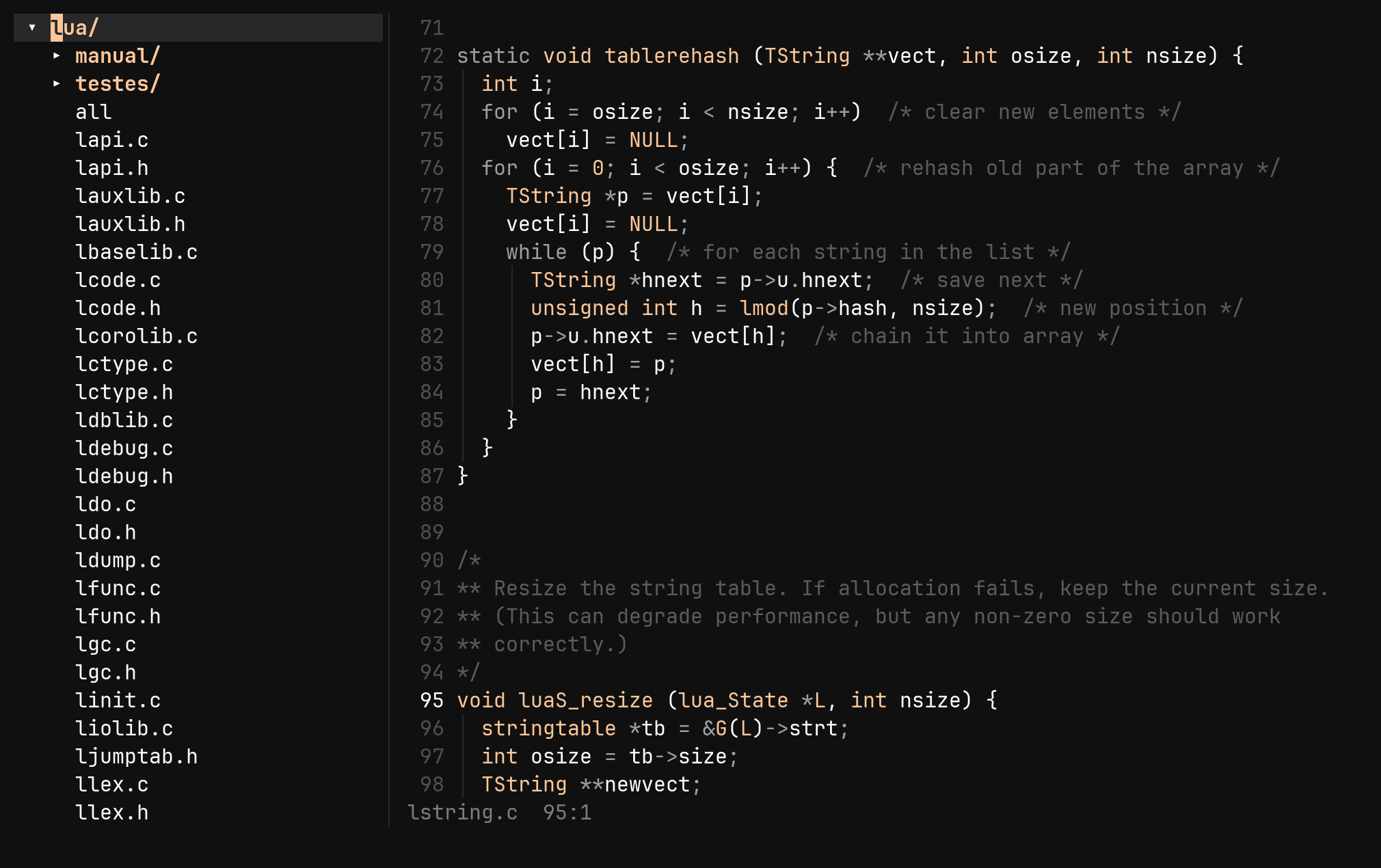
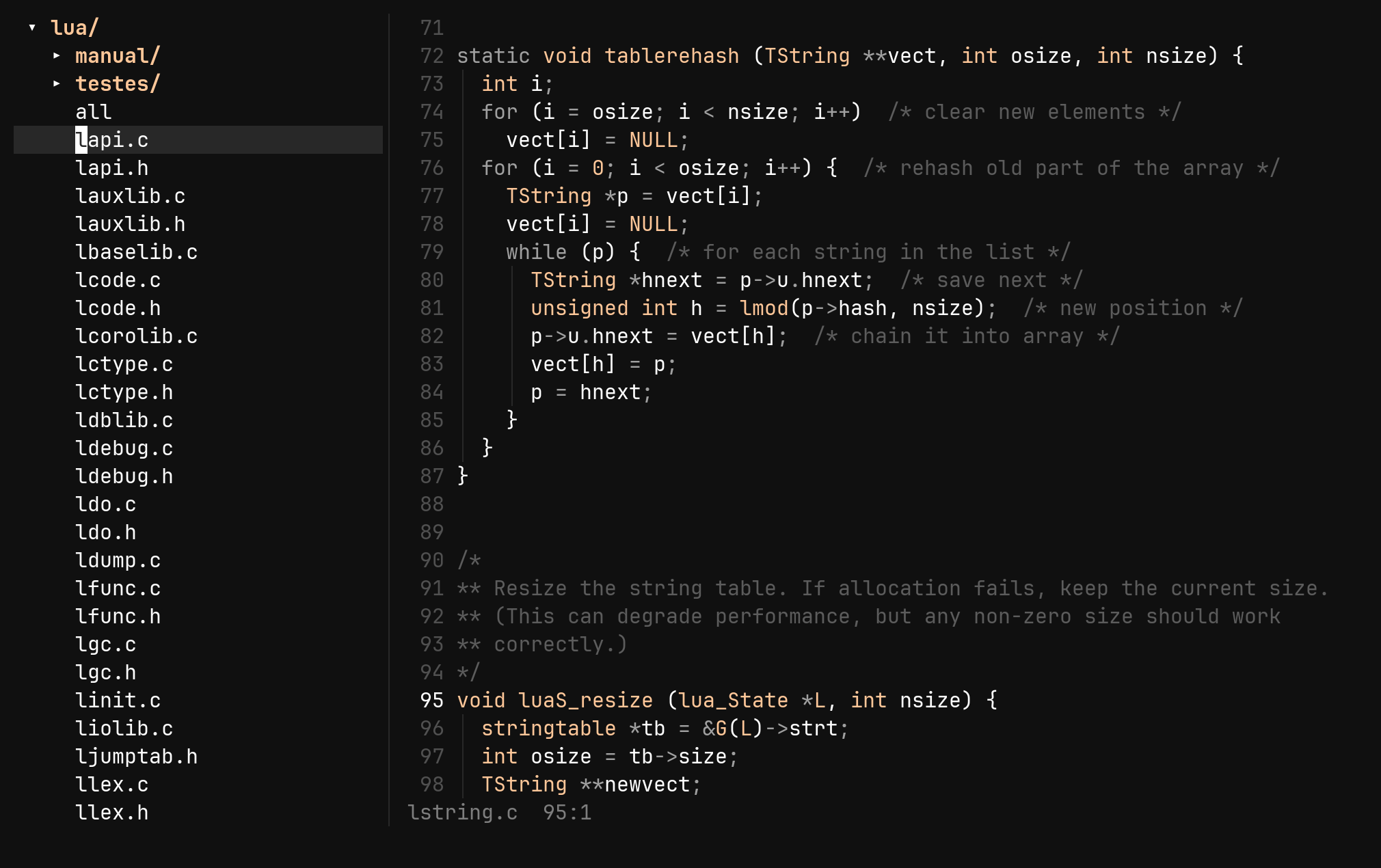
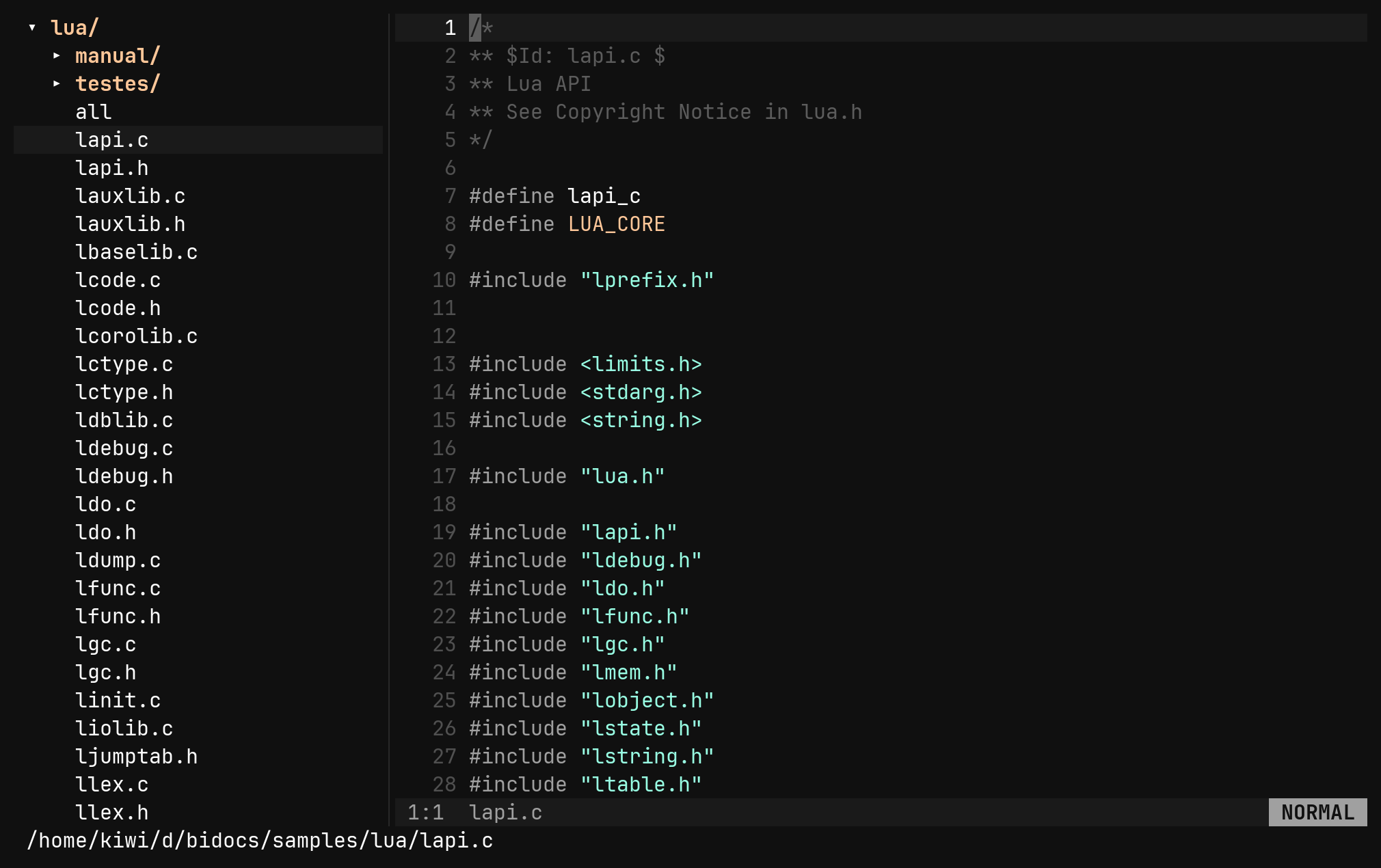
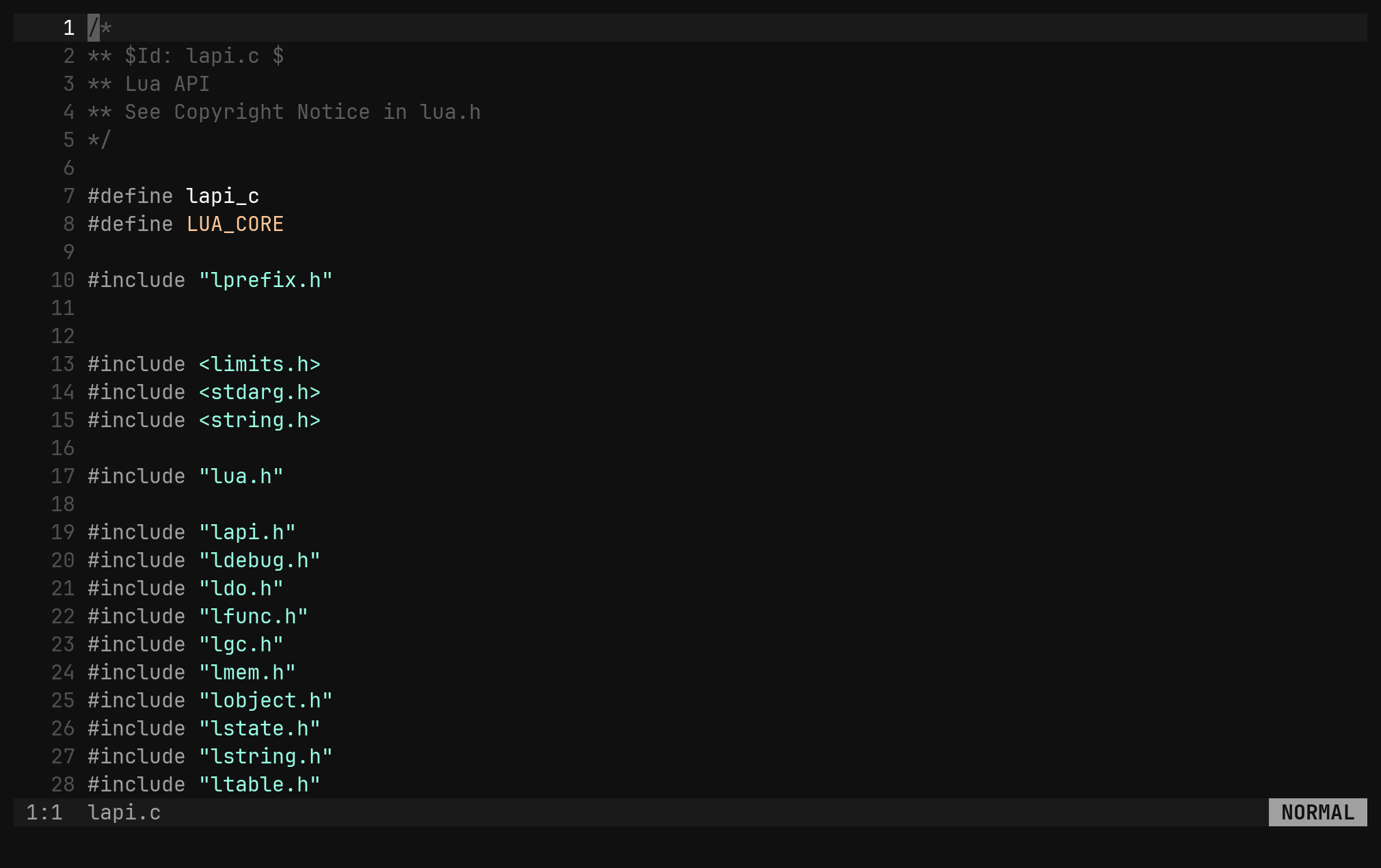
There is only ever one tree, and its root is the session’s: whatever directory
you opened. Opening a file never moves it — only naming a directory, + and
- do. Enter on a file opens it in the window you came from, so the sidebar
stays put.
“The window you came from” means the last one showing a document — text, a property view or a picture — since that is what a file replaces. A results list, another tree, or a tool’s own picture or form is not somewhere a file goes, so the hand-off skips them; only when nothing else is open does the file land in the tree’s own window.
| Key | In the tree |
|---|---|
j k gg G | move, with a count |
l → | open a directory, or the file under the cursor |
h ← | close a directory, or step to the parent |
Enter | a directory toggles, a file opens |
s Ctrl-V | the file in a new vertical split |
- + | re-root at the parent / at the directory under the cursor |
gh | show or hide dotfiles and ignored files |
R | re-read from disk |
a r | create / rename — each fills in a : line for you to confirm |
dd | delete. The filesystem has no undo |
y | yank the path, so p in a file pastes it |
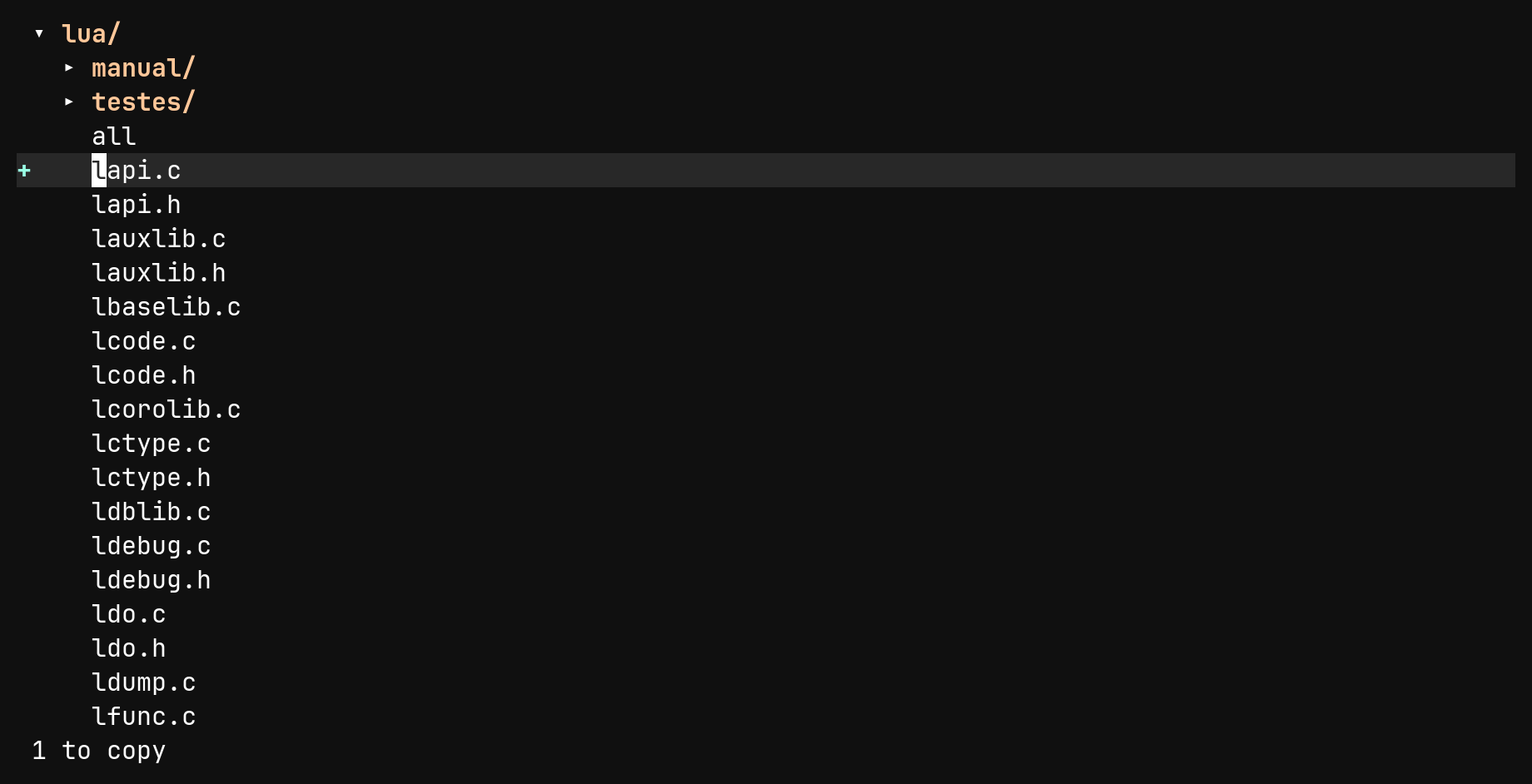
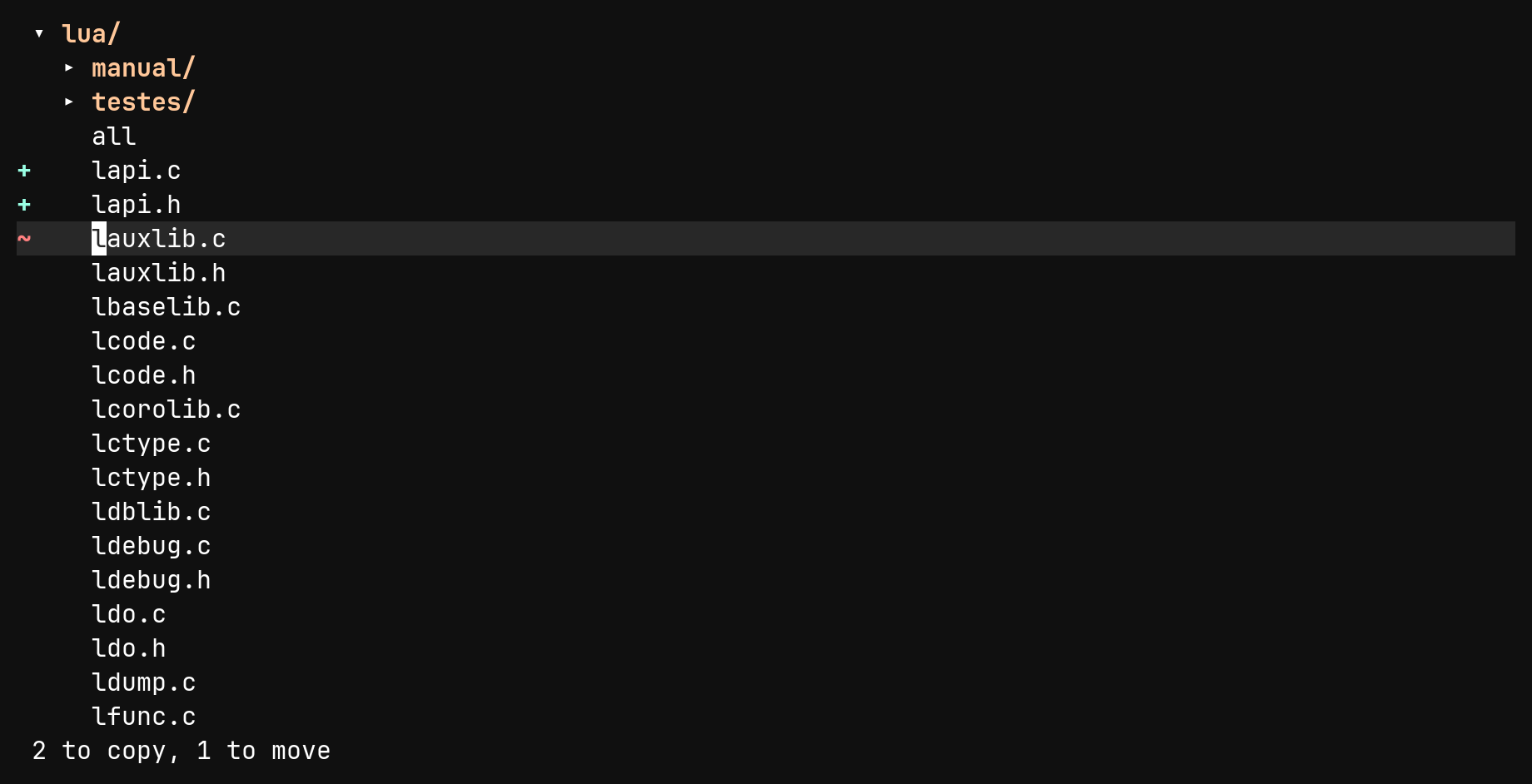
c x | mark for copying / moving; the same key again unmarks |
p | put what is marked into the selected directory |
Esc | forget every mark |
gf | find a path under the root and go to it, opening the way down |
/ | the same, narrowed to the rows on screen |
Ctrl-P | the file picker |
Marks are per path, so one p can copy some files and move others. Marked
rows carry a + or ~ in a column that is always there, so marking never
shifts the tree sideways. A paste never overwrites: it stops on the first
clash and offers the path on the : line to edit.
The keymap is an allowlist. Anything the tree does not name does nothing, and nothing in it enters insert mode.
gf — the file picker
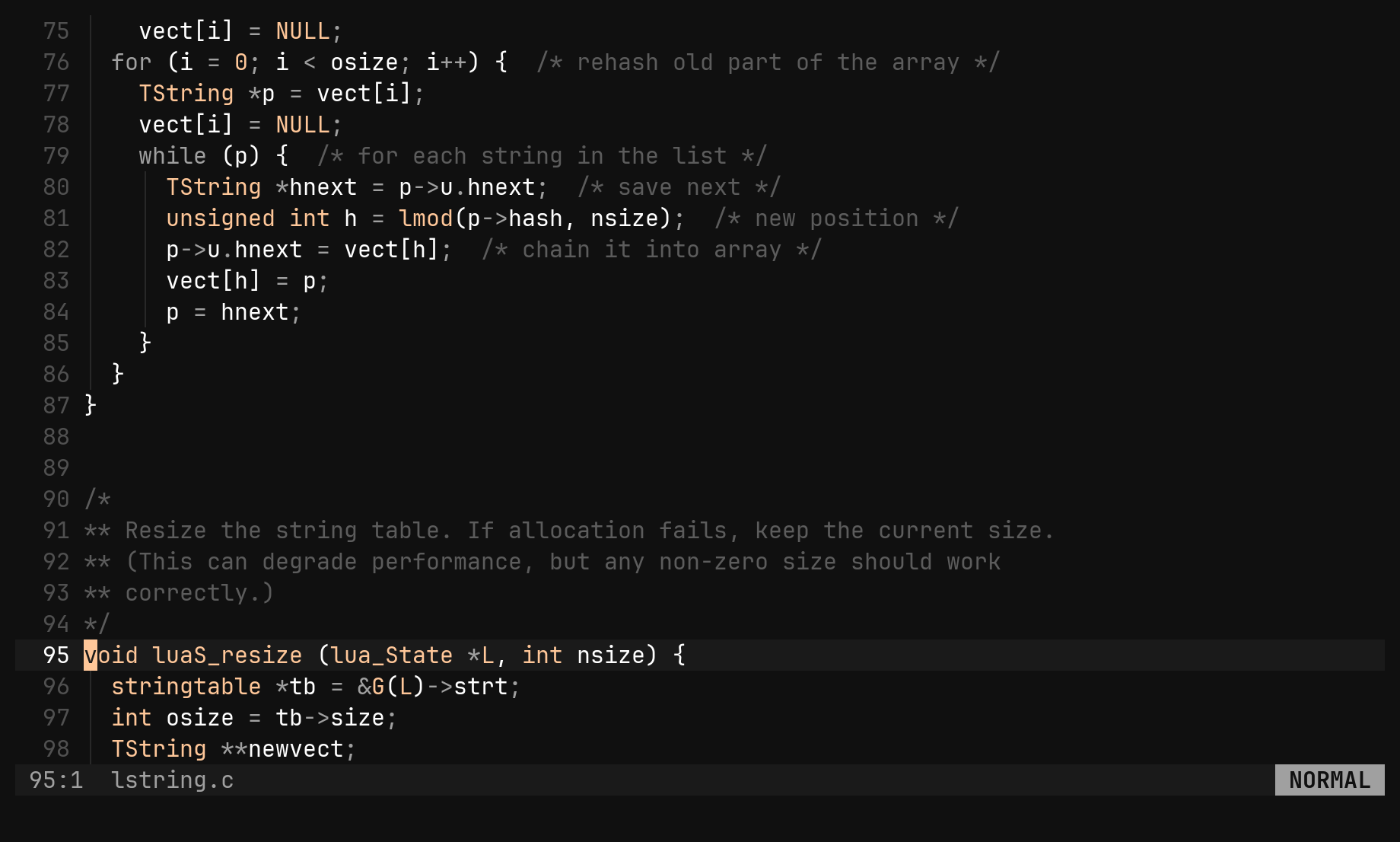
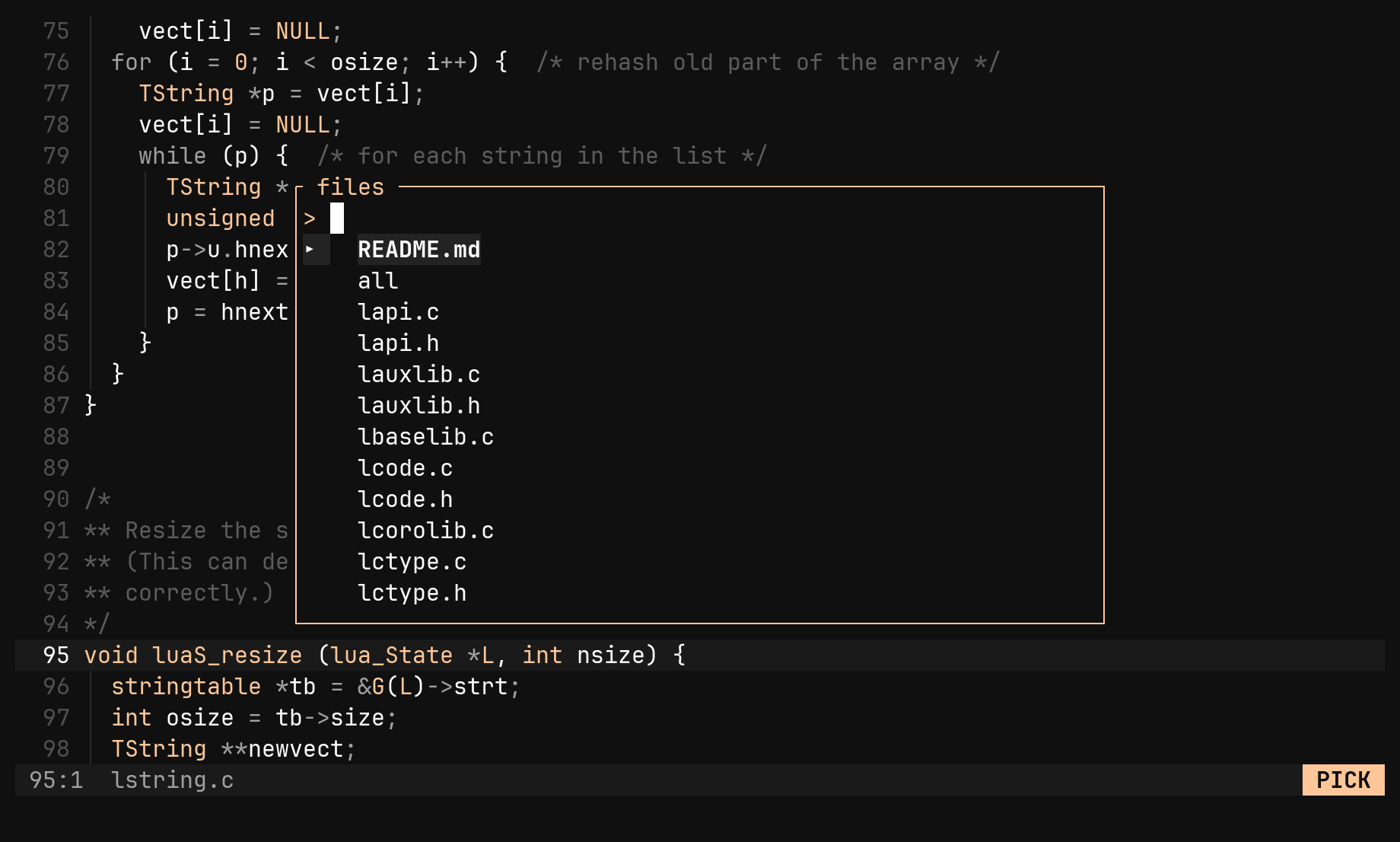
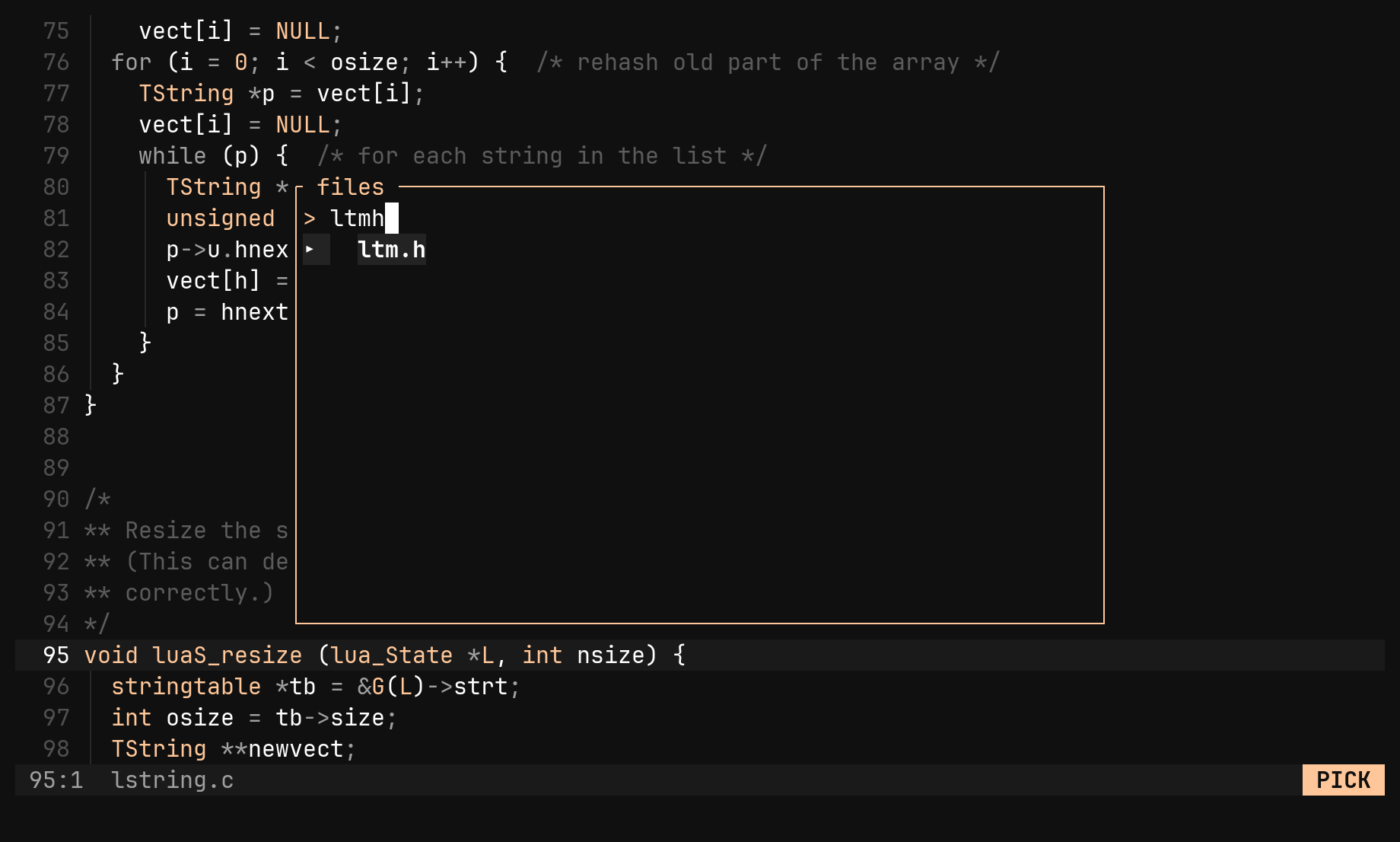
gf opens a picker over every file under the root. It skips hidden entries
and whatever .gitignore excludes — :set gitignore false lists everything.
File names match as a subsequence, so sfr finds src/find/render.rs,
and results are ranked: consecutive characters beat characters at a word
boundary, which beat scattered ones, and a shorter path breaks a tie.
| Key | In a picker |
|---|---|
| any printable | narrow the list |
Ctrl-N ↓ / Ctrl-P ↑ | next / previous match |
Enter | take it |
Ctrl-V | open it in a vertical split |
Backspace | delete a character; on an empty query, cancel |
Esc Ctrl-C | cancel |
gf opens the path under the cursor. In bi it is the file picker.Buffers
Every file you open stays in the buffer list until you :bd it.
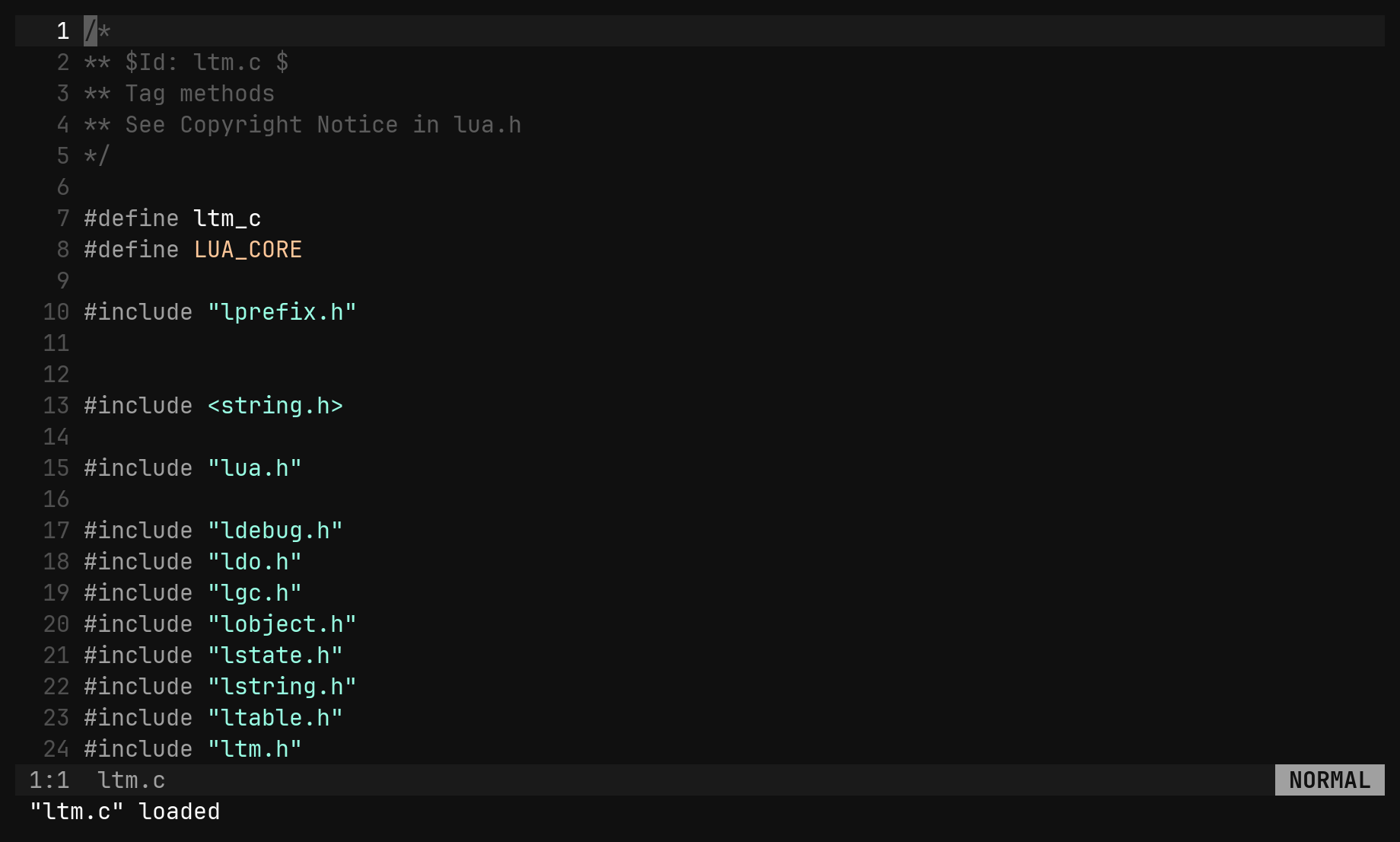
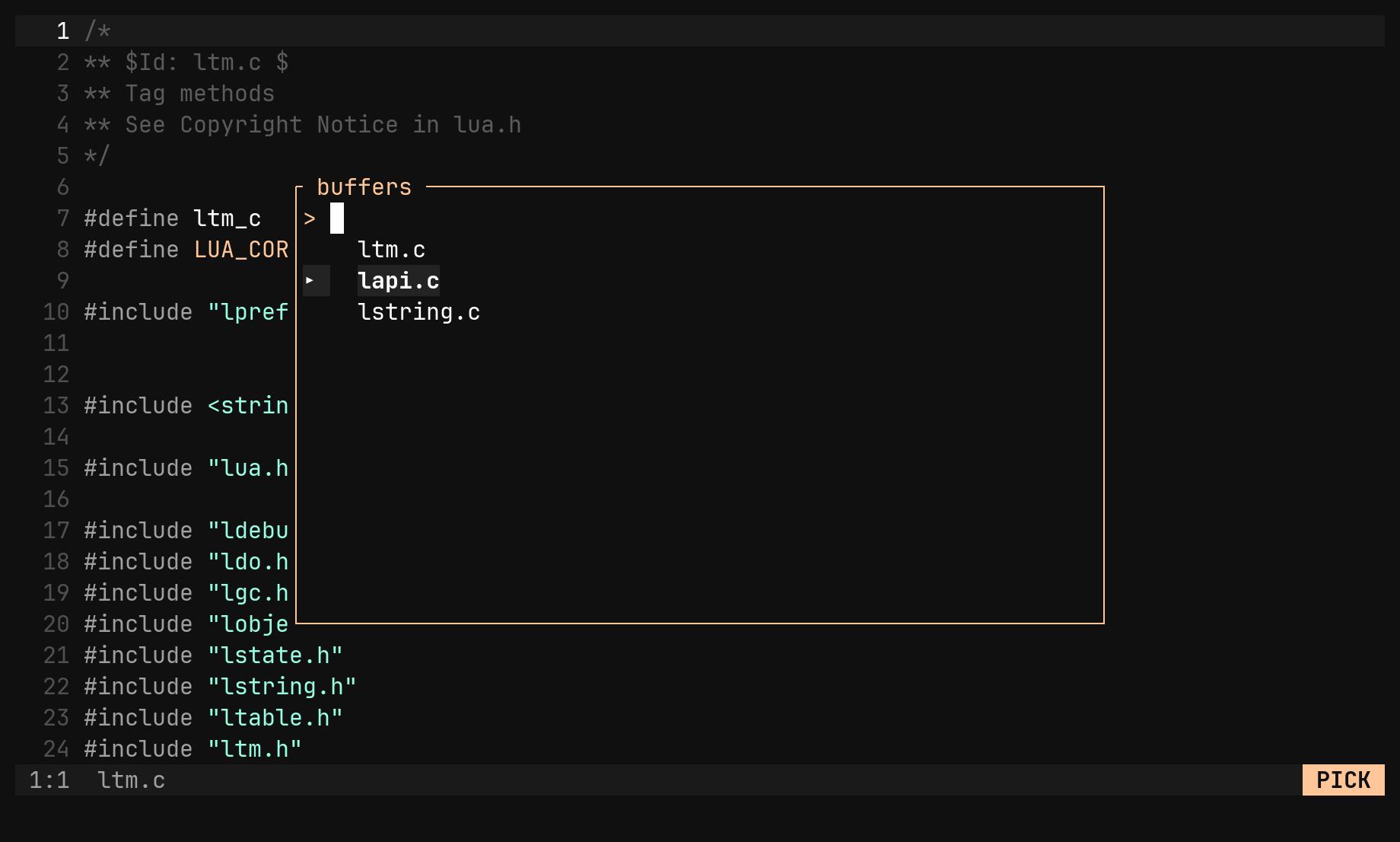
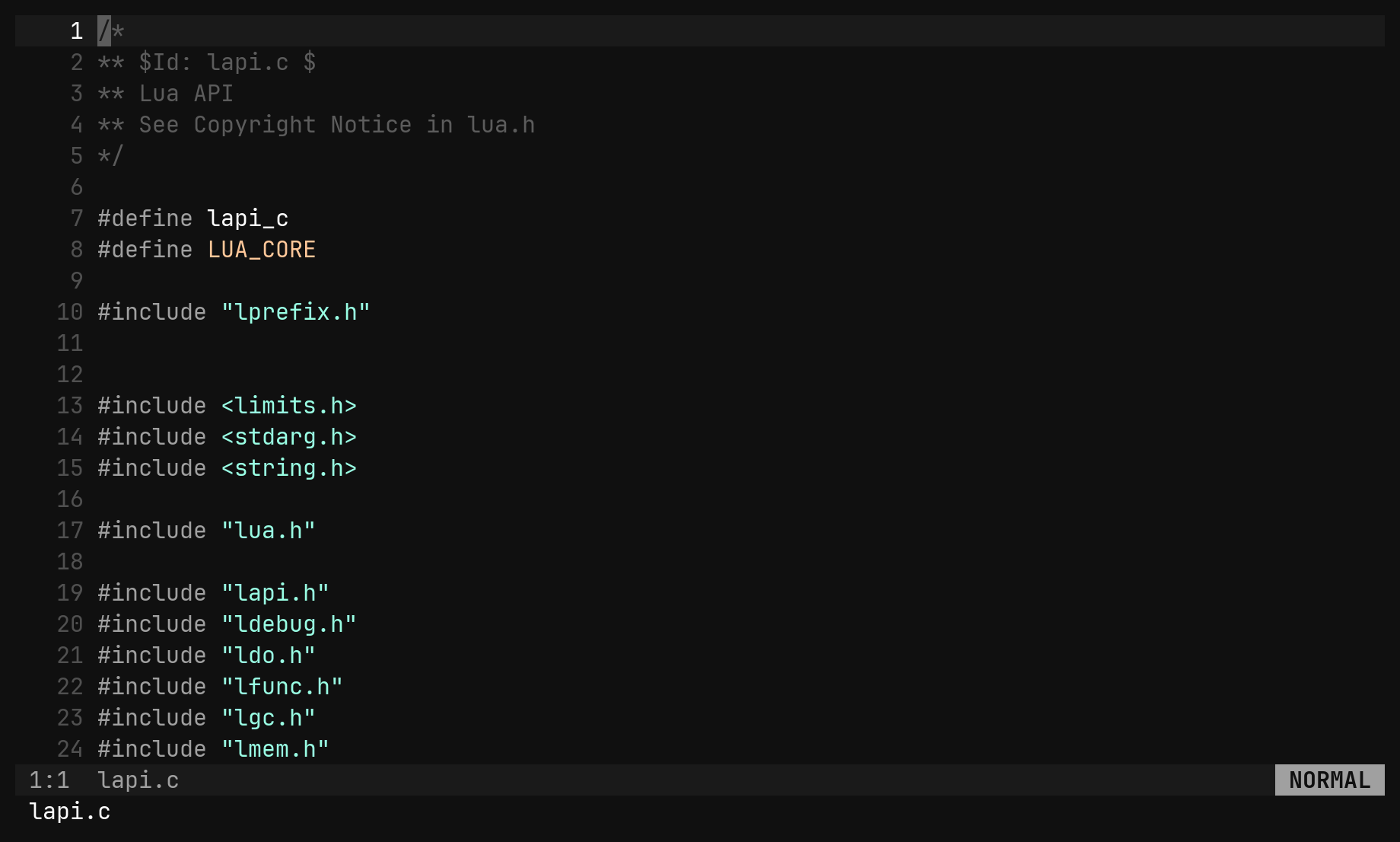
gb opens the switcher. It is ordered by when each buffer was last shown and
starts on the second row, so gb Enter always takes you back to where you
just were, and doing it twice returns. Ctrl-Tab is the same where the
terminal can send it.
| Key / command | Does |
|---|---|
gb Ctrl-Tab :ls | the buffer switcher |
Ctrl-^ :b# | the alternate buffer |
:bn :bp | next / previous in open order |
:b {partial} | switch by path substring |
:bd :bd! | delete a buffer, closing every window showing it |
:e {path} | open, reusing the buffer if it is already open |
Tab is Ctrl-I byte for byte in a terminal, so in bi it is jump forward
in the jump list, never buffer-next. Use gb, Ctrl-^ or :bn.Splits
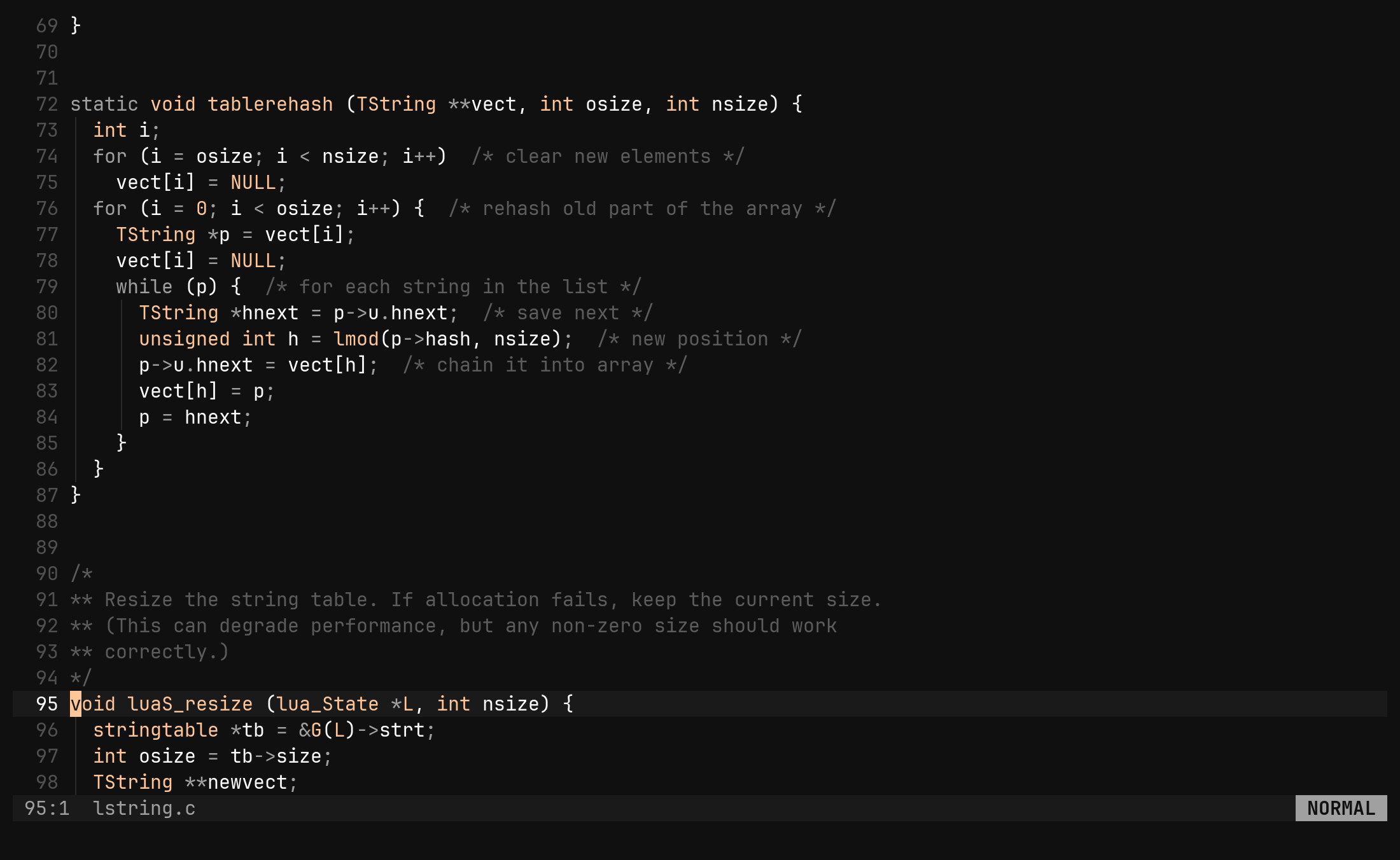
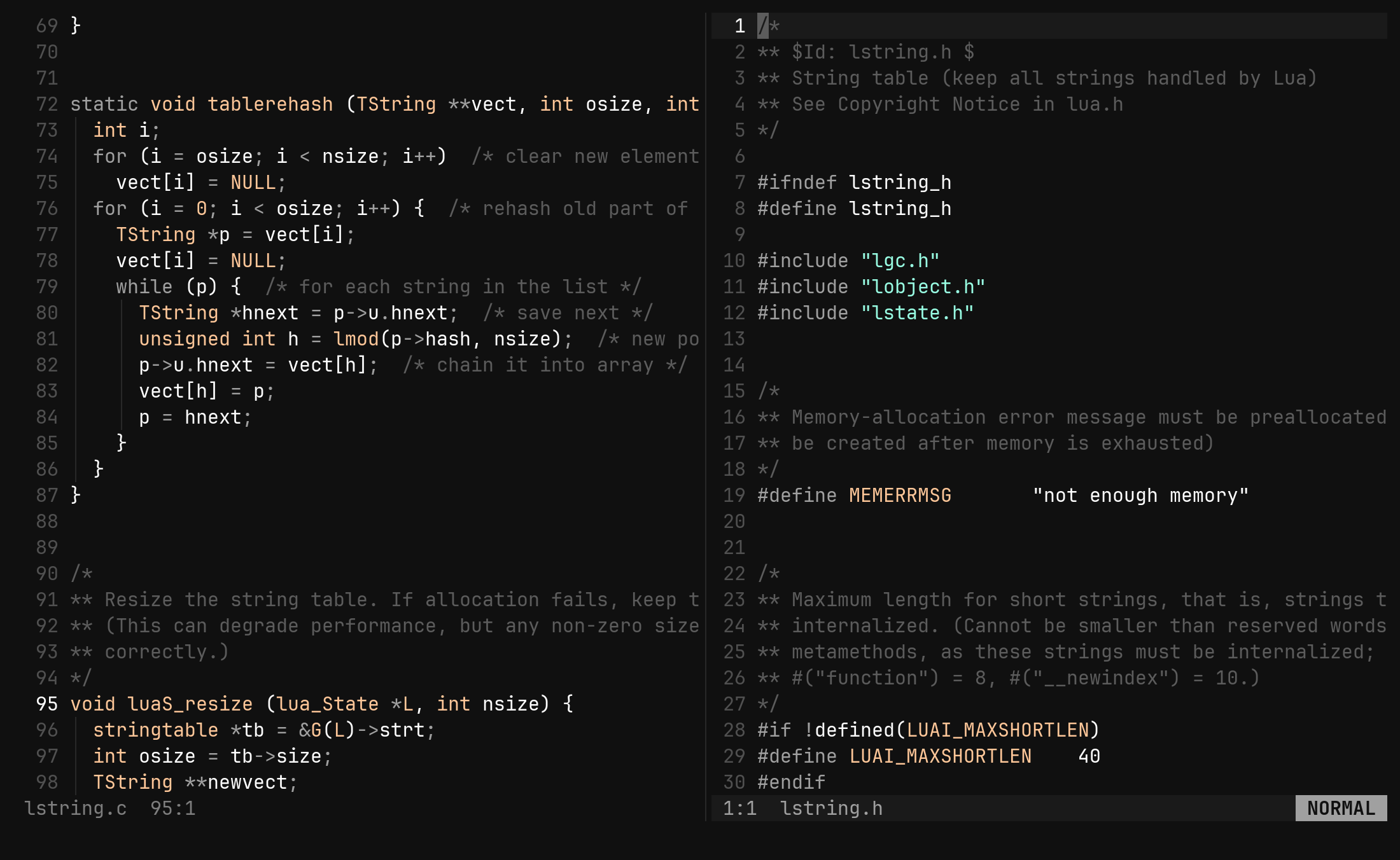
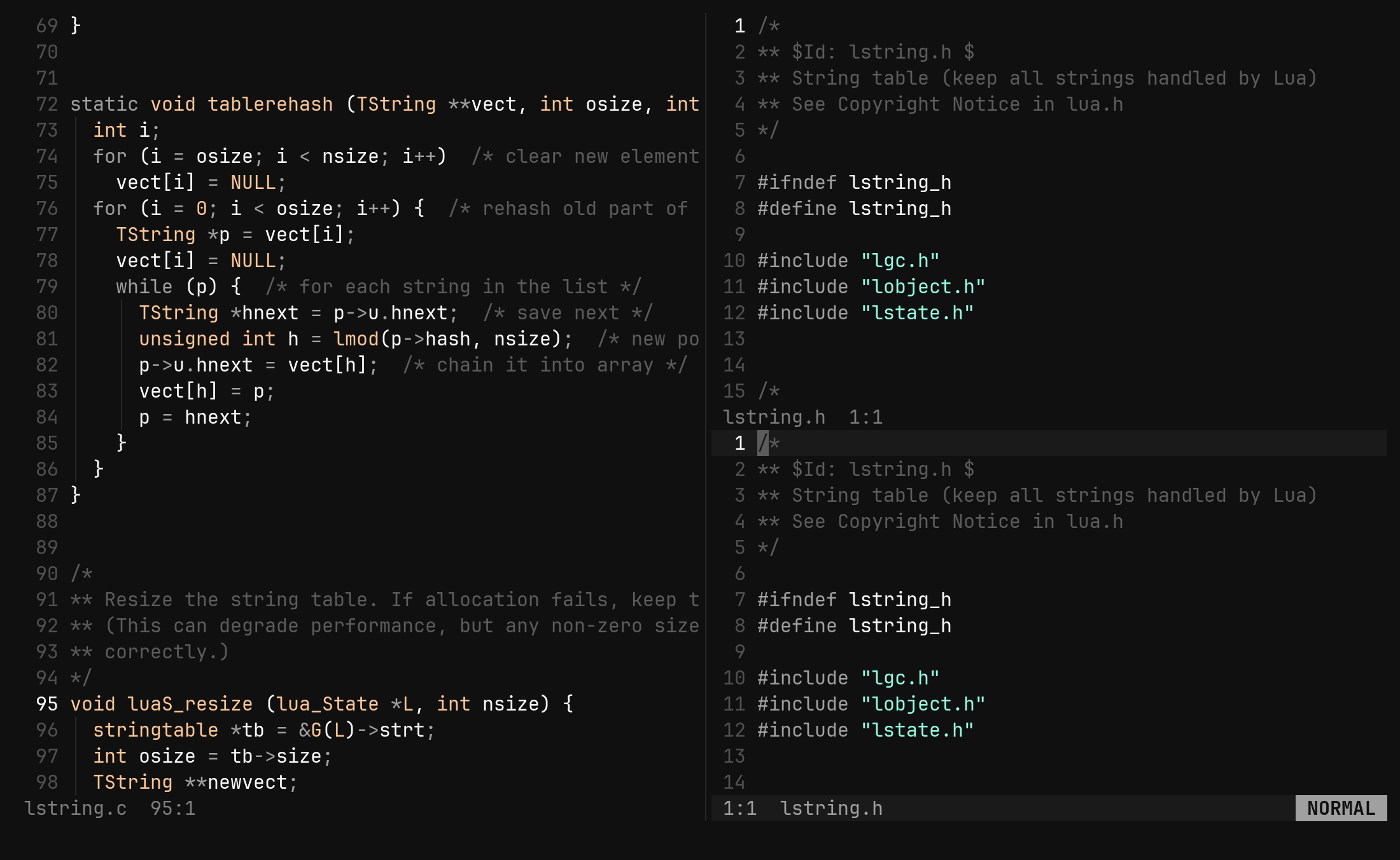
| Key / command | Does |
|---|---|
Ctrl-W s Ctrl-W v | split below / right, same buffer |
:sp [path] :vs [path] | split below / right, optionally on another file |
:new :vnew | split onto a new empty buffer |
Ctrl-W h j k l | focus the window in that direction |
Ctrl-W w Ctrl-W W | cycle focus |
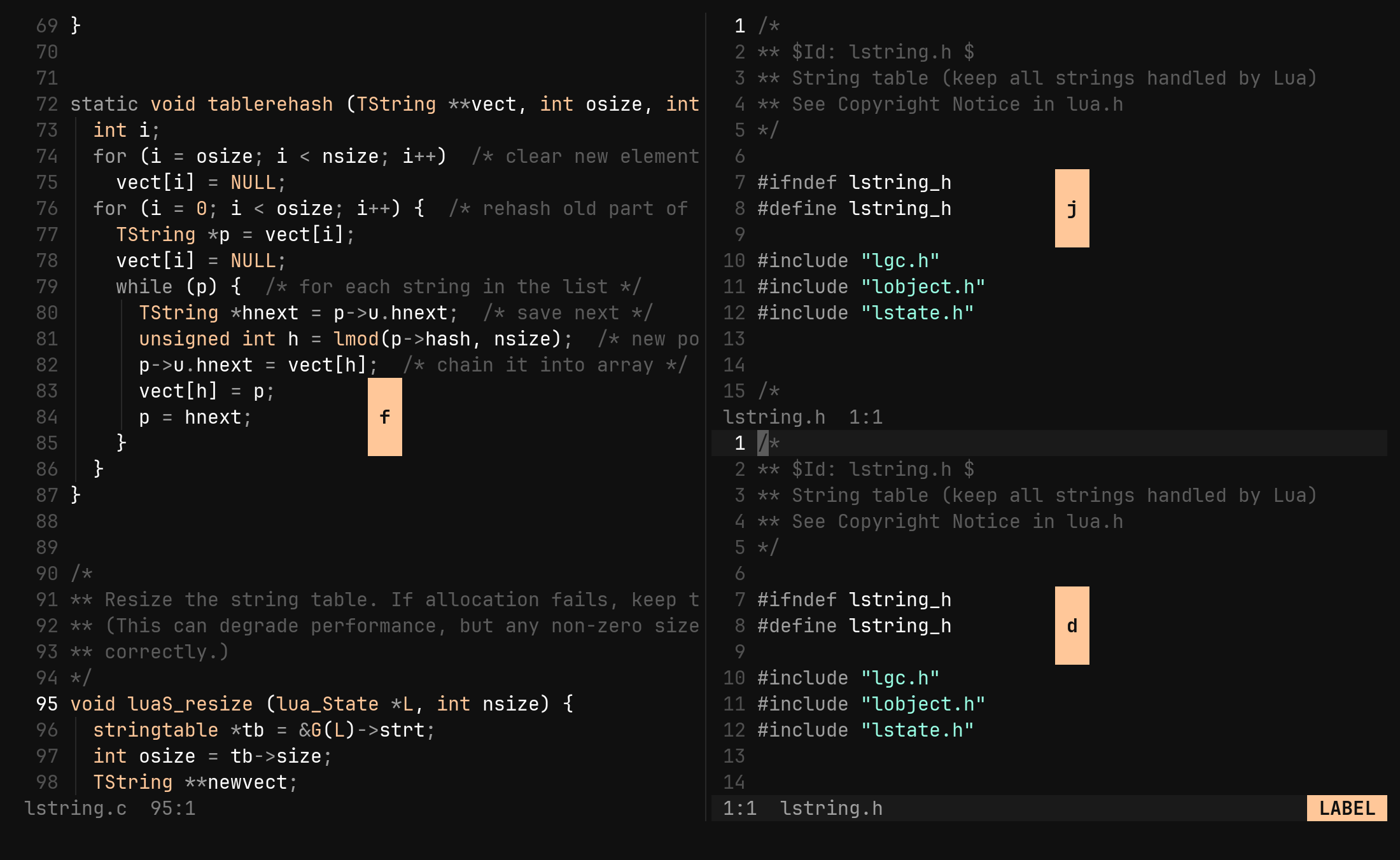
Ctrl-W f | a letter in every window — press it to go there |
Ctrl-W c Ctrl-W q :close | close this window |
Ctrl-W o :only | close every other window |
Ctrl-W + - < > | taller, shorter, narrower, wider |
Ctrl-W = | equalise |
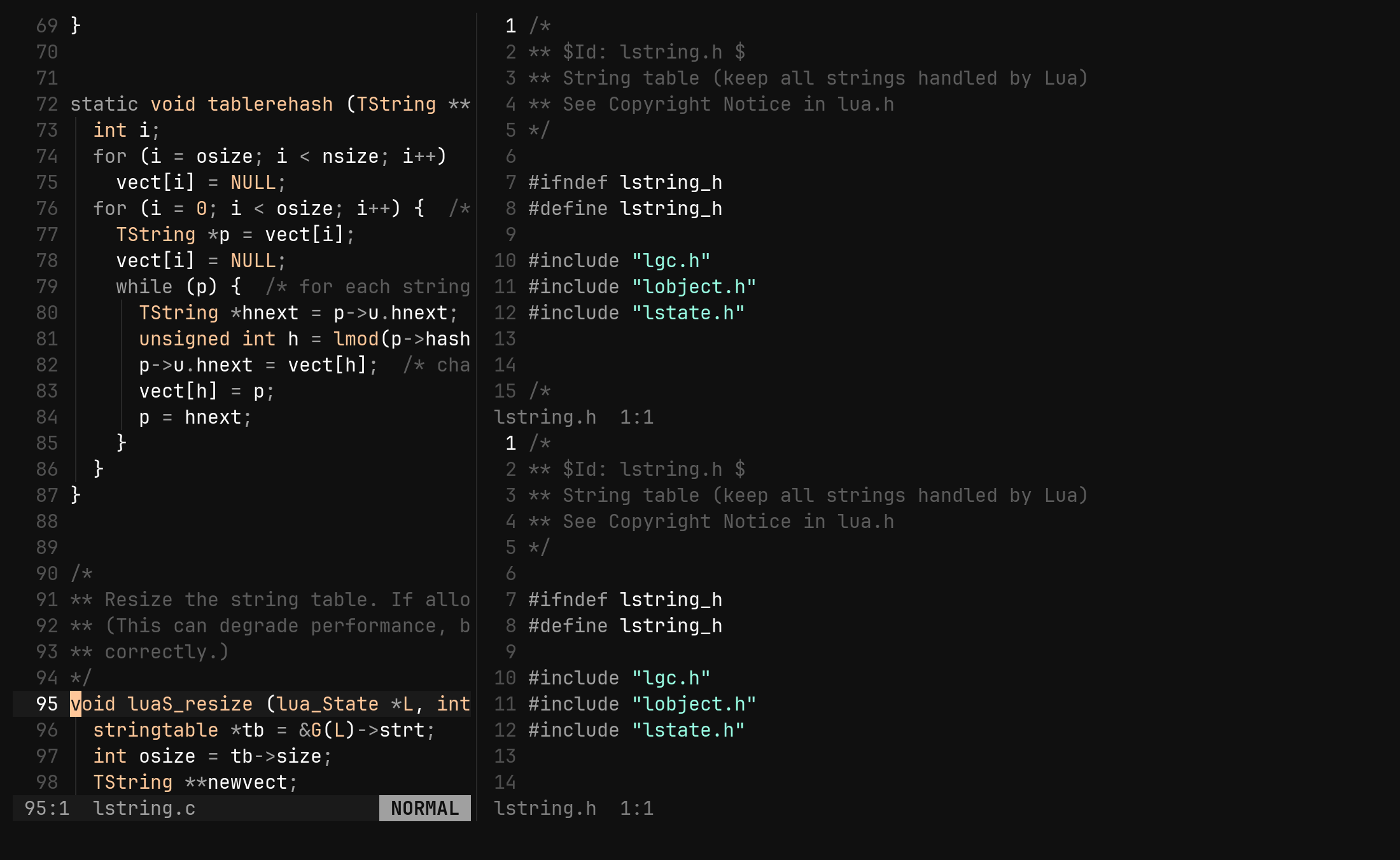
:sp, right for :vs — and
focus goes to it, so you can see that you moved. Vim’s default is the other way
round. The tree sidebar is the one exception and opens on the left.Ctrl-W f labels start on the home row, f and j first. With only two
windows it skips the labels and goes straight to the other one.
Two windows may show one buffer, each with its own cursor and scroll; an edit in one moves the other’s cursor with the text. Closing a window never loses anything — the buffer stays in the list — so it never asks about unsaved changes.
:resize
Ctrl-W + moves a divider one cell; :resize says how far in one go.
:resize 30       the width, in cells      :resize 1:2      divide one to two
:resize 30y      the height               :resize 1:2:1    three panes
:resize +3  -3   relative                 :resize 1:2y     vertically
:resize +3,-3    both axes                :resize 1:2,1:2  both
A y names the vertical axis; otherwise a comma separates across from down. A
ratio needs one term per pane in that split, and shares are normalised, so
20:40 is 1:2.
:zen
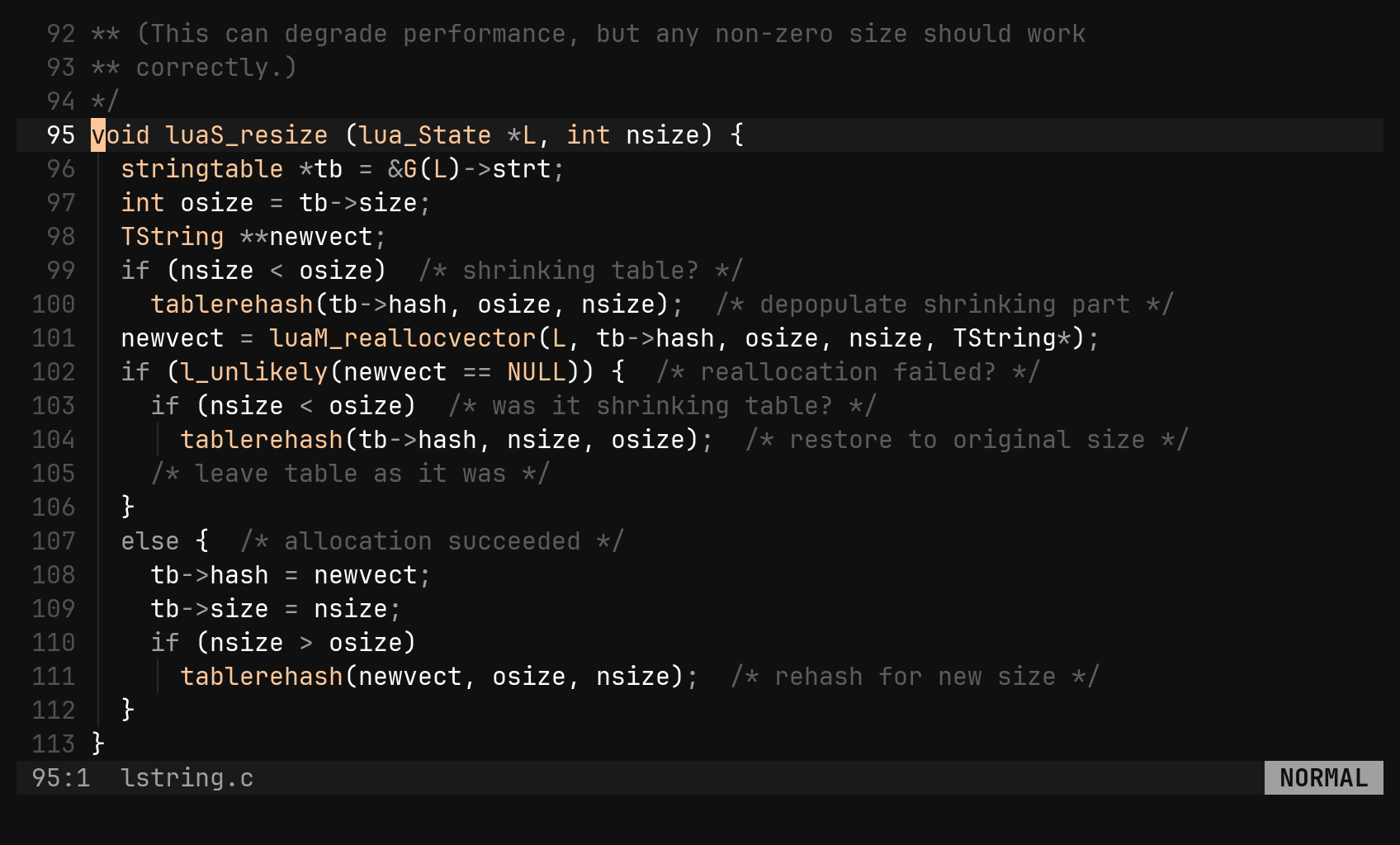
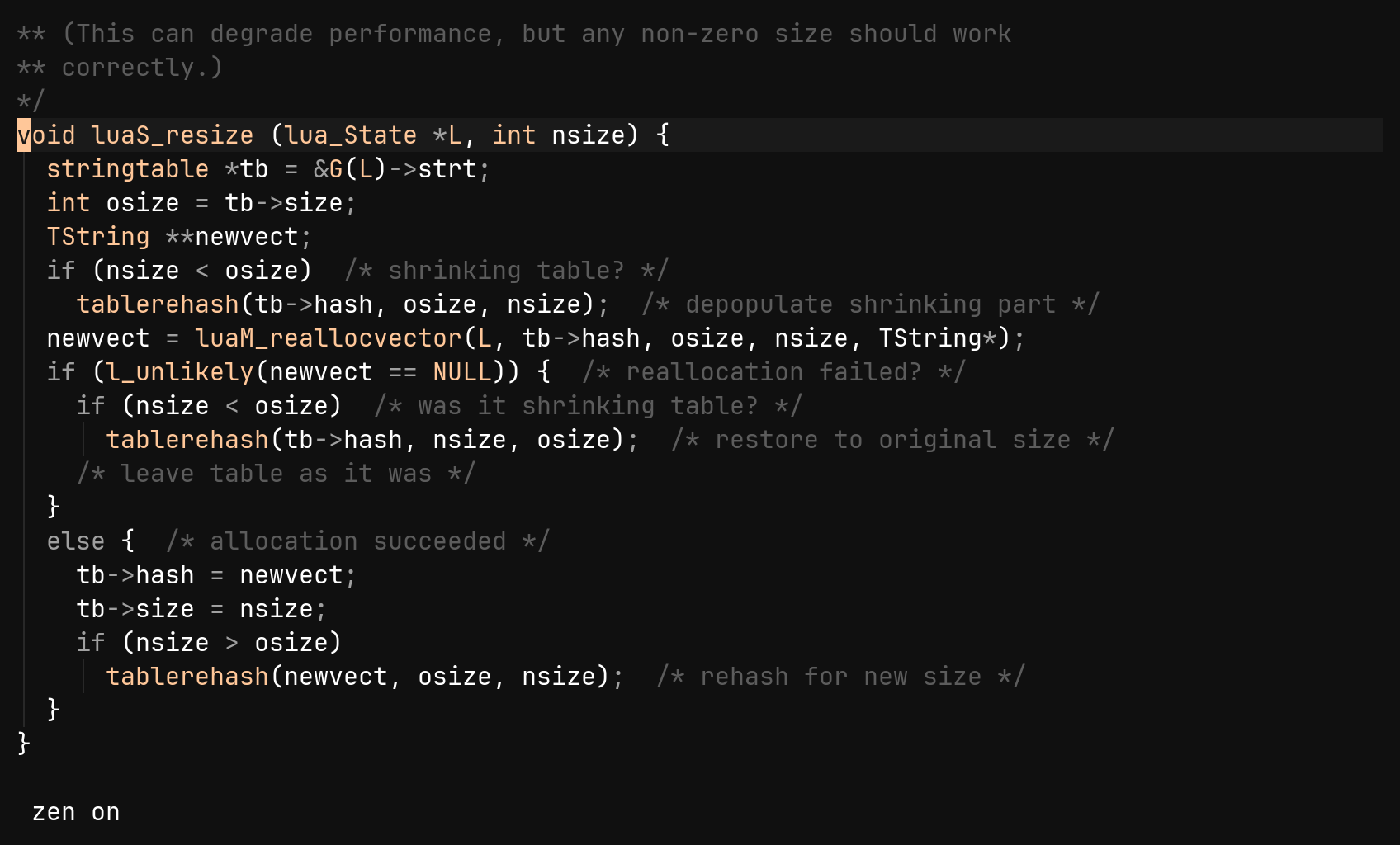
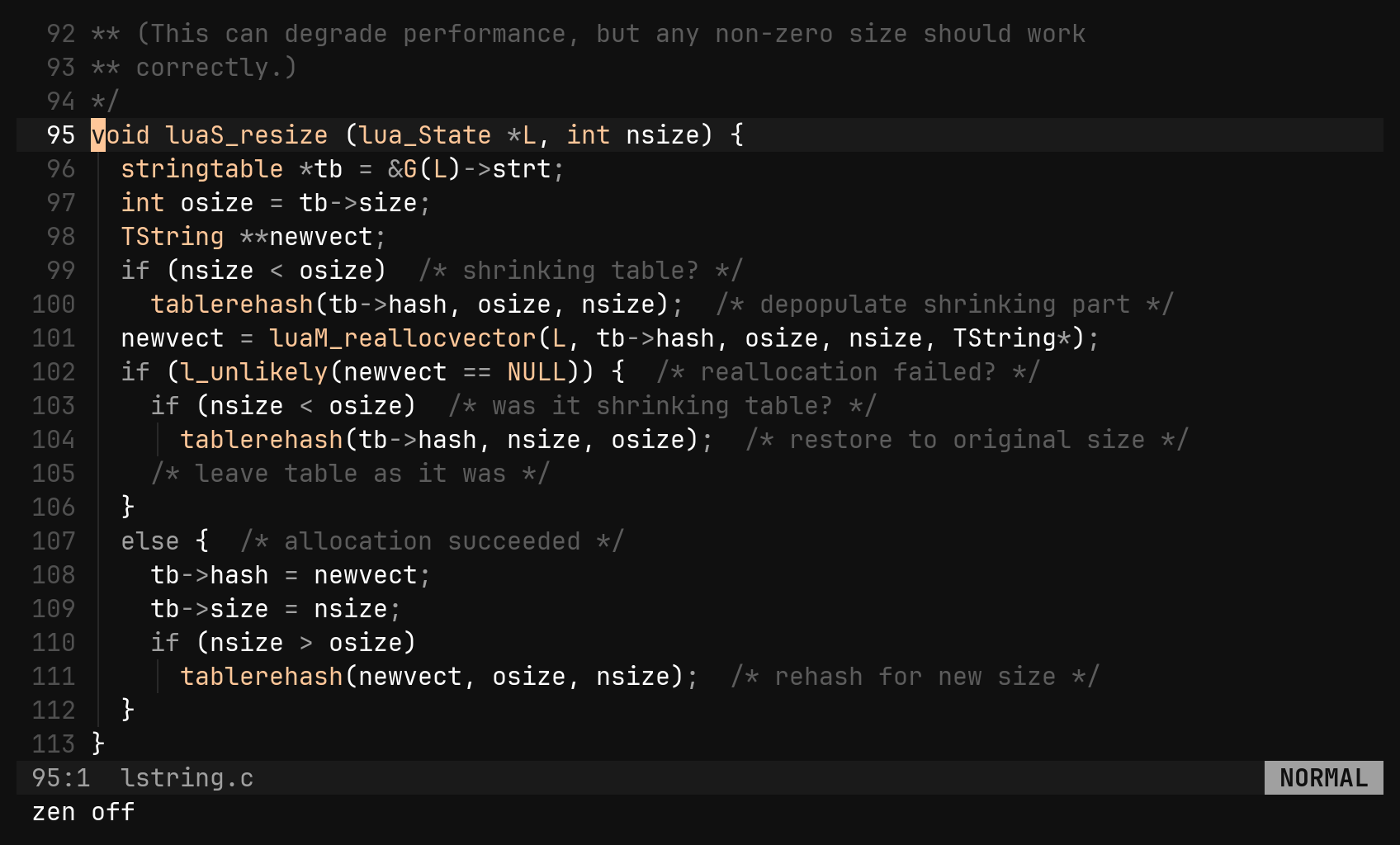
:zen strips the chrome — sign column, line numbers, every status row — and
leaves the text where it was. The command line stays, because you still need
somewhere to type :zen again. It hides; it does not rearrange: no centring,
no margins.